Cornell Notes Template
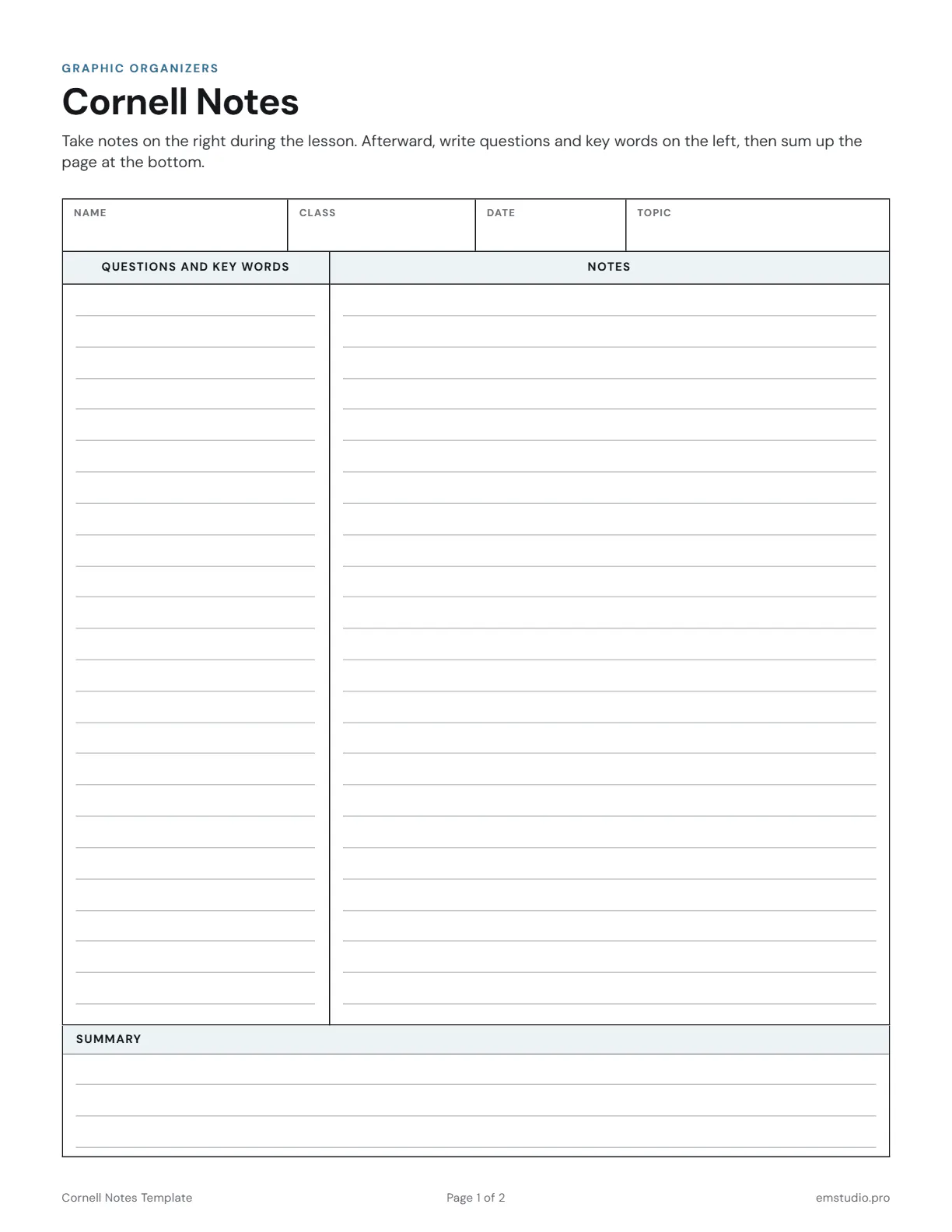
Use this Cornell notes template to take notes in class and study from them later. Each page has a Questions and Key Words column on the left, a Notes column on the right, and a Summary box at the bottom. It runs two pages.
- Grade Level
- Grades 6 to 12
- Pages
- 2
- Formats
- PDF, Google Docs, Word
- Paper Size
- US Letter and A4
- Checked By
- Milo, Classroom Teacher
- Last Updated
- October 2026
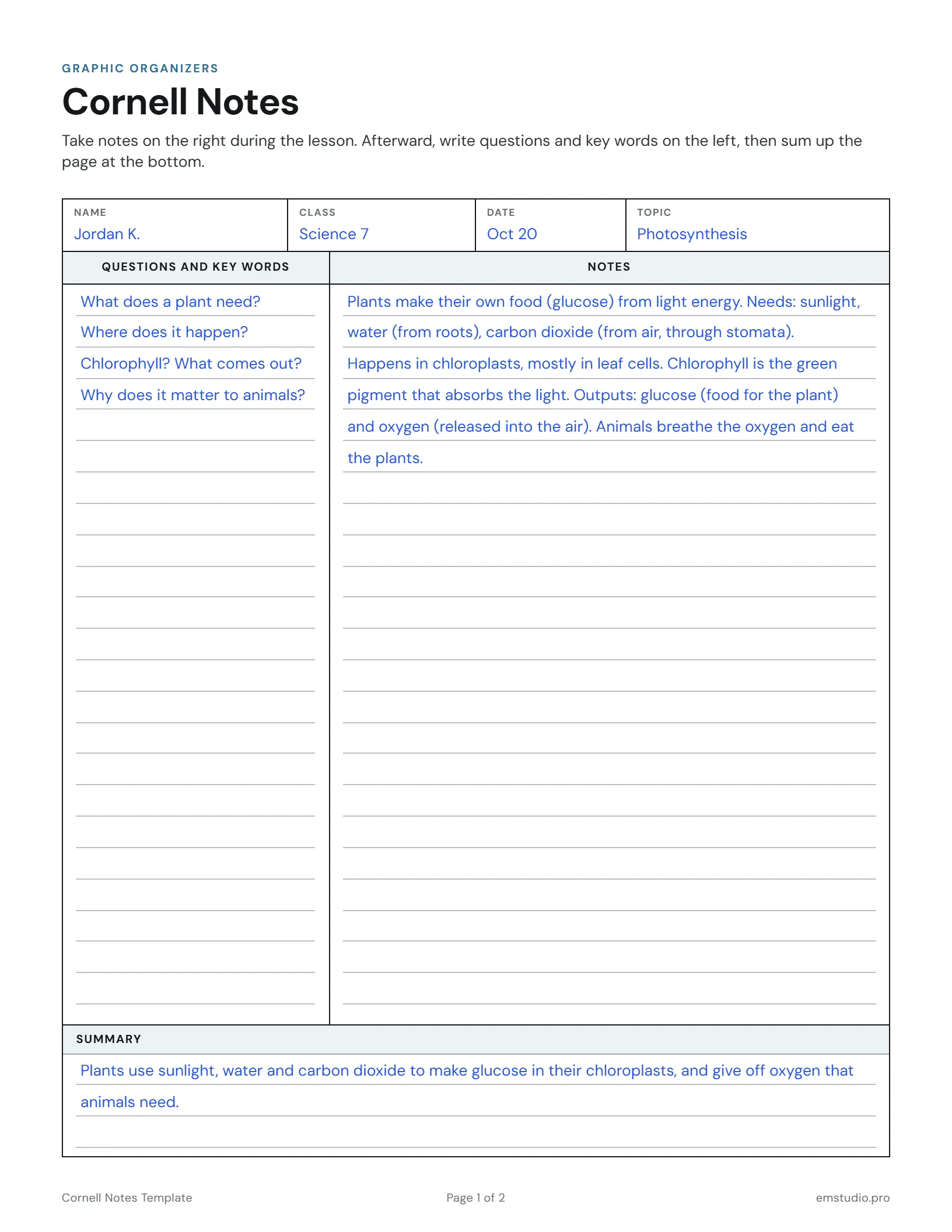
Cornell Notes Template Example
A 7th grader's notes on photosynthesis: questions written after class on the left, and the summary in their own words.
What's in the Cornell Notes Template
Two Columns
Questions and Key Words on the left, Notes on the right, both with ruled lines.
Summary Box
A ruled box at the bottom of each page for a short summary in the student's own words.
Two Pages
A first page with name, class, date and topic, then a continued page for longer lessons.
Editable Versions
Type into the Word, Google Docs or PDF file, or print it to fill in by hand. US Letter or A4.
How to Use the Cornell Notes Template
Fill In the Heading
Write your name, class, date and topic at the top before the lesson starts.
Take Notes on the Right
During the lesson, write your notes in the right column. Leave the left column empty for now.
Write Questions Afterward
After class, add questions and key words in the left column that match what your notes say.
Cover and Quiz Yourself
Cover the notes with a sheet of paper, read each question, and answer it from memory.
Summarize the Page
Write two or three sentences in the Summary box at the bottom, in your own words.
Cornell Notes Questions
More Graphic Organizer Templates
All 21 Graphic Organizer Templates
Other Templates
Plan the Lesson Around It in EMStudio
Attach any organizer to the lesson it belongs to and reuse it next year. Free to start.
Get Started for Free