Classroom Timer
Set the minutes, press start, and put a countdown the back row can read on the board. Timer and stopwatch, free, right in your browser.
What is a classroom timer?
A classroom timer is a countdown the whole room can see. Students watch the time shrink instead of waiting for a bell, which keeps transitions, tests, and group work moving without you glancing at the clock. That visibility is also an accommodation: for students who struggle to sense passing time, a countdown on the board is the difference between a task that feels endless and one they can pace.
When do you use a classroom timer?
Anywhere the lesson needs a clear start and a clear end. Three places it pays for itself on the first day:
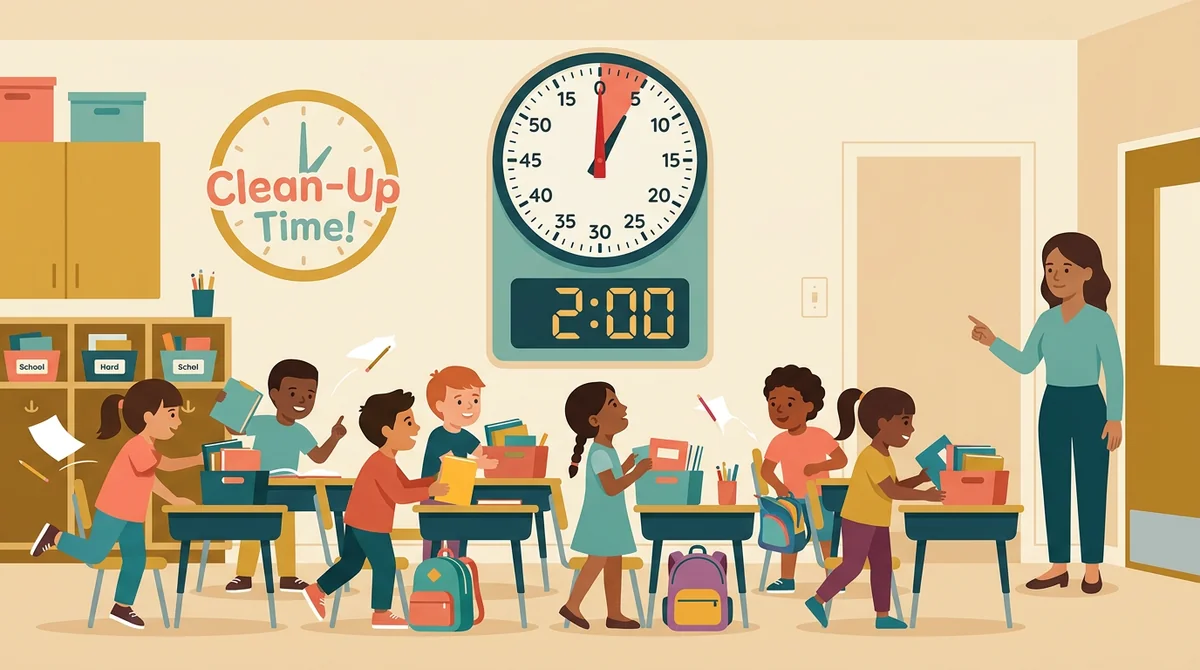
Transitions and routines
A two-minute countdown for the materials swap, five minutes for cleanup before the bell. Run it the same way every day and students start moving on the number, not on your voice.
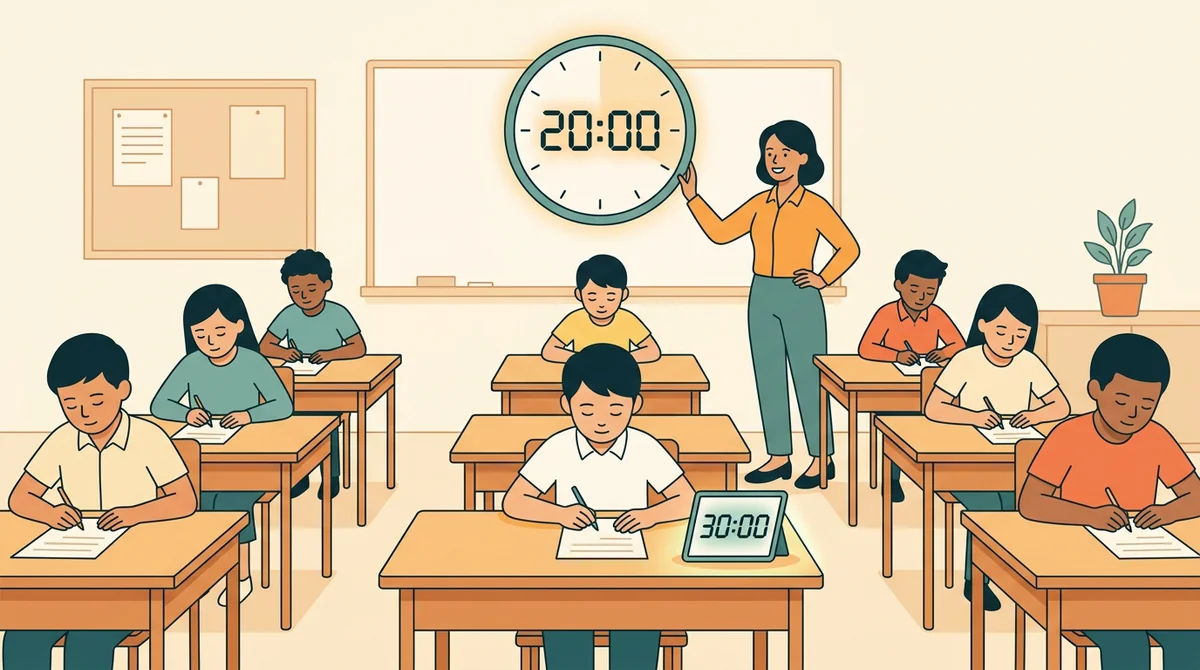
Quizzes and focused work
Students settle faster when they can see exactly how long they have. Set 20 minutes for the quiz; for a student with 1.5× time, type 30 instead, no stopwatch math mid-test.
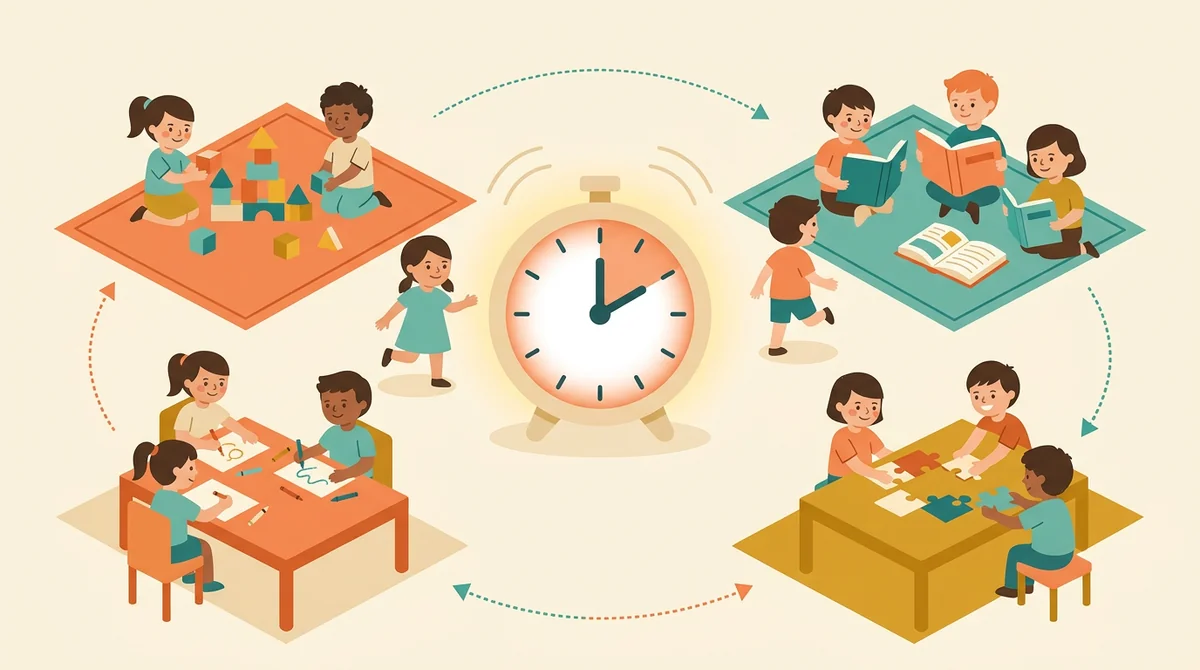
Centers, games, and breaks
Give every station the same slice of time and rotate when it rings. Run a beat-the-clock review round in ninety seconds. End a brain break as clearly as it started, so downtime never swallows the next lesson.
Core features of
a classroom timer
A good classroom timer disappears into the lesson: quick to set, readable from the back, and clear about when time is up. Here's what this one does.
Read it from the back row
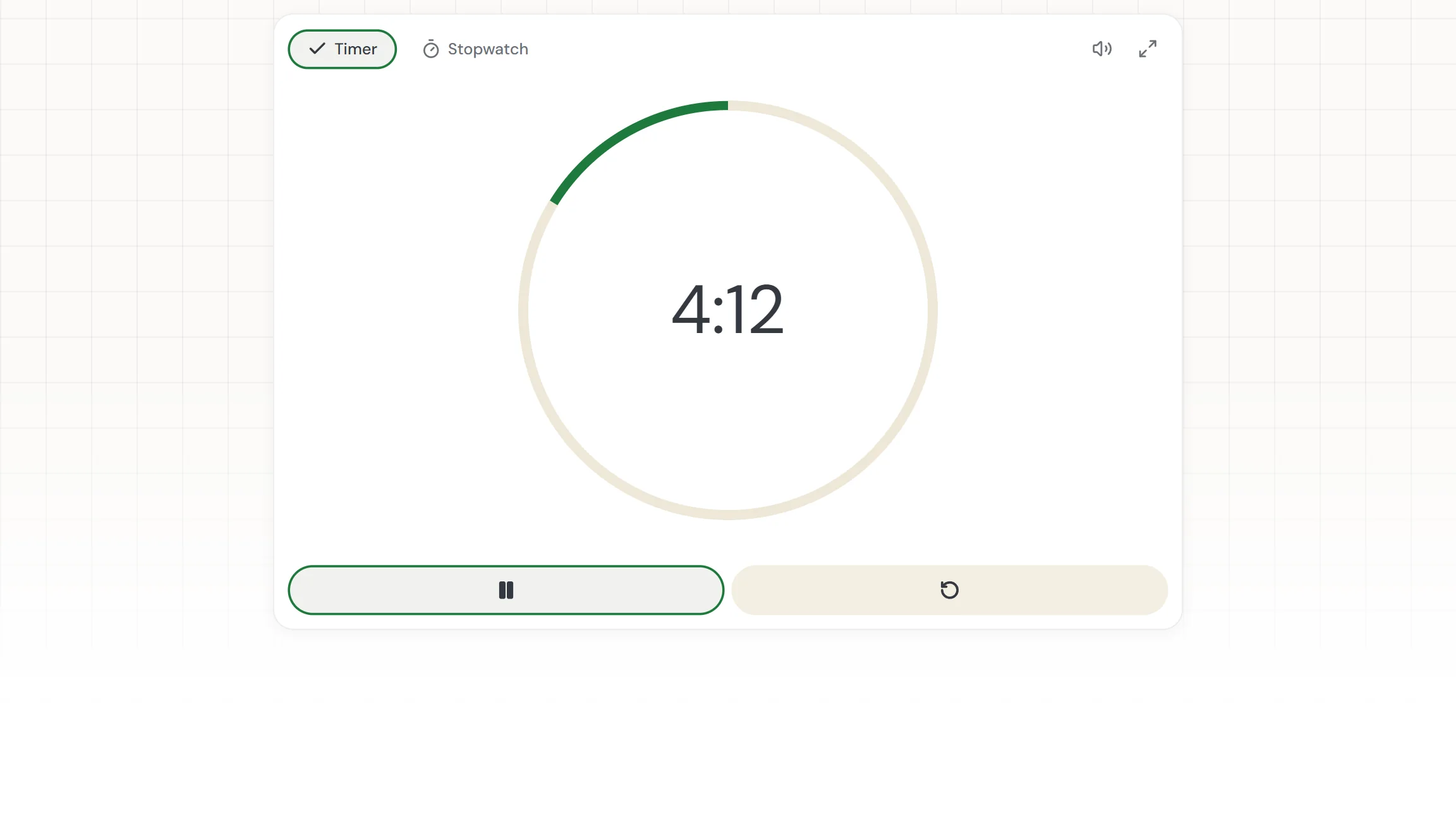
Big digits and a ring that fills as the minutes pass, so students see time moving instead of asking how long is left. Put it on the board with one tap and it fills the screen.
- Digits sized to read across a classroom
- The green ring fills around the clock as time passes
- Fullscreen mode for the projector or a shared screen
Set any time in a tap or a keystroke
Tap +0:30, +1:00, or +5:00 to build the time you need, or click the digits and type it in like a microwave: the numbers slide in from the right, so 8 0 0 is eight minutes and 1 3 0 is a minute and a half.
- Quick-add chips for the common lengths
- Type the digits straight into the clock, microwave-style
- Your last duration is waiting when you come back
Adjust without breaking your stride
Pause when you need the room's attention, add a minute if the task needs it, and resume. When time's up, one tap brings the same time back for the next group.
- Pause and resume without losing a second
- Add time while paused, then keep going
- Reset returns to five minutes; Space and R work from the keyboard
A bell you control
When the countdown hits zero, a short chime plays and the digits and ring turn red until you reset. Mute it for tests and the red still tells the room time is up.
- Six clear beeps, no audio file to load
- One-tap mute for silent testing, remembered next time
- The tab title shows the countdown even from another tab
A stopwatch for open-ended work
Not everything has a fixed length. Switch to the stopwatch to see how long a discussion, a lab, or a reading actually takes, then use that number next time you plan.
- Hundredths under a minute, tenths after
- A dot circles the ring so the room sees it's running
- Pause, resume, and reset like the timer
How to use
the classroom timer
Setting a timer shouldn't cost you the moment. The whole routine is five steps, and the first three take about ten seconds.
Pick timer or stopwatch
Timer for anything with a fixed length: a quiz, a cleanup, a rotation. Stopwatch when you just want to know how long something takes.
Set the time
Tap the chips to build it, or click the digits and type them in: 8, 0, 0 is eight minutes. The chips add up, so +5:00 twice is ten.
Press start and say the time out loud
"Ten minutes, starting now." Students who hear the number pace themselves; the ring on the board keeps reminding them.
Pause for instructions, add a minute if needed
Talking over a running timer teaches students it doesn't really count. Pause first, give the direction, resume. Need more time? Add it while paused.
Reset for the next round
When it rings, one tap brings the full time back for the next group or class. Put it fullscreen on the board and it's ready before they sit down.
That's the whole routine
Set it once before class and the timer does the reminding for the rest of the period. It's at the top of this page.
Start a timer
Get started in under 5 minutes.
Sign up and walk through the onboarding tutorial. By the end you've got your classes set up and you're ready to plan your first lesson. No credit card required.
Get Started for FreeMore than a countdown
A phone timer works until you need it on the board. This one is made for a room full of students: big, quiet when it should be, and honest about the time.
Fullscreen on the board
One tap and the timer takes over the projector: cream background, giant digits, the ring at the size of the screen. Esc brings the page back.
Type any time
Click the digits and type them in from the right, like a microwave: 500 is five minutes, 130 is ninety seconds, 10000 is an hour. Enter starts it; clicking away just sets it, so you can set up before class and go on your cue.
Quick-add chips
+0:30, +1:00, and +5:00 stack, so a seven-minute task is +5:00, +1:00, +1:00. Backspace takes a digit back out when you want to start fresh.
Mute for testing
Flip the sound off and the chime stays silent, but the digits and ring still turn red at zero. The setting is remembered, so a quiet room stays quiet tomorrow.
Honest to the second
The countdown is measured against the clock, not counted by ticks, so a busy laptop or a background tab can't make it run slow. The tab title shows the time too.
Measured against the clock, not counted by ticks
Private by design
Everything runs in your browser. No account, no upload, nothing sent anywhere: your timer settings live on your device and nowhere else.
Who is the classroom timer for?
Anyone who has ever said "two more minutes" and meant it. If a countdown on the board would save you from being the clock, it's for you.
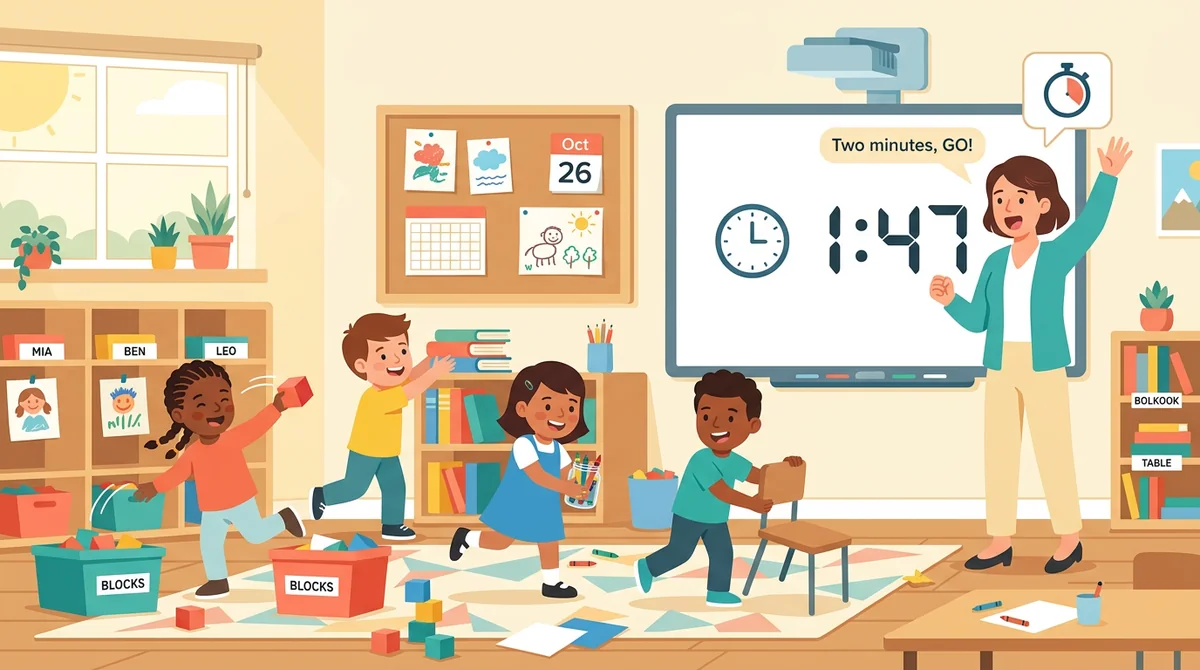
Elementary teachers
Two-minute cleanup races, five-minute centers, a countdown for lining up. Short, visible, and the same every day, so routines run themselves by October.
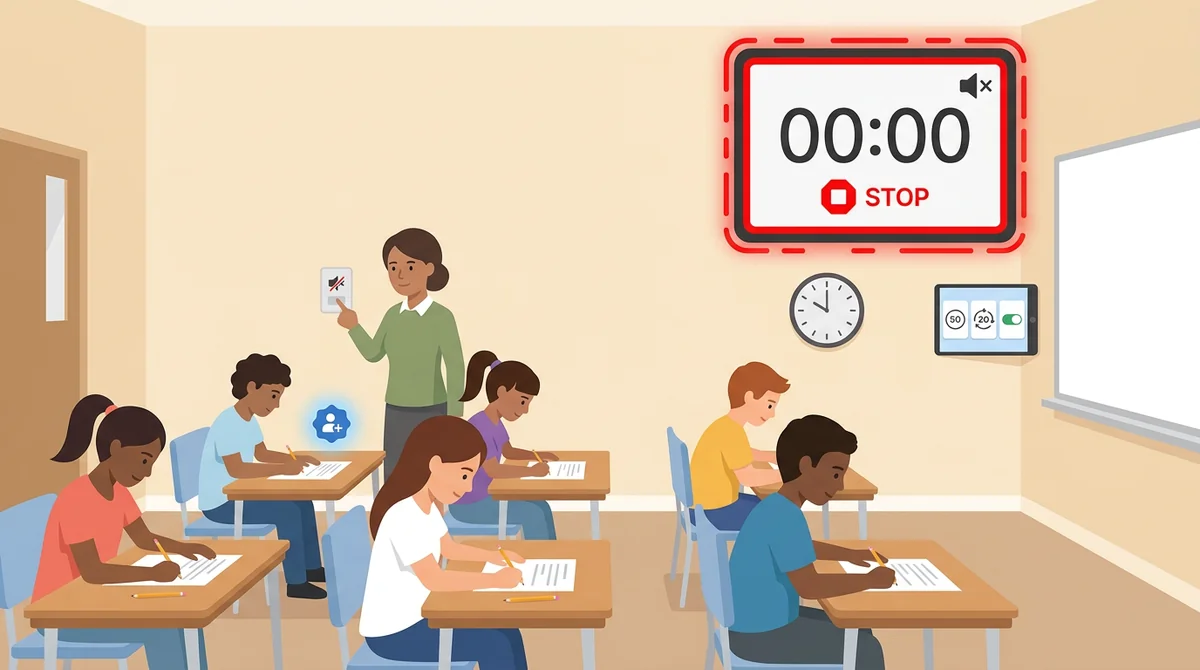
Middle and high school teachers
Fifty-minute test blocks that mirror exam conditions, twenty-minute station rotations, extended-time accommodations set in one tap. Mute it during the test; the red ring still says stop.
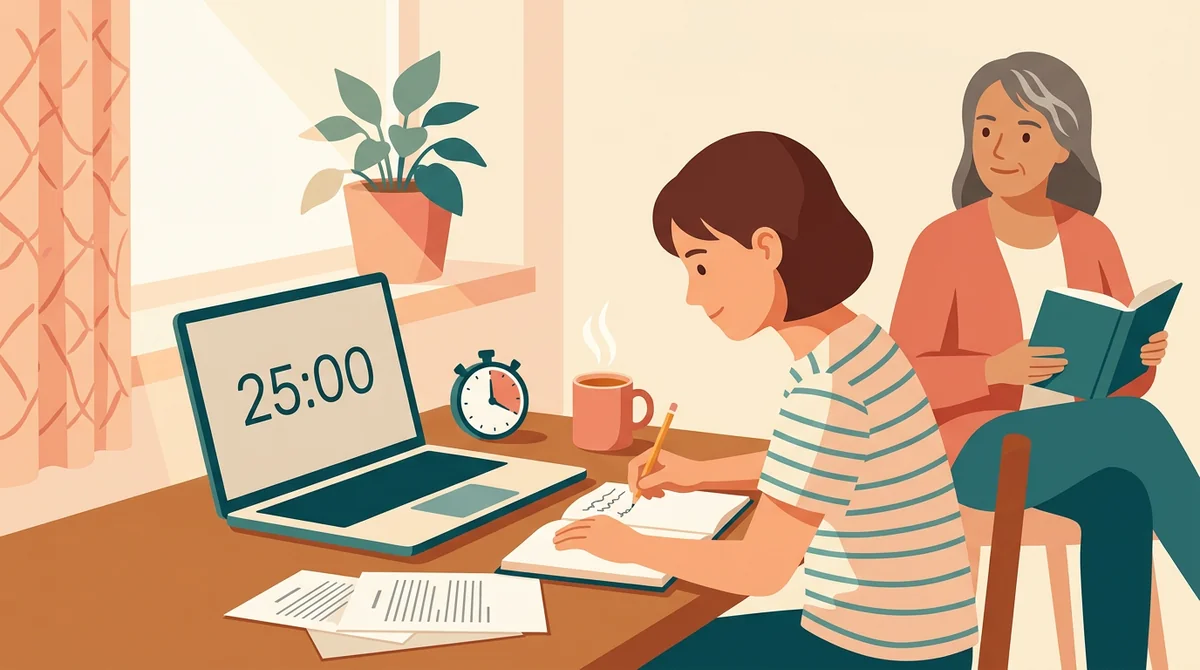
Tutors, homeschool parents, and students
A study block at the kitchen table, a timed practice essay, a stopwatch on how long the reading really takes. Fullscreen turns any laptop into a focus timer.
How EMStudio's classroom timer is different
Most timer sites put the countdown behind ads, logins, or a playlist you didn't ask for. This one is built by the team behind a full teacher planner, and it treats your five minutes with respect.
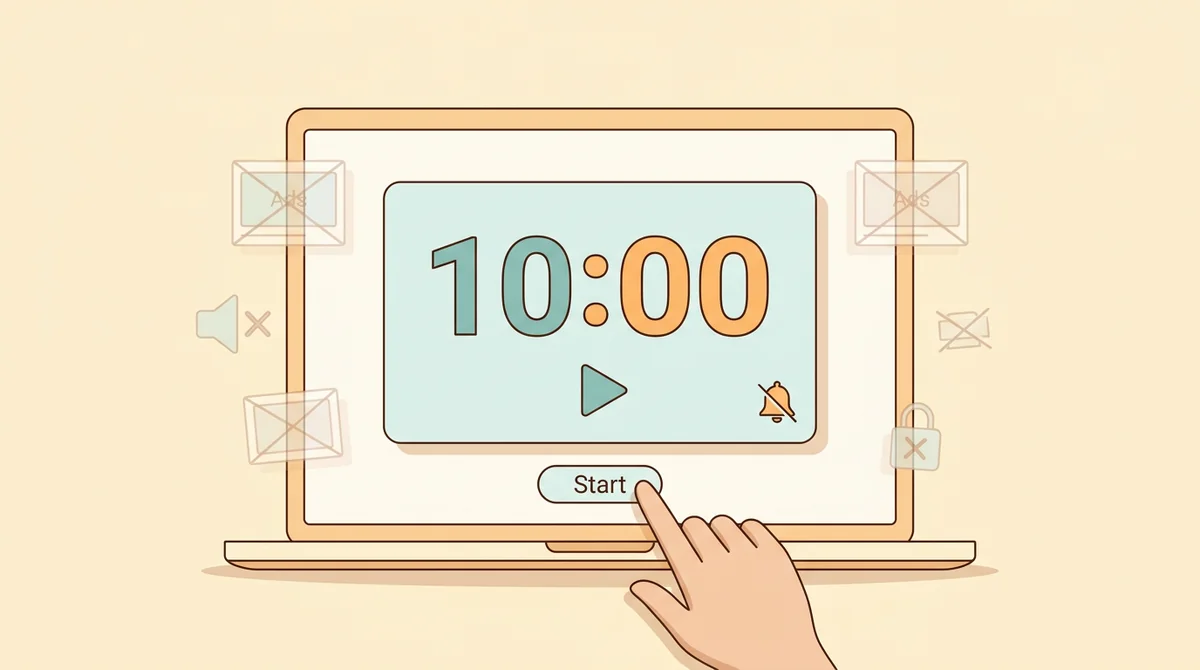
Nothing between you and the countdown
No ads, no account, no music starting on its own. Open the page, set the time, press start. The bell is a chime you can mute, not a video you have to close.
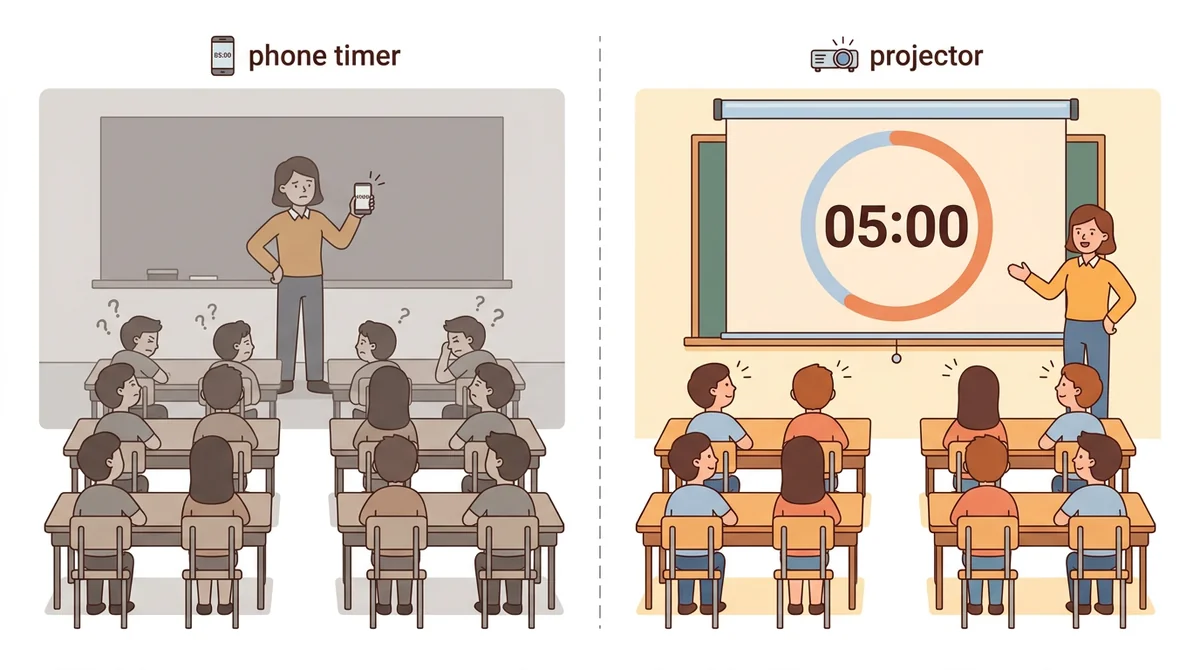
Built for a projector, not a phone
The digits are sized for the back row, the ring reads from across the room, and fullscreen fills the board. A phone timer held up to the class can't do that.
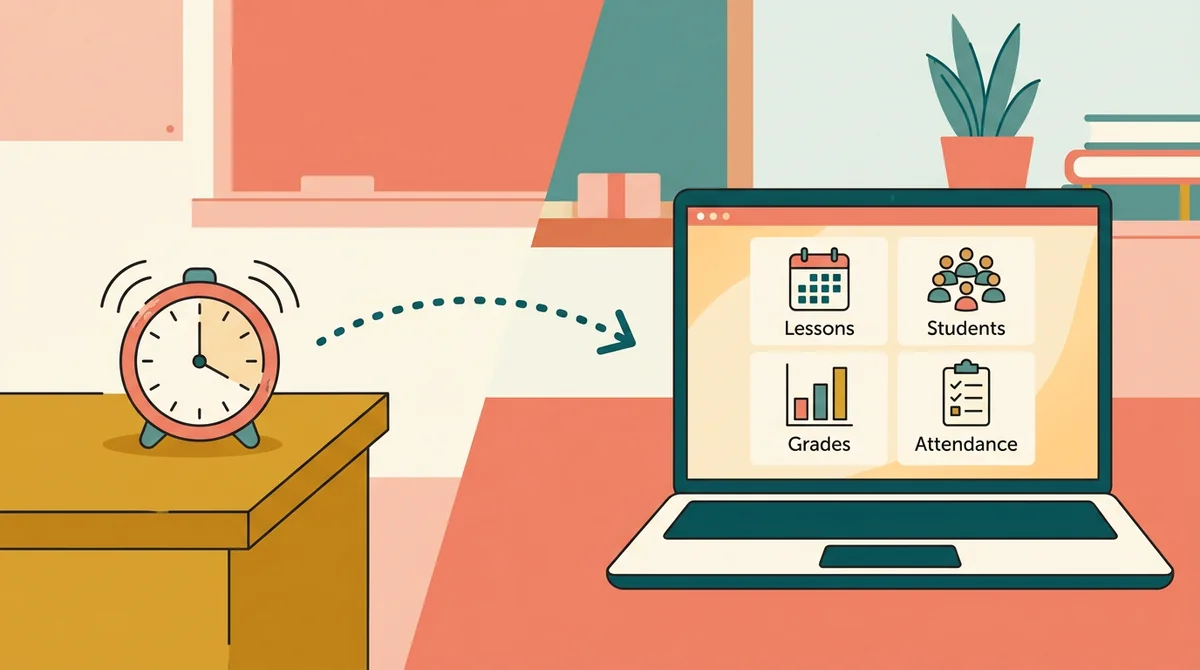
Part of a full teacher planner
Timing the lesson is one piece of running the room. When you're ready, EMStudio's classroom management app adds the rest: every class's lessons, students, grades, and attendance in one place.
More free teacher tools
FAQ
Try EMStudio today.
Create your first class, build a lesson, and take attendance all in under five minutes.
No credit card required.
Get Started for FreeYou have 3 lessons and 2 tasks today.