ActiveStudent: What the Portal Does and How to Use It

Jump to section
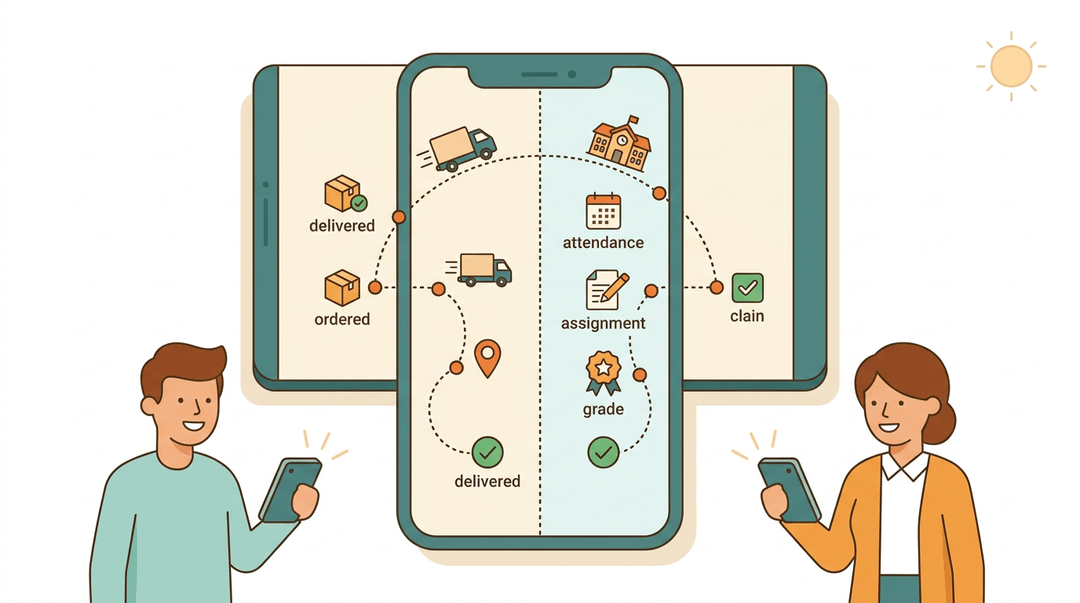
Think about tracking a package online: you check its status, see where it's been, and know exactly what's coming next.
ActiveStudent works the same way for your school's day-to-day data, giving students and teachers a live window into grades, attendance, and assignments.
That visibility matters more than ever in a classroom where paper printouts just can't keep up.
In this post, we'll walk through what the portal actually does, how it stacks up against ActiveParent, and how you can fold that data into your everyday teaching routine.
What Is the ActiveStudent Portal
So what exactly is ActiveStudent, and why does it show up in so many district tech rollouts? It's a student information portal, and once you see what it tracks, its classroom value becomes obvious fast.
What ActiveStudent does for your data
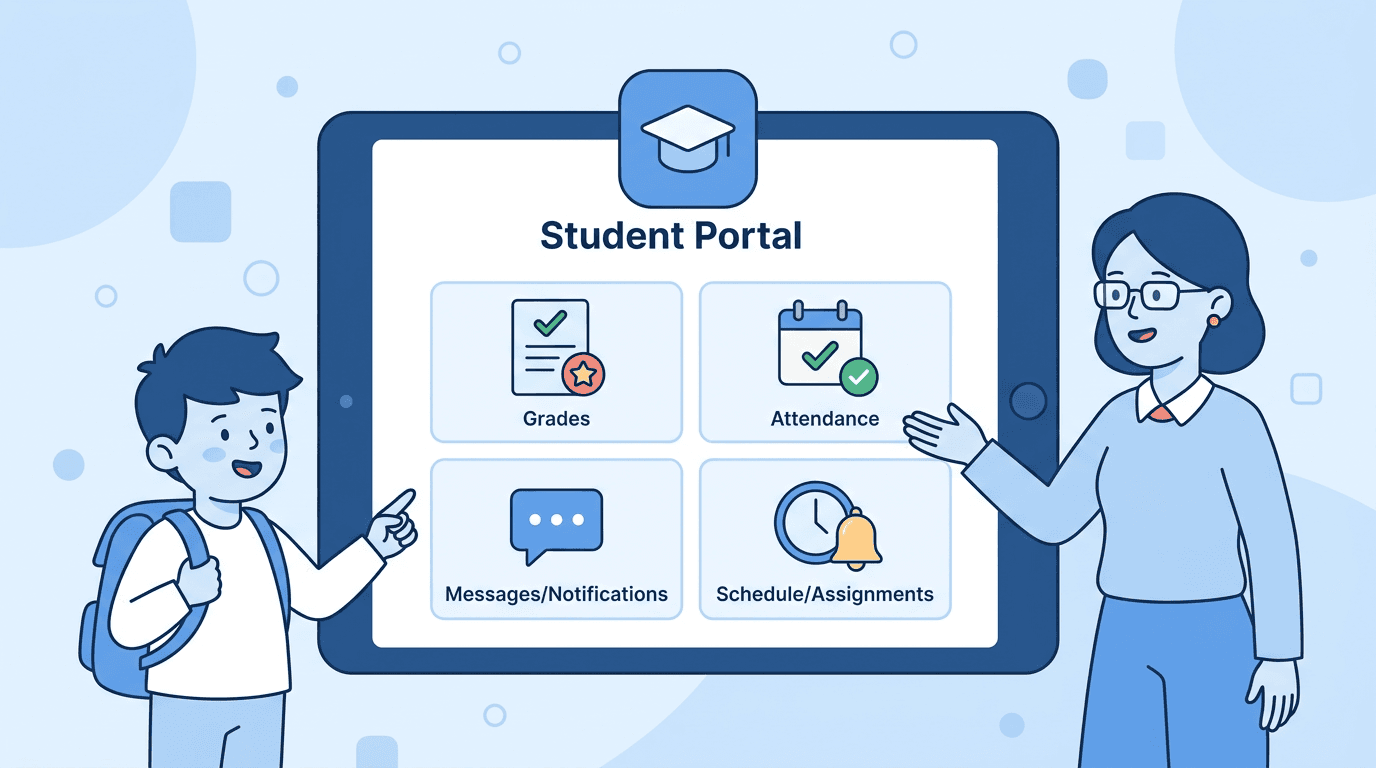
ActiveStudent works as a gateway for student data:
- grades
- attendance
- schedules
- progress
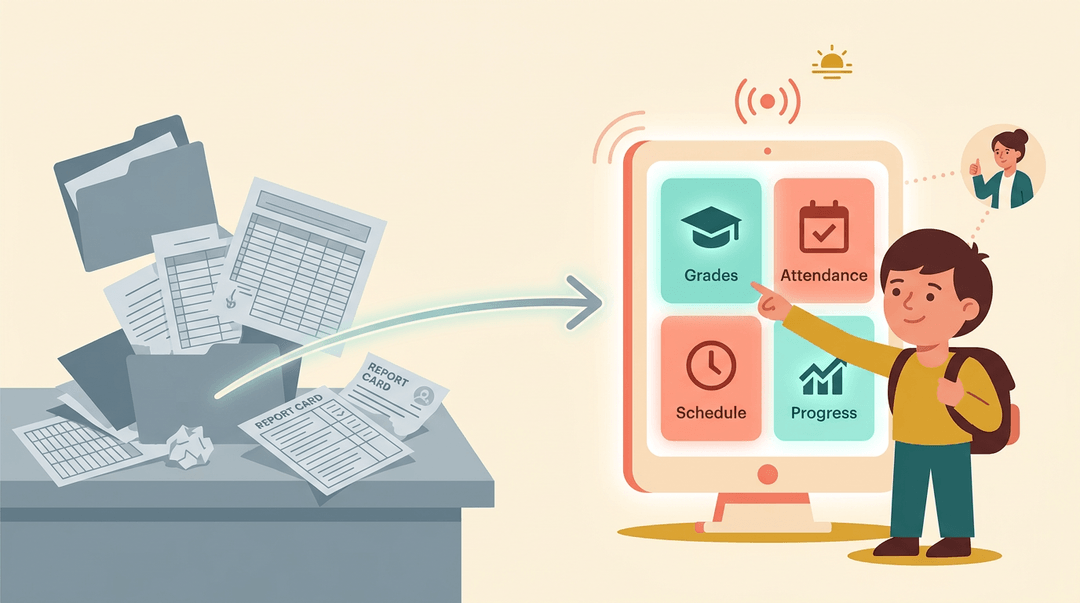
all live in one place instead of scattered across paper folders and spreadsheets. It's built as part of the SAM Spectra suite, so it shares a backbone with the other tools your district already runs.
What makes it genuinely useful day to day is the real-time academic metrics. A grade posted this morning shows up this morning, not next week.
That immediacy is what promotes accountability and communication: students see where they stand before a report card ever gets printed, and that visibility tends to change behavior on its own.
From paper report cards to digital profiles
Consider the Richton School District, where ActiveStudent replaced a system still leaning on paper report cards. That shift wasn't just about going digital for its own sake.
It also helped the district keep pace with state MDE (Michigan Department of Education) reporting compliance, since data that's already centralized is far easier to pull and verify than data spread across filing cabinets.
The bigger payoff is the holistic digital student profile that results: one record that follows a student across a grade, a subject, or a school year, instead of a stack of disconnected snapshots.
Main Features of the Portal
Once you're inside ActiveStudent, three things matter most:
- grades
- attendance
- behavior
Each one gives you a different window into how a student is actually doing.
Tracking grades and missing assignments
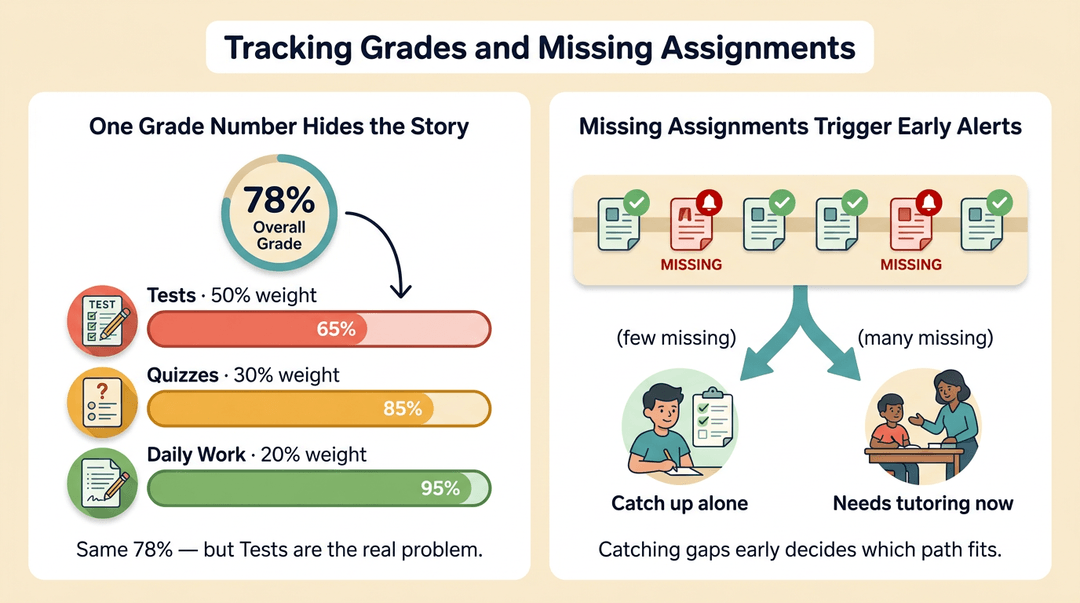
Grades in ActiveStudent aren't just a single number. They're broken into weighted grade categories, so a test carries more weight than a daily worksheet, and quizzes land somewhere in between.
That breakdown between tests, quizzes, and daily work shows you where a grade is slipping, not just that it is.
Missing assignment alerts flag gaps before they pile up, and that early warning often informs whether a student needs tutoring now or can catch up on their own.
Keeping tabs on attendance
A calendar view lays out every absence at a glance, month by month.
That matters beyond the classroom: Mississippi's compulsory school attendance law requires active monitoring of chronic absenteeism and tiered intervention once a student crosses that threshold, and ActiveStudent's tracking lines up with those requirements.
Attendance also touches extracurricular eligibility, so a string of absences can bench a student before you'd expect it. Tardy tracking rounds it out, and the whole system pairs naturally with check-in/check-out systems at the front office.
Reviewing discipline records
Discipline records stay private, viewable only by the people who need them, and they build a documented history rather than a one-off note. That history supports dispute resolution when a family questions an incident.
It's also worth cross-referencing against PBIS behavior logs: Positive Behavioral Interventions and Supports ties day-to-day behavior data to tiered interventions, so ActiveStudent's records and PBIS data end up telling the same story from two angles.
Using Portal Data in Your Classroom
The portal isn't just a place parents check grades: it's a live record you can fold into your weekly routines. Here's how to use it in three common situations, from your first week to the day you're out sick.
Your first weeks with the portal
- Request your login before students arrive.
- Email your school's tech coordinator during pre-planning week, not day one.
- Review grade categories weekly.
- Pick a fixed slot and keep it: Friday planning period, scan each category for zeros.
- Learn the discipline entry protocol.
- Ask an administrator which incidents get logged in the portal vs. handled by email.
- Log the same categories the same way every time, so your records hold up later.
Running a virtual classroom
Pin the portal link at the top of your LMS course page so students stop asking where grades live. Post it with a routine attached: "Grades and attendance are here. Check every Monday before class."
Then let the portal do your monitoring. Find your row, read across, act:
| When the portal shows... | Do this... |
|---|---|
| A student marked absent two sessions in a row | Send a check-in message before work piles up |
| An assignment missing past 48 hours | Flag it in the gradebook and message home that day |
| A grade category drifting down | Pull the student for a two-minute conference |
💡 Tip: Flag missing work fast. Online, a missing assignment is often your first sign a student has disengaged, days before attendance shows it.
Handing off to a substitute
A sub can't use data they can't find. Leave a one-page cheat-sheet taped to the desk:
Sub cheat-sheet:
- Seating chart first. Printed copy in the red folder: check it before students arrive.
- Attendance goes in by 9:15. Login steps are on the back of this page.
- Incidents: jot the name, time, and what happened on the notepad. Don't wait until tomorrow.
The same-day rule matters most. An incident logged (or handed to you to log) the day it happens stays accurate; one reconstructed a week later won't.
At a glance:
| Situation | Key habit | Payoff |
|---|---|---|
| New teacher | Weekly category review | No surprise zeros |
| Virtual class | Same-day missing-work flags | Catch disengagement early |
| Sub day | One-page cheat-sheet | Clean records while you're out |
All of this gets easier when the data lives in one spot: see how EMStudio's Class Management feature keeps rosters, attendance, and behavior notes in one place.
Logging in and Finding Your Way Around
Getting into ActiveStudent isn't complicated, but a few quirks trip people up the first time. Here's what you need to know before you ever click the login button.
How to log into the portal
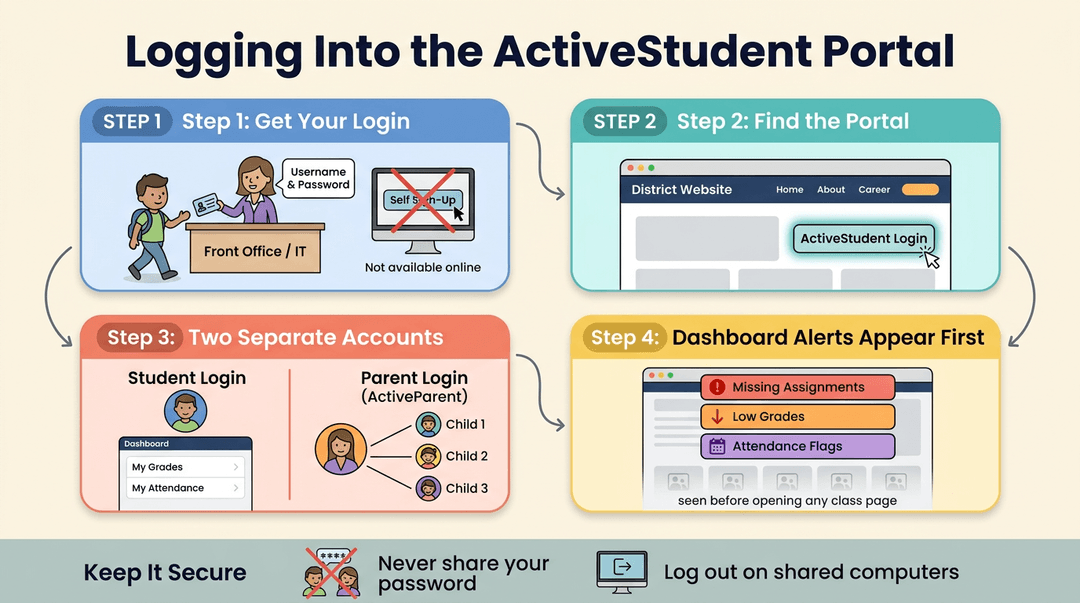
Schools issue ActiveStudent credentials directly, so the first stop is the front office or your school's IT contact, not a self-signup page.
Once you have a username and password, you'll access the portal through the district website, usually via a clearly labeled link on the homepage.
It's worth noting that the student login and the parent login are separate accounts, even though they pull from the same underlying data. A student sees their own grades and attendance; a parent's ActiveParent account can link to multiple children.
Once logged in, the dashboard surfaces alerts front and center:
- missing assignments
- low grades
- attendance flags
All show up before a student even opens a single class page.
For account security, encourage students to use a private password (never one shared with classmates) and to log out on shared or lab computers.
Fixing common login problems
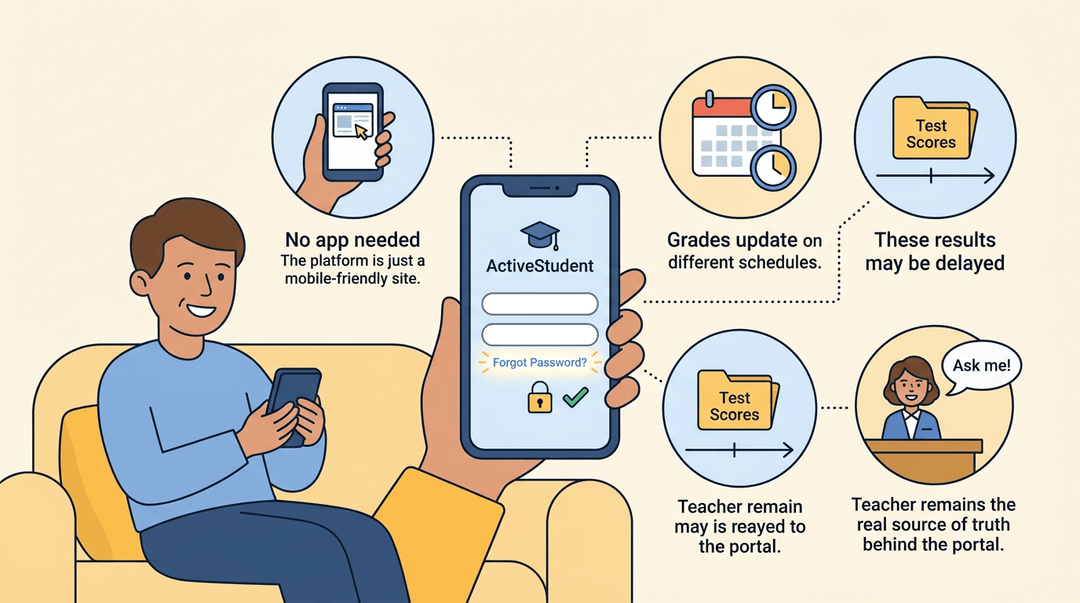
Forgotten passwords get reset the same way credentials were issued: through the school office, not an automated "forgot password" link. The portal works fine in a mobile browser, so students and parents can check it from a phone without trouble.
There's no dedicated app to download, which is a common point of confusion. And if a grade looks wrong, that's not a portal glitch to troubleshoot. Contact the teacher directly, since they're the ones who entered it.
How ActiveStudent Differs from ActiveParent
Think of ActiveStudent and ActiveParent as two doors into the same building, built for different people walking through them. Knowing which door fits which routine saves a lot of confusion come report card week.
Comparing features and access
The two portals share a foundation, but they're not interchangeable, and the differences matter for how you troubleshoot a login issue or explain the system to a family.
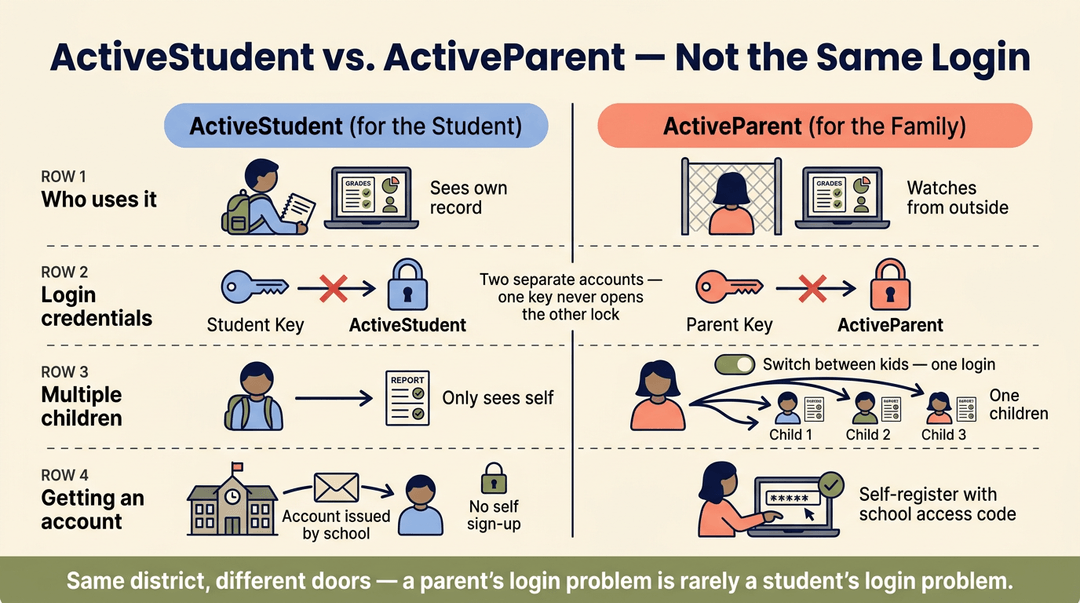
- Different primary users. ActiveStudent is built for the student to check grades, assignments, and attendance directly. ActiveParent is built for the parent or guardian to monitor that same information from the outside looking in.
- Separate login credentials. Each portal runs on its own username and password. A student's ActiveStudent login won't get a parent into ActiveParent, and vice versa. They're two distinct accounts, not one shared key.
- Parent multi-child view. A parent with three kids in the district doesn't need three separate logins. ActiveParent lets them toggle between all their children from a single account, which ActiveStudent has no reason to offer since a student only ever needs to see their own record.
- Registration capability differs. Parents can register for a new ActiveParent account themselves, often using an access code from the school. Students typically can't self-register the same way; their ActiveStudent account is usually issued and managed by the school directly.
For a teacher, that means a parent's access hiccup and a student's are almost never the same problem, or the same fix.
Pros and Cons of Digital Portals
Like any tool, ActiveStudent has a upside and a downside, and knowing both helps you use it well instead of just trusting it blindly.
How the portal helps students
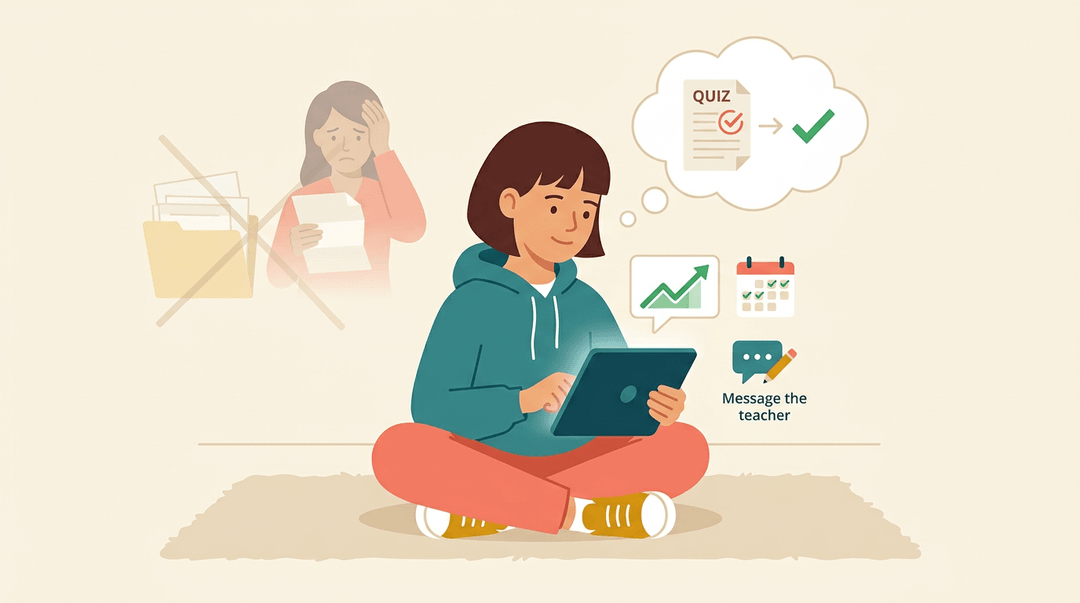
When students can see their own grades, attendance, and assignments in one place, something shifts: they stop waiting to be told how they're doing and start checking for themselves.
That's student empowerment, and it tends to lower report card anxiety too. Instead of a surprise letter grade at the end of the term, a student watches their standing update in real time and adjusts along the way.
For example, a middle school student who bombs a quiz can see it posted that same week, message the teacher through the portal, and fix the gap before it snowballs into a semester-long problem.
That's better teacher communication in action, and it saves you, the teacher, a few of those tense end-of-quarter emails from confused families.
On the administrative side, digitizing records means less paper shuffling and fewer manual updates, which is its own kind of relief.
Where digital portals fall short
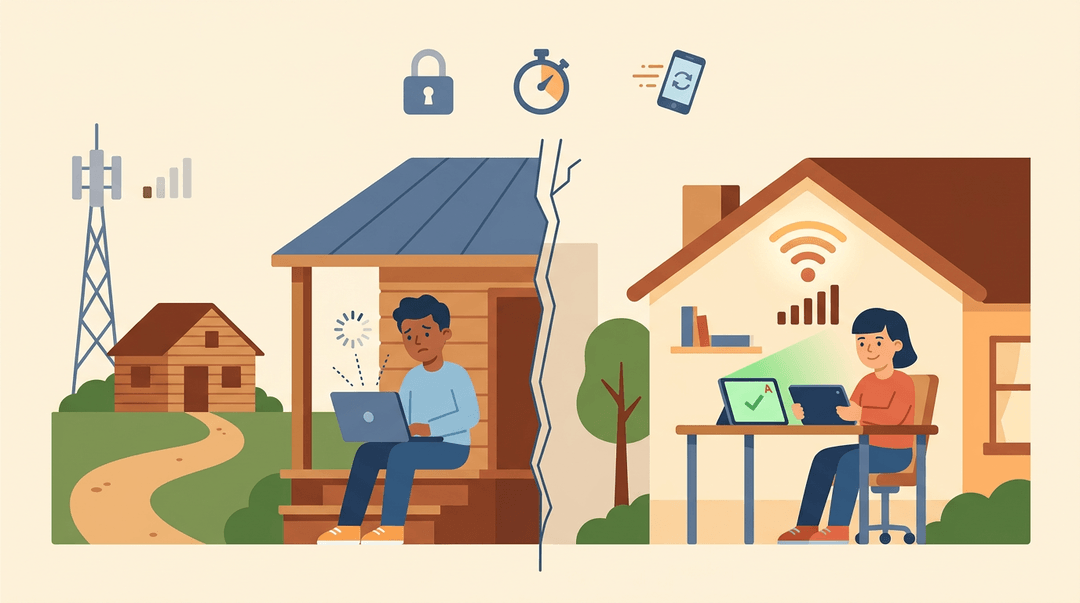
No system is perfect. A rural student without reliable internet can't check a portal the way a classmate in town can, and that digital divide turns a convenience into a fairness issue.
Some students also start refreshing grades obsessively, and that over-monitoring can create more stress, not less.
Grading data latency (the lag between when work is turned in and when it's actually scored) can also mislead a student into thinking they're further behind or ahead than they really are.
Any portal handling student records also has to meet federal privacy protections under FERPA, which govern who can see and control that information.
Using the Portal for Academic Planning
ActiveStudent isn't just a place to check yesterday's homework. Used well, it becomes a planning tool that helps students see the road ahead, and helps you guide them down it.
Tracking college and scholarship readiness
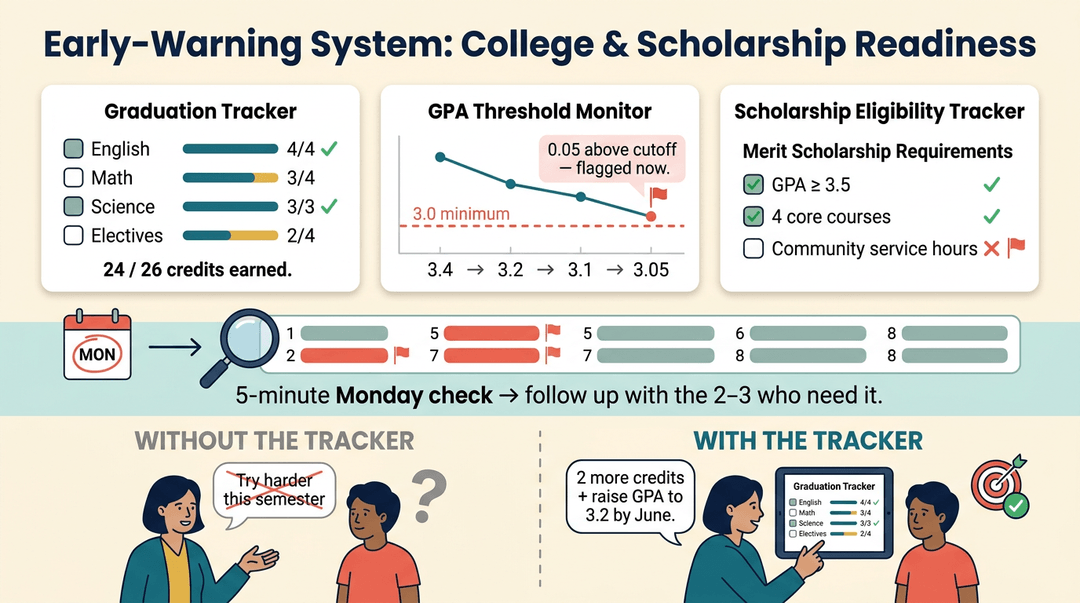
The portal's graduation tracker lays out exactly which credits a student has earned and which ones still stand between them and a diploma. Instead of guessing whether a junior is on pace, you can see it in black and white.
GPA threshold monitoring works the same way for grades. Many scholarships and college programs set a minimum GPA, and the portal flags when a student is close to slipping under that line, before report cards make it official.
Pair that with scholarship eligibility tracking, which shows whether a student's current course load and grades still meet the requirements for specific awards, and you've got an early-warning system instead of a last-minute scramble.
Consider a high school counselor who builds a five-minute weekly portal check into Monday planning: scan for GPA dips, missing credits, and eligibility flags across a caseload of students, then follow up with the two or three who need it most.
That same data makes goal-setting conferences far more concrete.
Instead of a vague "try harder this semester," you can sit down with a student and their graduation tracker open, point to the exact credits and GPA target standing between them and their goal, and build a plan around real numbers instead of guesswork.
Frequently Asked Questions
Once teachers and families start logging in regularly, the same handful of questions come up again and again. Here are straight answers to the ones that land in your inbox most:
Common questions about the portal
- Forgot your password? Use the reset link on the ActiveStudent login screen. You'll get an email with instructions, and a new password takes effect immediately, no need to wait on the office.
- Need it on your phone? There's no dedicated app, but the site is mobile-responsive, so it works fine in a phone or tablet browser. Bookmark the login page for quick access between classes.
- How often do grades update? That depends on the teacher, not the portal. Some update scores the same day an assignment's graded; others batch it weekly. If a grade looks stale, the fastest fix is asking that teacher directly.
- Where do state testing scores show up? They live in a separate results section once your school district releases them, typically well after the test window closes, not in the regular gradebook view.
- Spot a discrepancy? The portal only mirrors what's in the teacher's gradebook. If a score looks wrong, reach out to the teacher first: they can correct it at the source, and the portal reflects the change automatically.
ActiveStudent isn't just a login screen. It's a running record of attendance, grades, and assignments that you can use to spot patterns before they become problems.
Pair that visibility with a plan for acting on it, and you've turned a portal into a real classroom-management tool.
Ready to build that plan? Check out our Classroom Management feature to keep your rosters, sections, and timetables organized in one place.
References
- Important Attendance Law updates available for K-12 leaders — msachieves.mdek12.org (2026)
- What is FERPA? — studentprivacy.ed.gov
- Center on PBIS — pbis.org