ChatGPT for Teachers: What It Is and How to Get Started


Jump to section
Imagine having a planning partner who never runs out of ideas at 9 p.m. on a Sunday. That's the promise behind ChatGPT for Teachers, an AI assistant designed for educators.
It can help you brainstorm lesson ideas, adapt materials, and tackle the paperwork that eats up your evenings. In this post, we'll cover who can get it, what it can do, how to keep student data safe, and how to start using it on Monday.

Who Can Get ChatGPT for Teachers
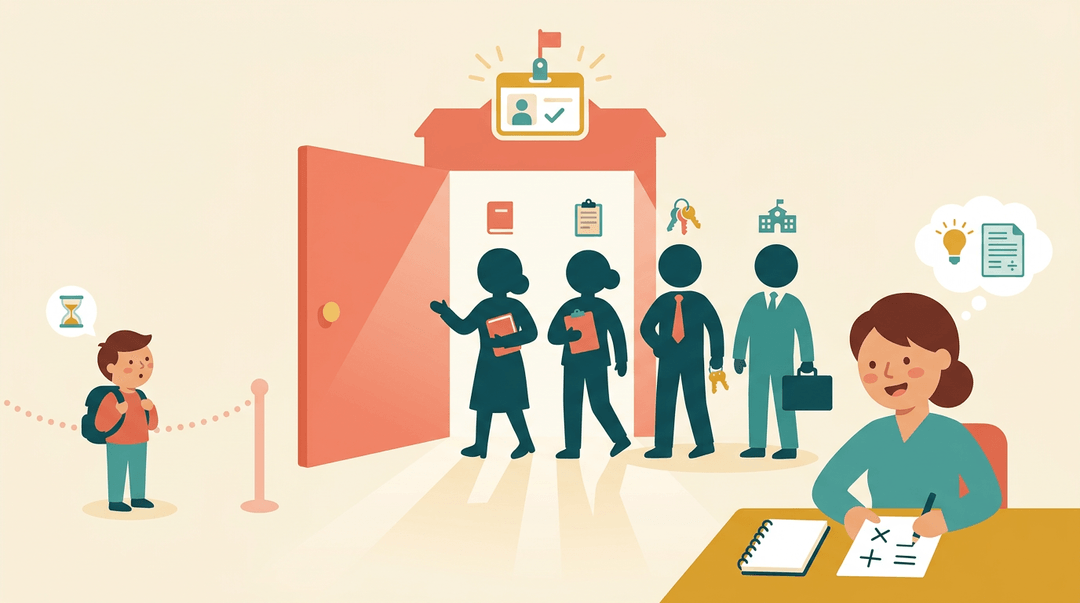
ChatGPT for Teachers is built for the adults who run the classroom, so eligibility depends on your role and your school. Here's who qualifies and how to prove it.
Who qualifies for access
If you work at an accredited US K-12 school, you're in the right place. That includes:
- Teachers
- Staff members
- School administrators
- District leaders
Consider a middle school math teacher who wants help drafting practice problems. Her role at an accredited US K-12 school is what qualifies her. Keep in mind that this access is for educators, not students.
Students aren't eligible yet, so think of this as your planning partner rather than a tool to hand learners directly.
How to verify you're eligible
Eligibility is confirmed through SheerID, a third-party verification service. You'll start at the chatgpt.com/k12-verification page and follow the prompts to confirm your school role.
Consider a high school science teacher filling out the form on a Sunday night. Having your school details handy before you begin keeps the process smoother.
If you hit a verification error, don't assume you're ineligible. Double-check the details you entered against your school information, then try again.
What ChatGPT for Teachers Can Do
ChatGPT for Teachers brings the core tools you already know into a workspace built for classroom work. Here's what's inside and how it fits into your planning.
Key AI tools and features
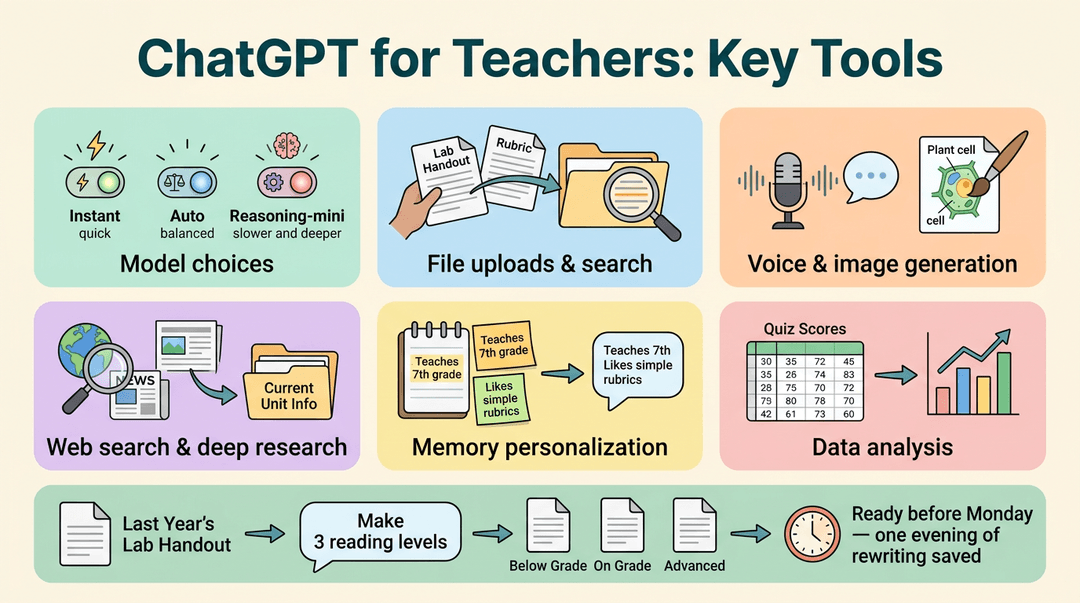
According to OpenAI, the workspace includes these options:
- Model choices: GPT-5.1 Instant, GPT-5.1 Auto, and GPT-5.1 Reasoning-mini.
- File uploads and file search: Bring in handouts, rubrics, and lesson materials.
- Voice mode and image generation: Talk through an idea or create visuals for a lesson.
- Web search and deep research: Pull in current information for a unit.
- Memory personalization: Responses can reflect details you've shared before.
- Data analysis tools: Work through quiz scores or attendance numbers.
Consider a seventh-grade science teacher who uploads last year's lab handout and asks for versions at three reading levels. That's an evening of rewriting saved, and the adapted copies are ready before Monday.
Tools for planning together
Planning shifts from solo work to shared work. Custom GPTs let you build a helper around a task you repeat, like drafting parent emails.
Shared workspaces and shared projects give colleagues one place to co-plan, so the team isn't passing files back and forth.
Connecting with Canva and Google Drive
- Canva presentation building: Turn your planning into a slide deck.
- Google Drive import: Bring in files you already store in Drive.
- Microsoft 365 import: Pull in documents from your Microsoft 365 account.
Less copying and pasting means more time teaching.
Which free AI is best for teachers?
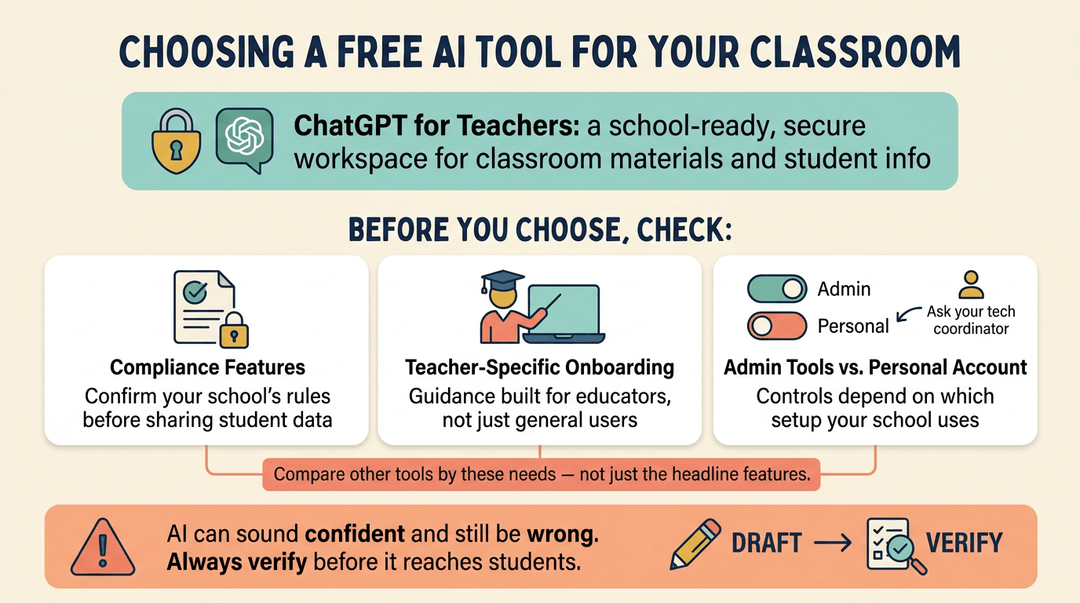
The best fit depends on your school's needs, but ChatGPT for Teachers is designed as a school-ready secure workspace where you can work with classroom materials and student information. Before you choose, check these areas:
- Education-grade compliance features: Confirm your school's requirements before sharing student information.
- Teacher-specific onboarding: Look for guidance built for educators, not just general users.
- Admin tools vs. personal account: Ask your tech coordinator which setup your school uses, since admin controls depend on it.
When you compare other free AI tools, look at the features your classroom needs, not just the headline list.
AI can state wrong facts with total confidence. Use it to draft, but always verify before anything reaches your students.
A Teacher's ChatGPT Action Plan
Use this guide to get set up once, then turn a blank chat into a usable lesson draft in about five minutes. Setup comes first, then the prompt routine, then starter prompts by grade band.
Set up once
Before your first prompt, confirm:
- School email verified. Sign up with your school address, not a personal one.
- District workspace joined. If your district has one, ask your tech lead for the invite.
- Prompt templates saved. Keep a doc called "Prompts that worked" you can copy from.
- Data-privacy expectations set. Decide what never goes in: student names, grades, IEP details.
- Teaching team looped in. Drop your best templates in a shared folder.
The 5-minute prompt routine
Order matters here. Each step narrows the draft you'll get back.
- Open with grade and subject.
- "I teach 4th-grade science."
- Name the format you want.
- "Create a one-page worksheet." Or "a six-slide outline."
- Request a rubric or answer key.
- "Include a 4-point rubric and an answer key."
- Ask for differentiation levels.
- "Give below-level, on-level, and challenge versions."
- Review before classroom use.
- Check accuracy, reading level, and fit with your standards.
Here's the whole routine as one prompt you can lift and adapt:
I teach 4th-grade science. Create a one-page worksheet on the water cycle. Include a 4-point rubric and an answer key. Give below-level, on-level, and challenge versions.
⚠️ Watch out: Treat every draft as a first pass. Solve the answer key yourself before students see it.
Starter prompts by grade band
Swap in your own topic and keep the routine's order.
| Level | Try this prompt |
|---|---|
| Elementary | "Write a simplified story for 2nd graders about a lost mitten, with three questions." |
| Middle school | "Make a 12-problem skills practice set on ratios, easiest to hardest." |
| High school | "Draft an essay feedback rubric for a 9th-grade argument essay." |
| Tutoring | "Write five discussion questions for a one-on-one session on this chapter." |
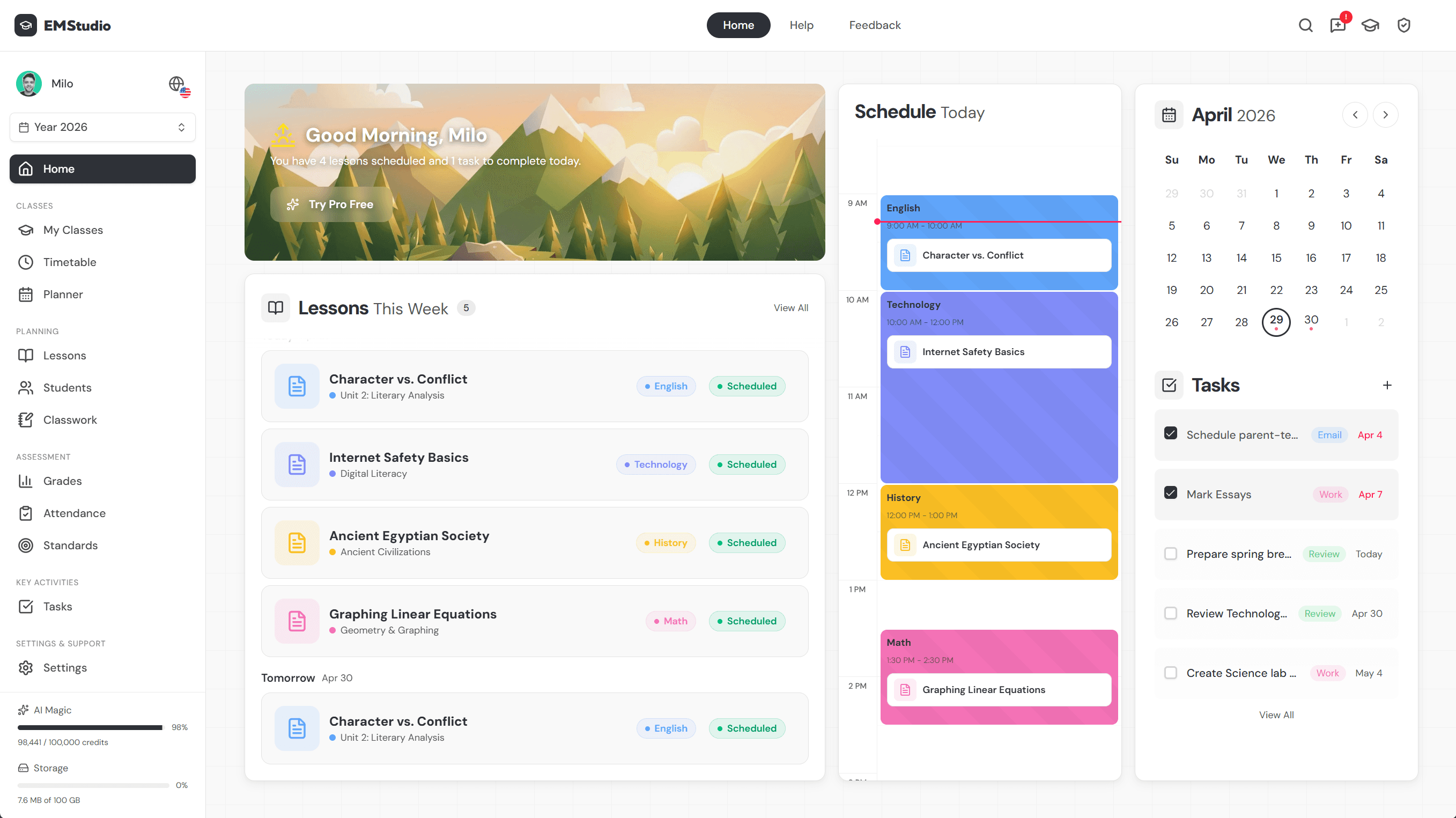
Turn these prompts into finished lessons faster with EMStudio's AI Lesson Editor.
Getting Started and Getting Help
Getting set up takes only a few minutes, and knowing where to turn when something snags keeps the process moving. Here's the path from sign-up to your first useful prompt, plus where to go for help.
How to get started step by step
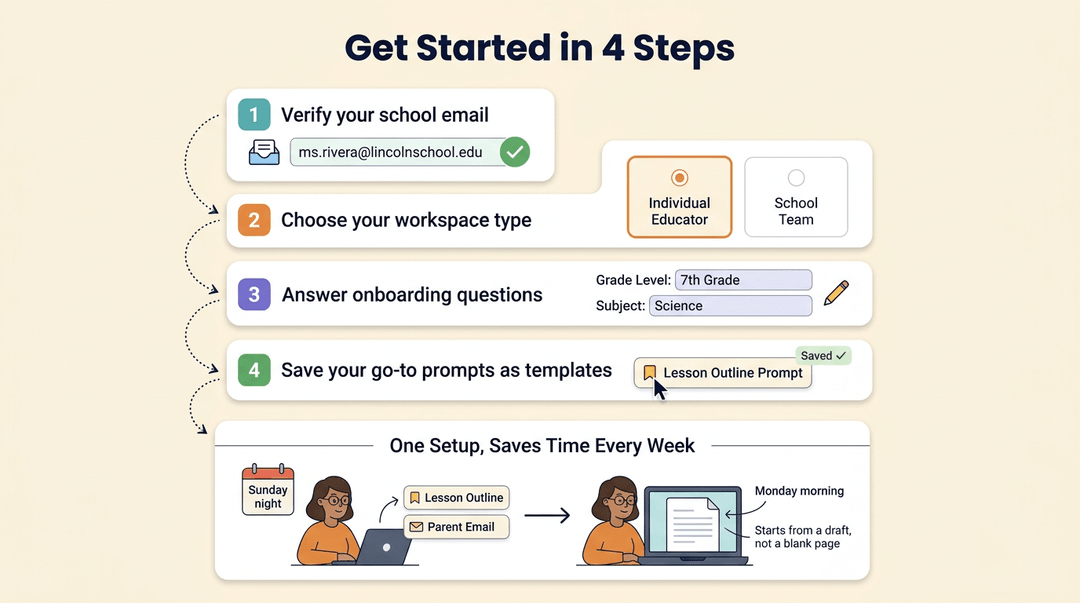
Follow these steps in order:
- Verify with your school email. Use your school email address to verify your account.
- Choose your workspace type. Pick the option that matches how you plan to use it.
- Complete the educator onboarding prompts. Answer the setup questions with details about your grade level and subject, since that context shapes your first responses.
- Save your go-to prompts as templates. This is where the time savings begin.
Think of a seventh-grade science teacher who finishes onboarding on a Sunday night. She saves a lesson-outline prompt and a parent-email prompt as templates, so next week's planning starts from a draft instead of a blank page.
It's a one-time setup that pays off every week.
Where to get help
If something doesn't work the way you expect, try these options:
- Chat bubble support. Use the chat bubble in the product for quick questions while you're still setting up.
- OpenAI Support for domain claims. For questions about claiming your school's domain, contact OpenAI Support directly.
Ask early, and you'll skip the frustration.
Is It Okay for Teachers to Use ChatGPT?
Yes, it can be, as long as you use it thoughtfully and within your school's rules. Think of it as a capable assistant: it drafts, and you decide what stays. Here's where it tends to help most, and where your judgment still matters most.
Planning lessons and curriculum
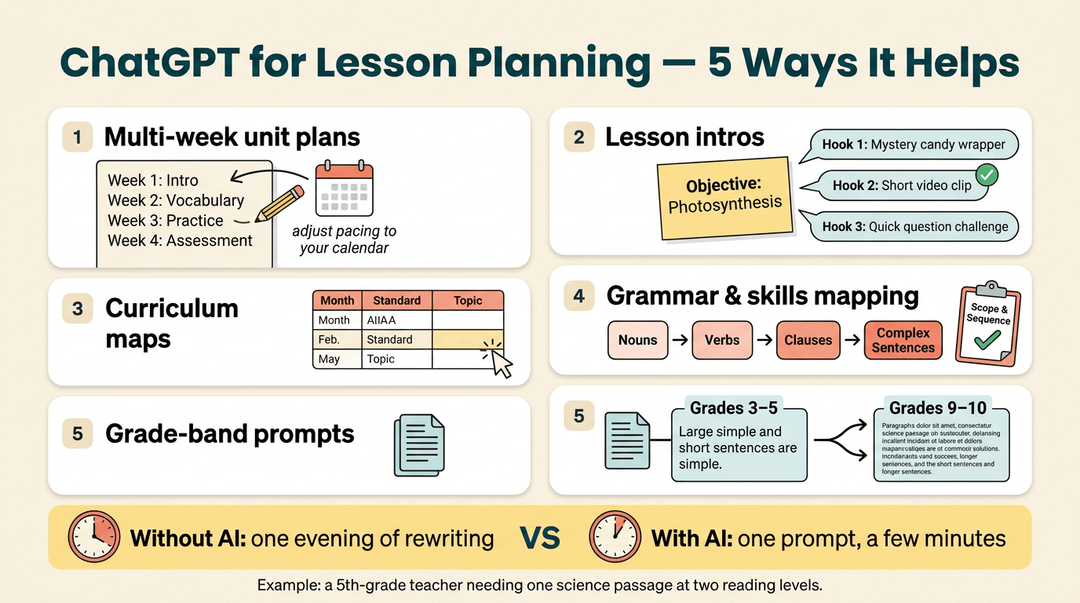
An Indiana Wesleyan University article on AI lesson plan design notes that teachers can use ChatGPT to assist with planning, including unit outlines. Time savings depend on the task and your workflow, so test it on one unit first. Here's how it can help:
- Multi-week unit plans: Get a draft outline, then adjust the pacing to your calendar.
- Lesson intros: Request three hook options for one objective, then pick the one that fits your room.
- Curriculum maps: Lay out a year of standards in a table you can edit.
- Year-long grammar and skills mapping: Sequence skills from simple to complex, then check the order against your scope and sequence.
- Grade-band prompts: Ask for the same passage adjusted for grades 3 to 5 and again for grades 9 to 10.
Consider a fifth-grade teacher who needs one science passage at two reading levels. One prompt gives her both versions in minutes, instead of an evening of rewriting.
Grading quizzes and giving feedback
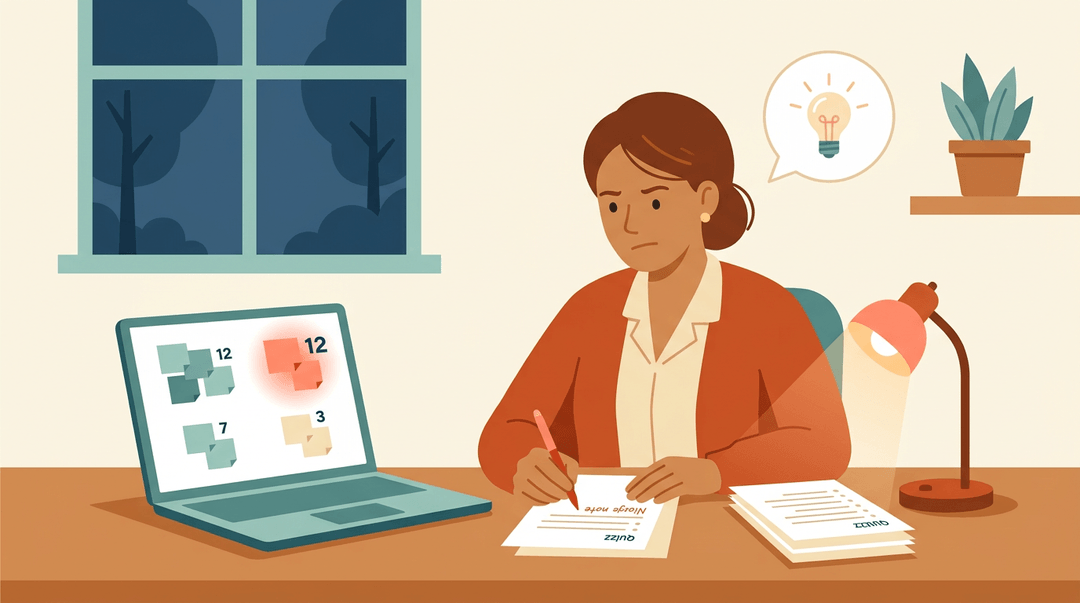
Use ChatGPT to speed up the paperwork of assessment, not to replace your judgment. Ask for ten multiple-choice questions with distractors that reflect common misconceptions.
Paste a rubric and a student paragraph, and request feedback tied to each criterion. Ask for strong, average, and developing sample answers so students can see what each level looks like.
Exit tickets are a good fit, too. Paste anonymous responses and ask for the misconceptions, grouped by how often they appear. A high school history teacher who does this after class knows what to reteach tomorrow before she grades the next test.
Its job is to surface patterns rather than scores. The feedback still comes from you.
Writing to parents and families
Start with a warm draft of a parent email about a missing assignment, then add the specifics only you know. If families speak another language, translate the email into Spanish, then have a bilingual colleague check anything important before you send it.
For newsletters, paste your club meeting notes and ask for a short family update.
Designing engaging classroom activities
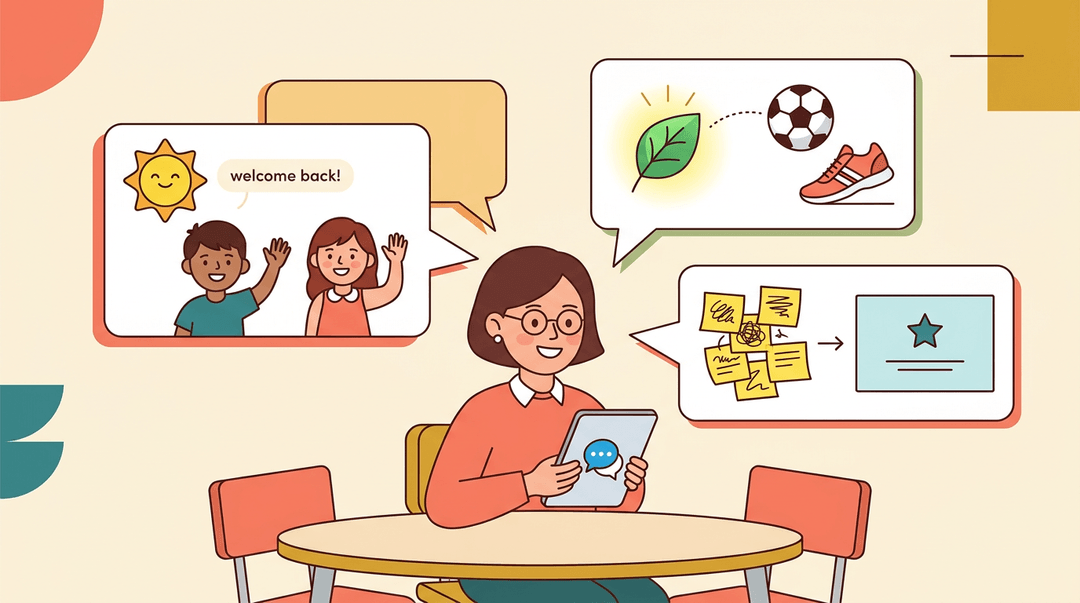
Ask for icebreakers and welcome-back activities matched to your grade and time limit. To make a topic relatable, ask how photosynthesis connects to a student's favorite sport.
For presentations, turn rough notes into slide text, then trim it so each slide carries one idea.
Aligning lessons to ISTE standards
Paste a lesson plan and ask which ISTE Standards for Educators it supports. Check those matches yourself before you list them in your plan, since the tool can be confidently wrong.
Handling admin and professional tasks
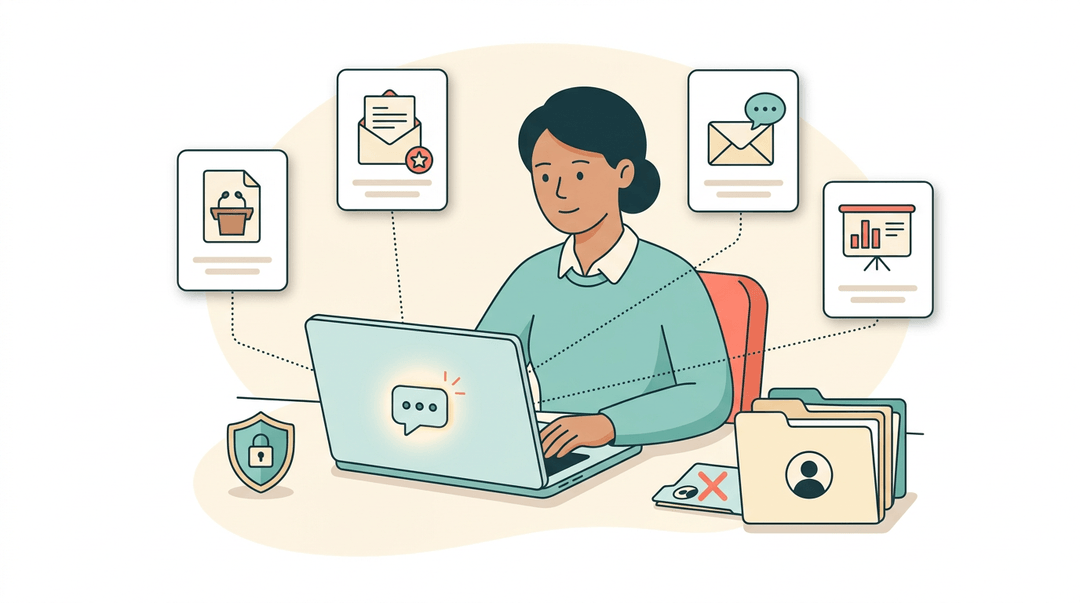
ChatGPT can help with several professional tasks:
- Conference proposals: Draft a session outline from your notes.
- Recommendation letter comments: Brainstorm strengths to describe, without pasting identifying student details.
- Email replies: Draft a calm, clear response to a tricky message.
- Slide creation from notes: Turn a meeting summary into a deck you then refine.
Before you paste any student names or records into a tool, check your district's data privacy policy. Your school's rules come first, and when in doubt, keep student information out of the prompt.
Setting up and Managing Your Workspace
Before anyone in your building types a single prompt, someone has to set up the space. Here's how the pieces fit together, from creating the workspace to deciding who gets in.
Setting up your workspace
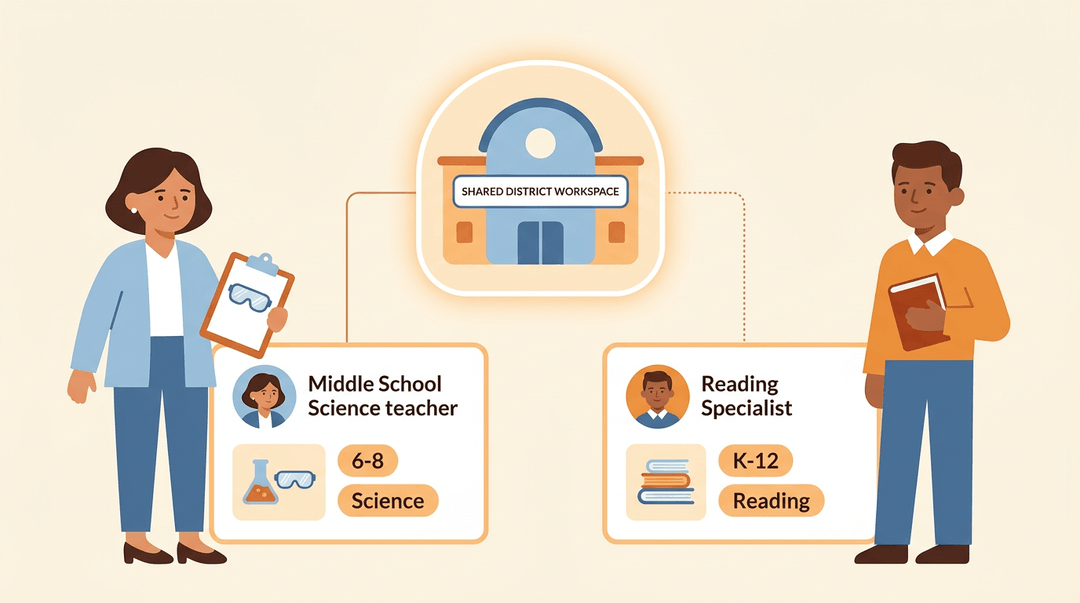
You can create a new workspace from scratch, or join an existing district workspace if your school or district already has one. Either way, a workspace is restricted to one district, so everyone inside shares the same organization.
As you set it up, assign each user a role, subject, and grade level. Think of a middle school science teacher who needs lab-safety materials while the reading specialist down the hall needs something different.
Those few settings make the tool fit how your classroom actually runs.
Admin controls and access settings
This is where your district's tech team does most of the heavy lifting. Admins can configure SSO (single sign-on) using SAML, so teachers log in with credentials they already have.
They can also set role-based access control, which limits each person to what their job requires. Domain claiming is the process of verifying that your district's email domain belongs to your organization.
Usage analytics show how the workspace is being used, so admins can spot where teachers need support.
Access is about who can do what, not just who can log in.
Inviting other teachers to join
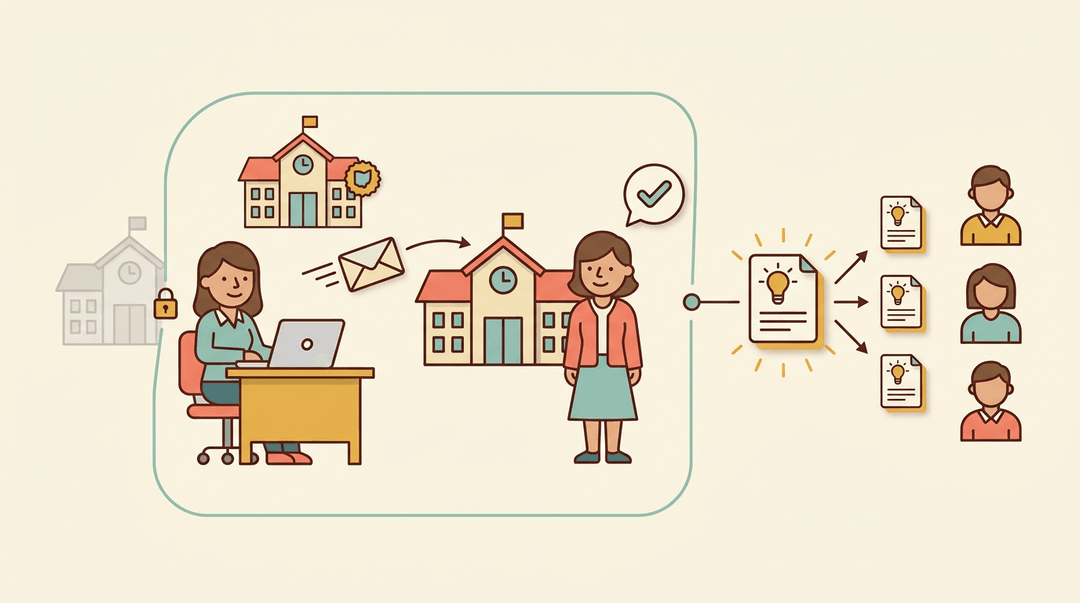
Owners and admins send invitations to educators, and the same-district restriction means only people in your district can accept. That keeps the workspace limited to your own organization.
Once a colleague joins, you can share useful prompts, so a lesson-planning prompt your team builds can be reused across the whole grade level.
What is the price of ChatGPT for education?
Pricing depends on the size and needs of your school or district, so there's no single number to quote here. Large districts can contact sales to talk through pricing and terms.
Districts with bigger needs may look at advanced enterprise features, along with data residency (where your data is stored) and EKM (encryption key management) needs, which cover how your district's data is encrypted.
If you're weighing ChatGPT Edu, check its pricing details directly with the provider, since figures can change. Get a quote first, then decide.
Keeping Student Data Private and Secure
Before student names or work go into any AI tool, you deserve clear answers. Here's what to know.
How your data trains the model
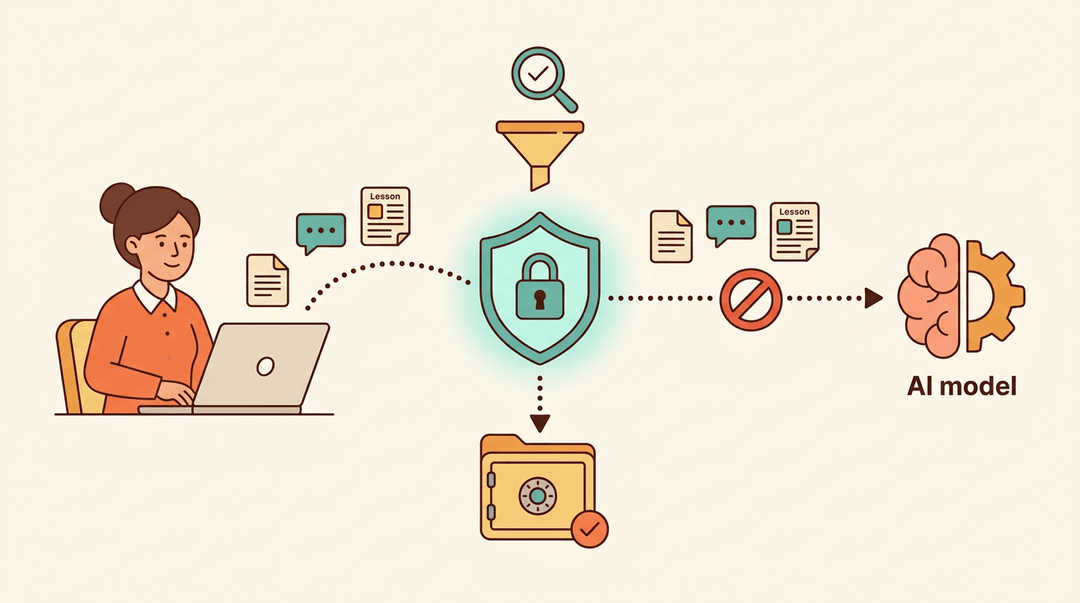
According to OpenAI's enterprise privacy commitments, data from ChatGPT for Teachers is not used to train models by default. The platform also uses automated safety and quality classification to screen content.
Staying FERPA compliant
The Family Educational Rights and Privacy Act (FERPA) protects student records. ChatGPT for Teachers includes FERPA-aligned protections, but your school still makes the final call.
Schools should review the Santa Monica College guidance on data privacy and security for AI tools and the provider's privacy and compliance documentation before using it with student information.
Check whether your district has a student data privacy agreement in place, and ask your IT team about the compliance support OpenAI offers.
Who can access your data
Who sees your data matters as much as where it goes. Employee access is limited, and third-party abuse-review contractors work under confidentiality obligations.
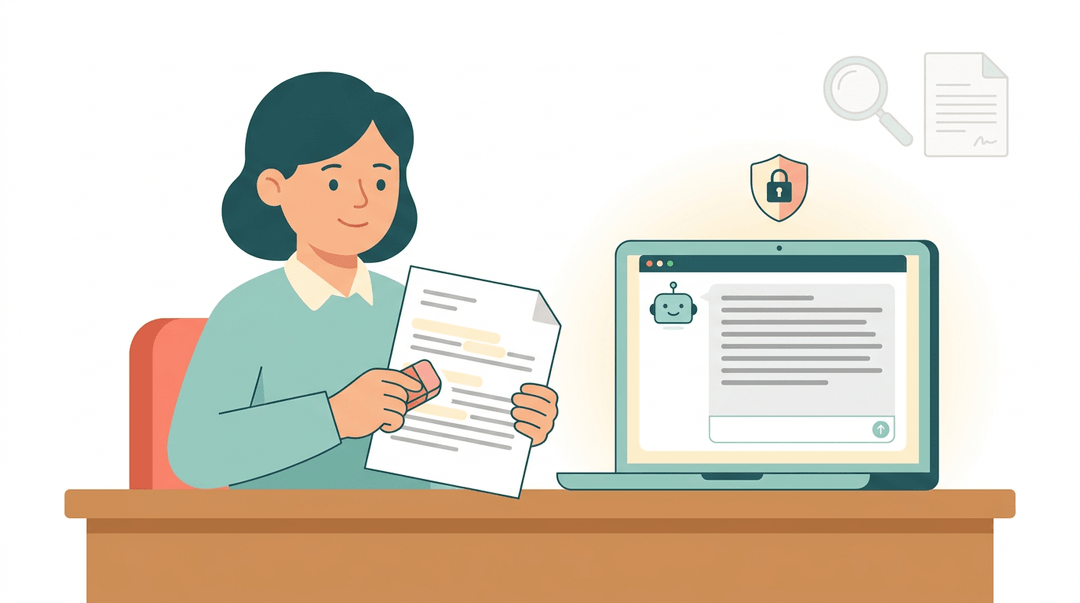
A middle school science teacher wants feedback on a lab write-up. She removes student names first, then pastes in the rest. That two-minute habit keeps identities out of the chat while she still gets the feedback she needs. Check first. Then type.
Pricing and Plan Details
Teachers want to know what this costs before it becomes part of their routine. The short answer is that it's free for eligible educators, though a few moving parts are worth understanding.
Is there a teacher discount for ChatGPT?
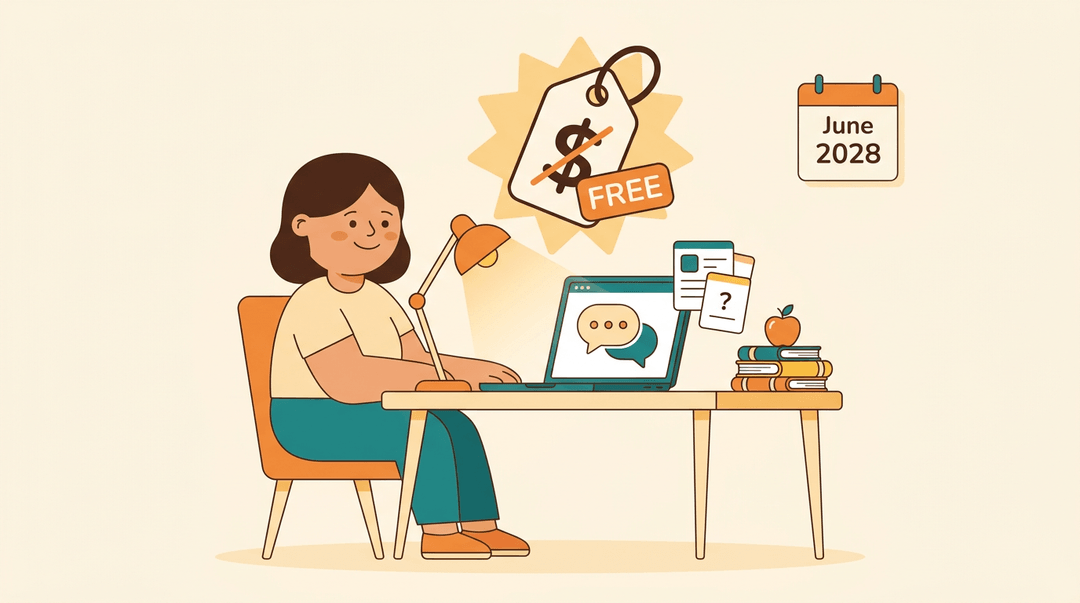
Teachers don't get a reduced rate here. They get in for free. According to OpenAI's Help Center, ChatGPT for Teachers is free through June 2028 for verified U.S. K-12 educators. The goal is access rather than savings, and that distinction matters.
Consider a fourth-grade teacher who wants help drafting differentiated reading questions on a Sunday night. Once she's verified, she can do that work without adding another monthly bill to her budget.
That's the real payoff: more time for planning and less money out of pocket.
Pricing after June 2028 is uncertain, so it's smart to plan for possible changes. Any change should come with advance notice, and the goal is to keep the offering affordable for educators. Watch for those notices, and you won't be caught off guard.
Partnerships and Resources Behind the Program
Wondering who stands behind ChatGPT for Teachers and what support comes with it? Here's how the partnerships and training resources fit together.
Partnerships rolling out the program
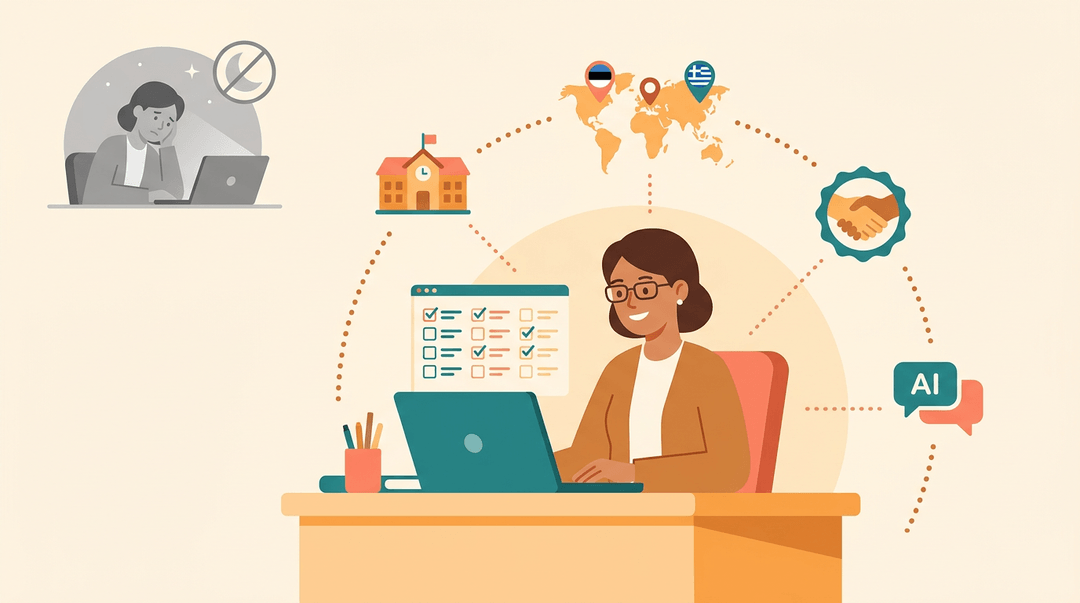
Rolling out a tool like this takes more than one company. OpenAI started with a cohort of leading districts, so early lessons come from real classrooms.
It also collaborates with the Ministries of Education in Estonia and Greece, including the Greek effort, OpenAI for Greece, which aims to expand access to AI tools in secondary education.
OpenAI also runs a nationwide AI training program with the American Federation of Teachers (AFT). Consider a middle school social studies teacher whose district joins in.
Instead of guessing at prompts on a Sunday night, she starts with structured training. Partners do the heavy lifting, so you can focus on teaching.
Training and learning resources available
Beyond partnerships, a few resources help you build skills. They're less about whether you can use the tool and more about how you use it well.
- AI Literacy Blueprint. A resource for building AI literacy, so you know what the tool does well and when to double-check its answers.
- Common Sense Media foundations course. Common Sense Education's ChatGPT course for K-12 educators was designed with OpenAI and focuses on practical strategies for using ChatGPT in schools.
- OpenAI Academy resources. More OpenAI materials to explore alongside the courses.
ChatGPT can take some of the heavy lifting off your plate, but the real expertise still belongs to you: your judgment, your knowledge of your students, and your classroom experience.
Start small, review every output, and keep student information protected. Ready to pull your planning into one place? Explore the AI Lesson Editor, an all-in-one online teacher planner with built-in AI assistance to help you draft and refine lessons.
References
- Guidance on Data Privacy and Security When Using AI Tools ... — admin.smc.edu
- How AI is Revolutionizing Lesson Plan Design for Teachers — indwes.edu
- ChatGPT for Teachers — help.openai.com
- A free version of ChatGPT built for teachers — openai.com
- OpenAI and Greek Government launch ‘OpenAI for Greece’ — openai.com (2025)
- Enterprise privacy at OpenAI — openai.com
- OpenAI announces new ChatGPT for Teachers — sea.mashable.com
- ChatGPT Foundations for K–12 Educators — commonsense.org
Frequently asked questions
What is the price of ChatGPT for education?
ChatGPT for Teachers is free through June 2028 for verified U.S. K-12 educators, including teachers, staff, administrators, and district leaders at accredited schools. District pricing varies for larger deployments, so schools and districts should contact sales for a quote.
How can I use ChatGPT as a teacher?
Teachers can use ChatGPT to brainstorm lessons, create unit outlines, adapt materials for different reading levels, draft worksheets and rubrics, analyze anonymous assessment patterns, write family communications, and develop classroom activities. Give it the grade, subject, format, and learning goal, then review every output for accuracy, standards alignment, and appropriateness.
Is there ChatGPT for teachers?
Yes. ChatGPT for Teachers is a workspace designed for verified educators at accredited U.S. K-12 schools. It includes tools such as file uploads, web search, data analysis, custom GPTs, shared projects, and integrations with services including Google Drive and Microsoft 365.
Do teachers get a discount on ChatGPT?
Verified U.S. K-12 educators do not receive a conventional discount because ChatGPT for Teachers is free through June 2028. Eligibility is confirmed through SheerID, and pricing after that period may change.
Can ChatGPT be free for teachers?
Yes. Verified educators at accredited U.S. K-12 schools can use ChatGPT for Teachers free through June 2028. Students are not currently eligible for this educator access, and schools should still follow their district’s privacy and acceptable-use policies.
Is it okay for teachers to use ChatGPT?
Yes, provided it is used responsibly and within school rules. Teachers should treat ChatGPT as a drafting assistant, verify its claims and answer keys, avoid entering identifiable student information, and follow district privacy requirements.
Is there a teacher discount for ChatGPT?
There is no separate teacher discount for the educator workspace. Verified U.S. K-12 educators receive free access to ChatGPT for Teachers through June 2028.
Which free AI is best for teachers?
The best free AI depends on a school’s needs, privacy requirements, and administrative controls. ChatGPT for Teachers is designed as a secure, teacher-focused workspace, but educators should compare compliance features, onboarding, integrations, and district controls before choosing a tool.