What Is ICT Teaching? A Complete Guide

Jump to section
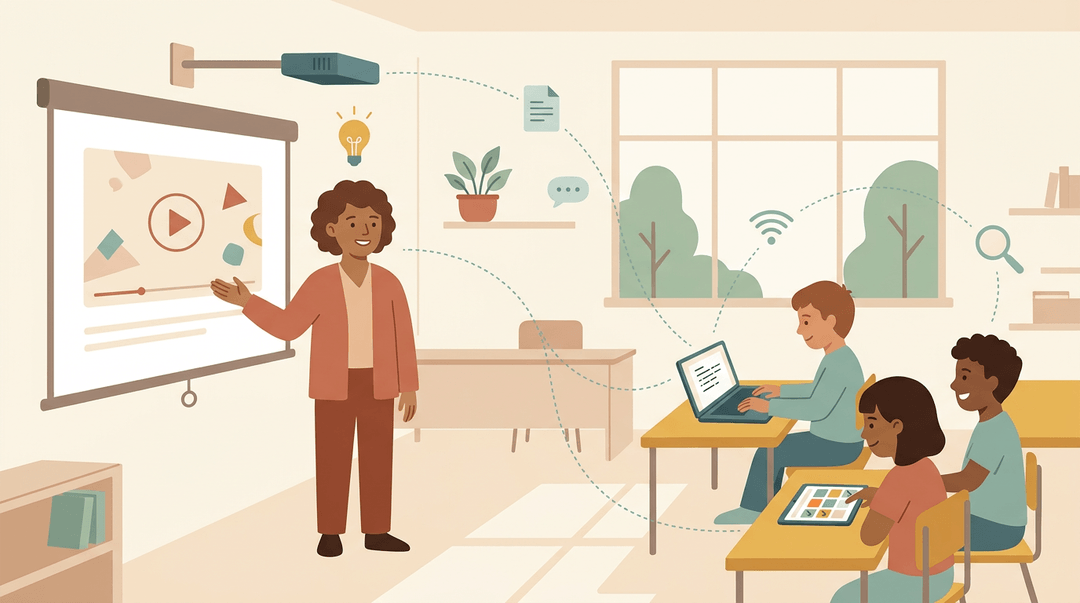
Think about the last time you projected a video, pulled up a shared grade sheet, or had students type a short story on a laptop. Each of those moments involves ICT, and you probably use it more than you realize.
ICT stands for information and communication technology. In teaching, it's the devices, software, and online resources that help you find, create, and share information with students.
It's related to information technology (IT), but ICT focuses on how those tools support learning rather than the systems behind them. This post covers what ICT is, its benefits, tools, and risks, plus a checklist you can use right away.
What Is ICT Teaching and When to Use It?
So when should you reach for Information and Communication Technology (ICT), and when should you skip it? Put simply, it's technology used to help students learn.
Treat ICT as a tool, not the goal
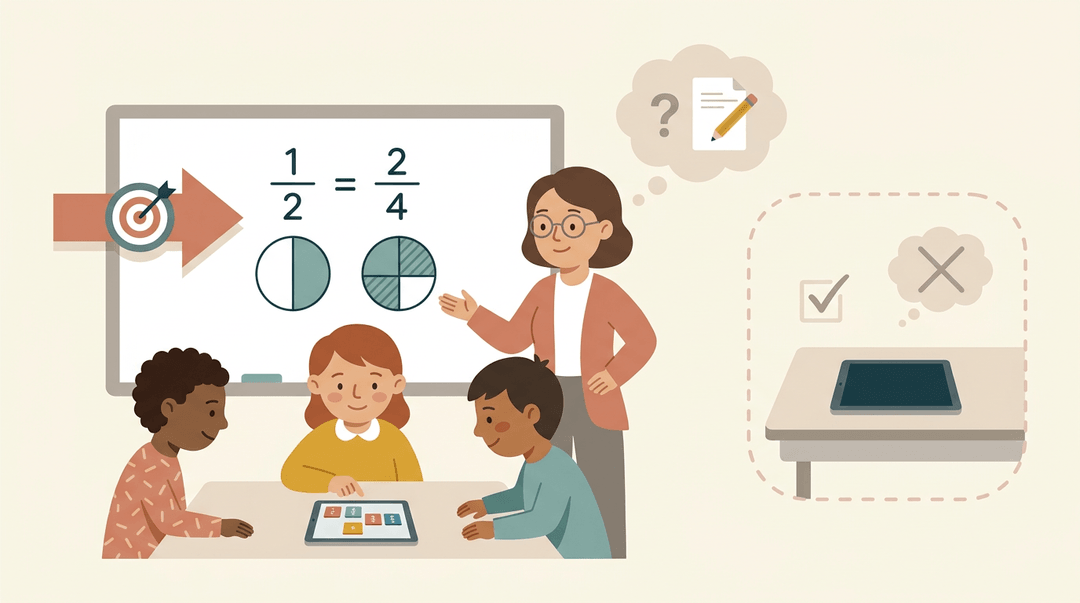
Start with the learning goal, then pick the tool. The question isn't which app to use but why we're using it. Once the lesson ends, check whether it actually moved students forward.
Think of a math teacher practicing equivalent fractions. A quick game can give everyone ten minutes of targeted practice, while the teacher leads the discussion about why the fractions match.
ICT should support and enhance your teaching. For students, it's an enabler for research, collaboration, and creation. Ask yourself, 'Would this lesson work just as well with paper and a whiteboard?' If so, skip the screen.
Avoid tick-box usage, where a device appears just to prove it was used.
How ICT fits into modern schooling
In school education, ICT stands for Information and Communication Technology, covering the devices, software, and networks that support teaching and learning. It's a close cousin of Information Technology (IT), which focuses on keeping systems running.
The difference is focus: ICT is about what people do with technology.
Today that often includes artificial intelligence (AI) tools, cloud storage, and connected devices.
According to an EdSurge article, using ICT in education can support better learning outcomes and creativity while complementing conventional teaching. Good tools make room for good thinking.
Across grade bands, that looks like:
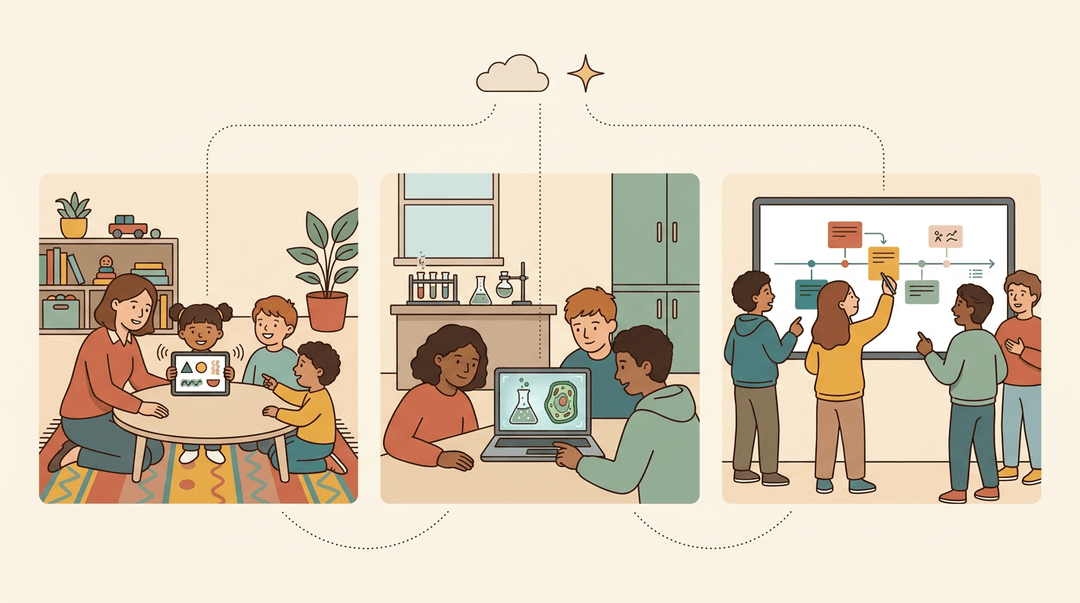
- Early elementary: A first-grade teacher uses a letter-sound app during small-group rotations.
- Middle school: Students run a virtual science simulation before the real lab.
- High school: A history class builds a shared digital timeline of events.
Plan a Lesson That Uses ICT
Use this when you're planning a lesson where technology should help students learn, not just fill time. Work through the four steps, match the tool to your students' age, then run the pre-flight check.
Build the lesson in four steps
- Start with the learning objective
- Write it without naming any tool.
- On the board: "Students will compare two fractions and explain which is larger."
- Pick one fitting tool
- Ask which single tool best serves that objective.
- One tool is plenty. Adding more splits attention.
- Model the tool for students
- Show the exact moves they'll need, on screen, before they try.
- Say: "Watch me add a text box. Now you try it with your partner."
- Assess learning, not tech
- Grade the thinking, not the polish.
- ✅ "Explains why 3/4 is larger than 2/3." ❌ "Used three fonts and an animation." The first shows the objective was met; the second shows tool skill only.
Match the tool to the age group
| Age group | Tool type | What it looks like |
|---|---|---|
| Primary | Drawing and typing apps | Draw a plant, type a label |
| Middle | Collaborative slide decks | Each group builds one slide |
| Secondary | Research and simulations | Test a variable, cite findings |
Example: A seventh-grade science teacher wants students to explain the water cycle. Each group owns one slide in a shared deck. She models adding a diagram first, then grades only the accuracy of each group's explanation.
Check before you teach
This is a verification list, not a to-do list. Confirm each one before the lesson runs.
- Tech adds value. Ask whether paper would do the job just as well. If so, skip the tool.
- Backup plan ready. Keep a paper version of the task in case the Wi-Fi drops.
- Accessibility checked. Every student can see, hear, and use the tool (readable text, captions where needed).
- Data privacy reviewed. Know what student information the tool collects before anyone signs in.
⚠️ Watch out: If you chose the tool before the objective, go back to step 1. Tool-first planning is how lessons end up teaching the app instead of the content.
Draft and organise ICT-integrated lessons faster with EMStudio's AI Lesson Editor.
Keeping Pupils Engaged Beyond the Classroom
Engagement doesn't stop at the bell. Technology can carry learning well beyond your classroom walls.
Making subjects come alive with tech
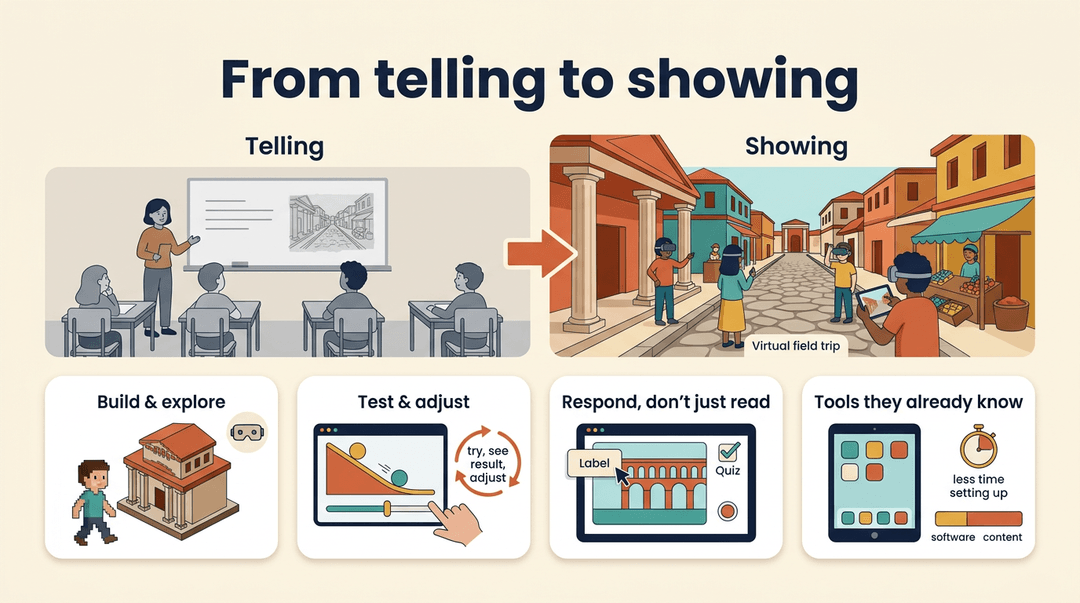
Consider a Year 4 teacher planning a unit on the Romans. Instead of describing a Roman street, she opens a virtual field trip through the ruins, and the lesson shifts from telling to showing.
Here are a few more ways to bring subjects to life:
- Minecraft Education and virtual reality (VR). Pupils build and explore inside a world they can move through.
- Real-time simulations. Pupils test an experiment or a historical scenario, see the result right away, and adjust.
- Interactive online resources. Quizzes, drag-and-drop activities, and clickable diagrams let pupils respond instead of just reading.
- Familiar technology for pupils. Tools pupils already know mean less time on the software and more time on the content.
Learning anytime and anywhere
Learning doesn't end at the school gate. Picture a science teacher whose class drafts a lab report in a shared document. A pupil revises the conclusion at home, and the teacher comments before first period. The work keeps moving.
- Cloud tools and apps. Work saved online opens on almost any device, so pupils can pick up where they left off.
- Real-time collaborative projects. Pupils co-write and comment on the same document at once, wherever they are.
- Learning on mobile devices. A phone or tablet turns a spare five minutes into quick review practice.
- Reliable connectivity needed. None of this works without a dependable connection. Check access at home and school first, and plan an offline backup for Wi-Fi outages.

Tailoring Learning for Every Pupil
Every class spans a wide range of pupils, including those with special educational needs and disabilities (SEND). Technology can help you meet each of them where they are, as long as it's there to support your teaching, not replace it.
Letting pupils learn at their pace
Pupils who missed a concept can revisit it as needed, without holding up the class. High achievers need extension activities that stretch their thinking.
Picture a Year 5 teacher whose class is split on fractions: some pupils are ready to move on, others need another pass. Practice sets on Seneca let each group work at its own pace, freeing you up for one-on-one time with the pupils who need it most.

Adapting lessons to different learners
Adaptive software like Sparx Maths adjusts practice to each pupil's answers. Augmented reality (AR) overlays digital content on the real world, while mixed reality lets digital and physical objects interact.
An inclusive-by-design approach builds lessons for many learners from the start, rather than retrofitting support later. Prompts that ask pupils how they solved a problem encourage metacognition: thinking about their own thinking.
Accessibility support for SEND pupils
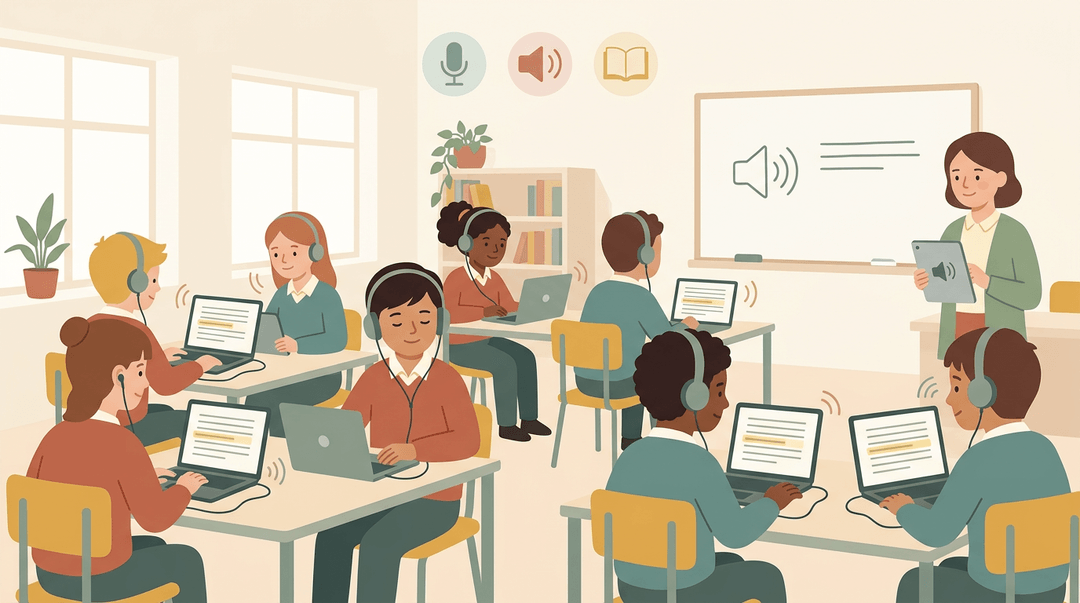
Assistive technology helps pupils with SEND.
- Speech-to-text lets them dictate answers
- screen readers read on-screen text aloud
- Microsoft Immersive Reader makes reading material easier to work through.
Tools that let pupils listen as well as read, or break a task into smaller steps, can also help pupils with dyslexia or attention-deficit/hyperactivity disorder (ADHD).
Consider a Year 7 teacher who turns on read-aloud for the whole class during a reading task. The pupil who needs it gets it, and no one is singled out. The best support? It's invisible.
Building Teamwork and Life Skills
When teachers use information and communication technology (ICT) well, it builds the teamwork and life skills students need after they leave your room. The five advantages of ICT in education covered here are:
- collaboration
- communication
- research
- productivity
- adaptability
Helping pupils collaborate with peers
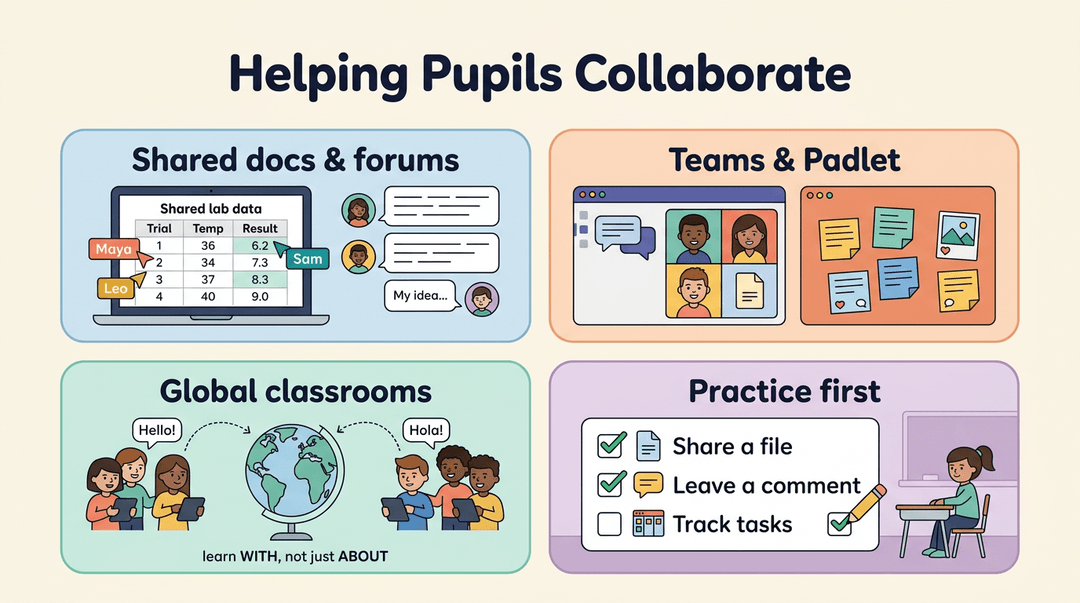
- Shared documents and forums. A shared file lets students draft together, and a forum gives quieter learners room to contribute in writing. Consider a middle school science teacher who gives each lab group one shared document, so everyone adds data to the same table and the teacher can check progress at a glance.
- Microsoft Teams and Padlet. Teams combines chat, video meetings, and shared files in one place. Padlet is an online board where students post notes and images for classmates to respond to.
- Global collaboration. Partnering with classes elsewhere lets students learn with people far away, not just about them.
- Remote teamwork preparation. Before students collaborate from home, rehearse sharing a file, leaving a comment, and tracking tasks in class. Teamwork is a skill worth practicing.
Skills that prepare pupils for work
- Communication and presentation. Students who turn research into a short video practice explaining ideas to a real audience, a skill that lasts long after they've graduated.
- Research and productivity. Students who judge sources and organize their findings learn to find good information, not just any information.
- Digital fluency for employers. Employers look for the confidence to pick up a new tool and put it to work quickly.
- Adapting to constant change. Software won't stop changing, so teach students how to learn a tool, not just which buttons to press. Adaptability outlasts any app.
What Tools Help Teachers Work More Efficiently?
Efficiency means getting routine work done faster so you have more energy for students. This isn't a ranked list of the top 10 teaching tools, but we think these categories are a solid place to start.
Speeding up planning, marking and assessment
A PMC article on Google Classroom in undergraduate embryology teaching notes that the platform helps teachers create and organize assignments quickly and give feedback efficiently.
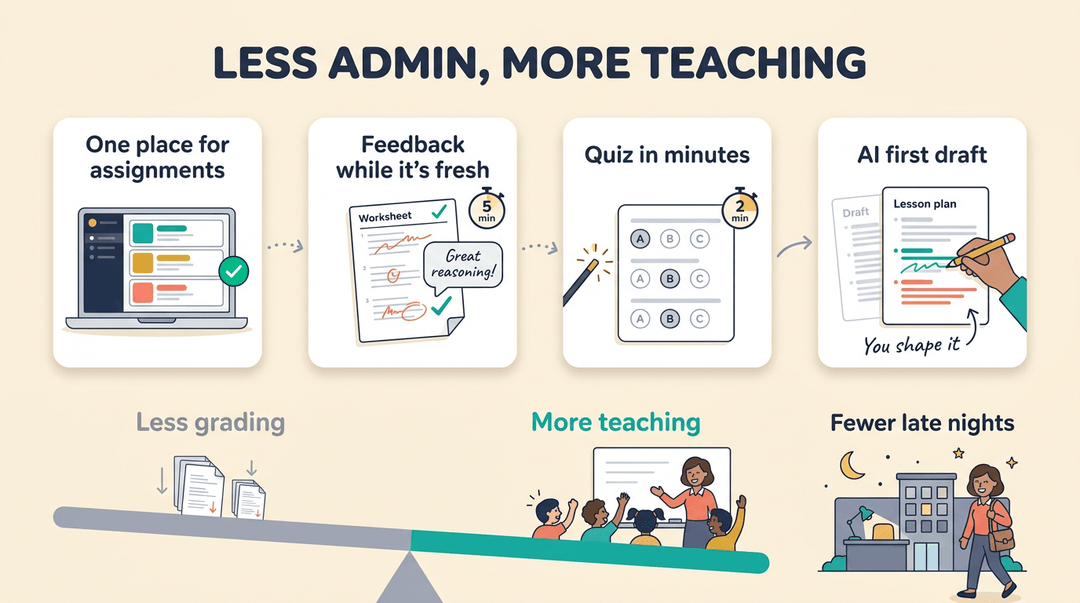
- Google Classroom and ClassNotebook share assignments in one place.
- Online marking platforms speed up grading, so feedback arrives while the work is fresh.
- Automated quiz generators build a quick check for understanding in minutes.
- Reduced workload and burnout: fewer hours on repetitive tasks can mean fewer late nights.
- Draft lessons with artificial intelligence (AI) assistants: they can produce a first draft that you then shape for your students.
The real win isn't flashy features. It's less grading and more teaching.
Keeping parents connected to school
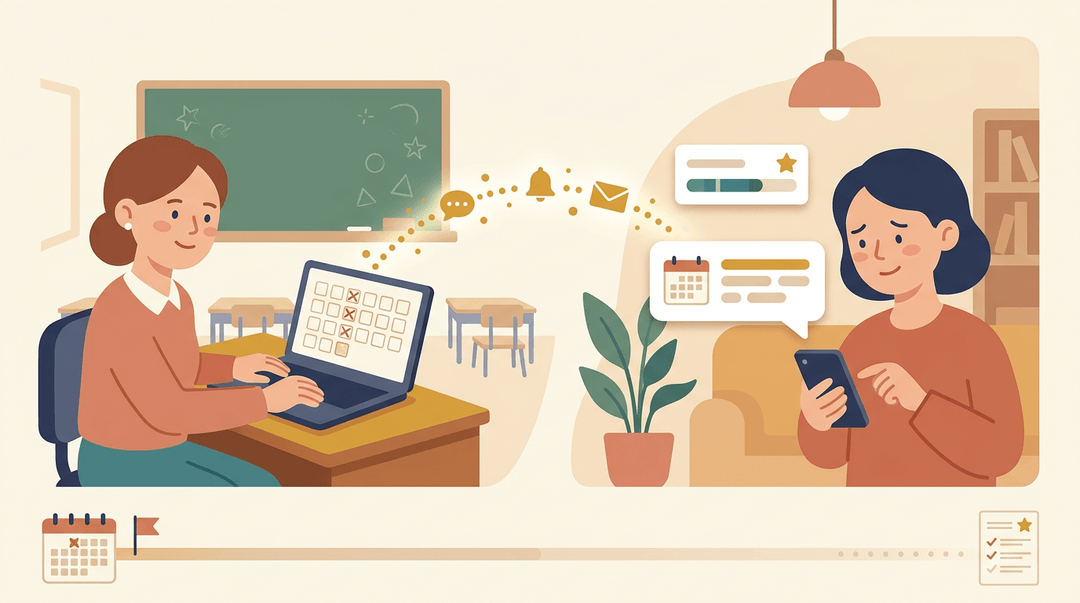
Parents want a clear view of how their child is doing.
- ClassDojo and school management information system (MIS) apps keep families in the loop.
- Real-time attendance and grades let parents see updates as they happen.
- Direct messaging and video calls replace long email chains with a quick talk.
Earlier intervention is where this pays off. Think of a fifth-grade teacher who notices a student missing three Mondays in a row. A quick message home starts a conversation weeks before the problem reaches a report card.
A study in the Journal of Human Resources tested sending parents attendance and grade updates by text message in low-income urban schools in Chile. Earlier is better.
Training Teachers and Meeting Standards
Technology only helps when teachers feel prepared. Here's how training and policy shape information and communications technology (ICT), and how we can tell whether it's helping: look at what pupils can actually do.
Standards and skills teachers must meet
The Qualified Teacher Status (QTS) standards set your professional baseline. Alongside them, professional skills tests check your literacy, numeracy, and ICT skills. Comfort with a projector isn't enough.
You'll also support pupils' skill development, from saving work to searching for information.
How schools and policy support ICT
Many schools have an ICT coordinator to support colleagues with technology. Consider a teacher stuck on a new classroom tool.
Rather than lose a planning period to trial and error, they book fifteen minutes with the coordinator and teach that lesson the same afternoon.
Policy shaped this too. The Department for Education and Employment (DfEE) issued Circular 4/98, which repeated the content of 10/97 and added curricula for ICT, primary science, and secondary English, maths and science.
NOF (New Opportunities Fund) training gave teachers structured practice with technology, and ICT Across the Curriculum holds that technology belongs in every subject, not just one computing lesson.
Why some subjects adopt ICT faster
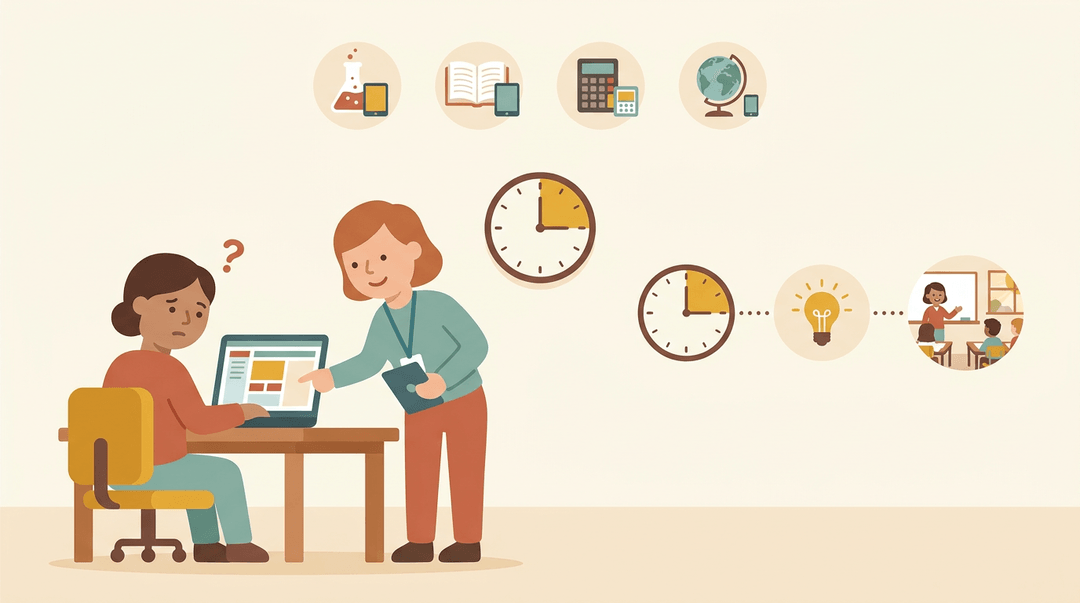
Some subjects moved faster than others, for a few clear reasons:
- Science, maths, and English adopted early. They set the pace for everyone else.
- Equipment shortages slowed things. Without enough devices, even eager teachers wait their turn.
- Other subjects stayed more traditional. Some kept established methods, so the pull was weaker.
- Newly qualified teachers (NQTs) now see the benefits. Arriving already aware of what ICT can do, they can nudge their departments to try it.
Keeping up with AI and New Technology
Technology changes fast, but you don't need to chase every new app. Focus on your tools, your network, and your confidence.
Using AI and major learning platforms
If your digital whiteboard has artificial intelligence (AI) features, check your school's approved list first. Consider a Year 4 teacher who needs a review quiz for tomorrow.
With an approved tool, she can draft questions in minutes and spend her evening on feedback instead.
Tools such as NotebookLM and Copilot are worth exploring, but treat them as assistants, not authorities. Always check AI output against your curriculum.
Your school likely works within one ecosystem: Google, Apple, or Microsoft. Stick with it so logins, files, and apps work together.
Keep content fresh by swapping one outdated example per unit. Small swaps go a long way.

Networks, safety and staff confidence
- Networks and Wi-Fi. A dependable connection comes first. Ask your technical team to test it at peak times.
- Equity gaps. Some students lack reliable internet at home. Keep offline options ready so no learner is shut out.
- Safeguarding and filtering. Know how your web filter works, and report gaps through your school's safeguarding process.
- Screen time. Mix devices with movement and hands-on work so technology supports learning rather than dominating it.
- Cybersecurity and data protection. Use strong, unique passwords, and never put student data into unapproved apps.
- DfE digital standards. Review the Department for Education (DfE) digital standards with school leaders to see what applies to you.
- Staff training and support. Ask for training before a tool arrives, not after. A 30-minute walkthrough means no fumbling in front of your class.
ICT works best when you use it with a clear purpose, not just because a tool is available. Used well, it helps you communicate, reach every learner, and make lessons stick. Start with one tool that solves a real classroom problem, then build from there.
Ready to plan your next lesson? Check out the AI Lesson Editor, which helps you draft and refine lessons with built-in AI assistance.
References
- Reducing Parent–School Information Gaps and Improving Education Outcomes — jhr.uwpress.org (2025)
- Google Classroom as a Teaching Tool for Undergraduate Embryology — pmc.ncbi.nlm.nih.gov (2022)
- DfEE Circular 4/98 (1998) — education-uk.org
- The Link Between Edtech, Curiosity and Creativity in the Classroom — edsurge.com
Frequently asked questions
What are five advantages of ICT in education?
Five advantages of ICT in education are improved collaboration, stronger communication, better research skills, increased productivity, and greater adaptability. Digital tools can also support personalized practice and accessibility when they are chosen to meet students’ learning needs.
What are the top 10 teaching tools for teachers?
Useful teaching tools include Google Classroom, Microsoft ClassNotebook, online marking platforms, automated quiz generators, AI lesson-planning assistants, ClassDojo, school management information system apps, shared documents, collaborative slide decks, and interactive learning resources. Choose tools based on the learning objective, students’ needs, and your school’s approved systems rather than relying on a single ranked list.
What does ICT stand for in school education?
ICT stands for Information and Communication Technology. In school education, it means the devices, software, and networks used to support teaching and learning.
What does ICT stand for and what does IT mean?
ICT stands for Information and Communication Technology, while IT means Information Technology. IT generally focuses on the systems and infrastructure that keep technology running; ICT emphasizes using technology to communicate and support activities such as teaching and learning.