Teaching Typing: A Complete Guide to Keyboard Skills

Jump to section
Think about how much of your students' day now happens on a keyboard. Research notes, science write-ups, class messages, and tests all ask for fingers that can keep up with their thinking.
Typing is a bit like learning to drive: once the pedals become second nature, your attention is free for the road. Teaching typing the same way gives students a skill they'll use for the rest of their lives.
In this guide, we'll cover the fundamentals, how to plan a typing lesson, how to track speed and accuracy, and how to keep students motivated. We'll also look at approaches for different learners and the software features worth considering.

Why Teaching Typing Matters
Typing gets less attention than reading or math, yet it touches nearly every task students do on a screen. Here's why it deserves a real place in your lessons.
Typing is a basic digital life skill
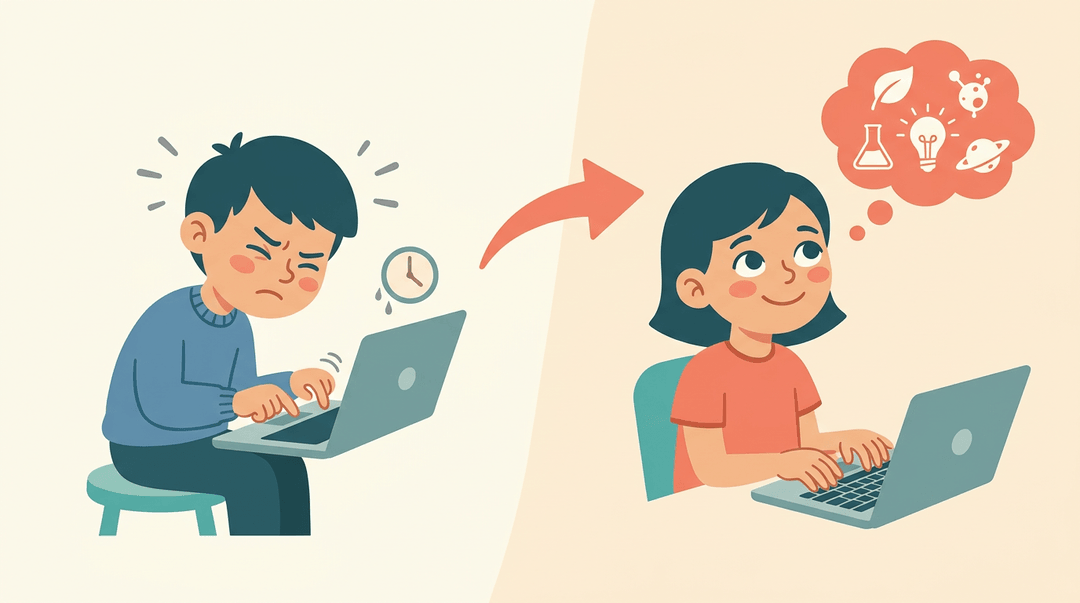
Keyboards show up everywhere, from job applications to school portals. Picture a fifth grader who types comfortably: she can focus on her science ideas instead of hunting for letters.
Typing is a foundational digital skill that students use long after they leave your room.
It also helps break hunt-and-peck habits, where students search for keys one finger at a time. Those habits slow work down and wear students out.
How typing speed boosts productivity
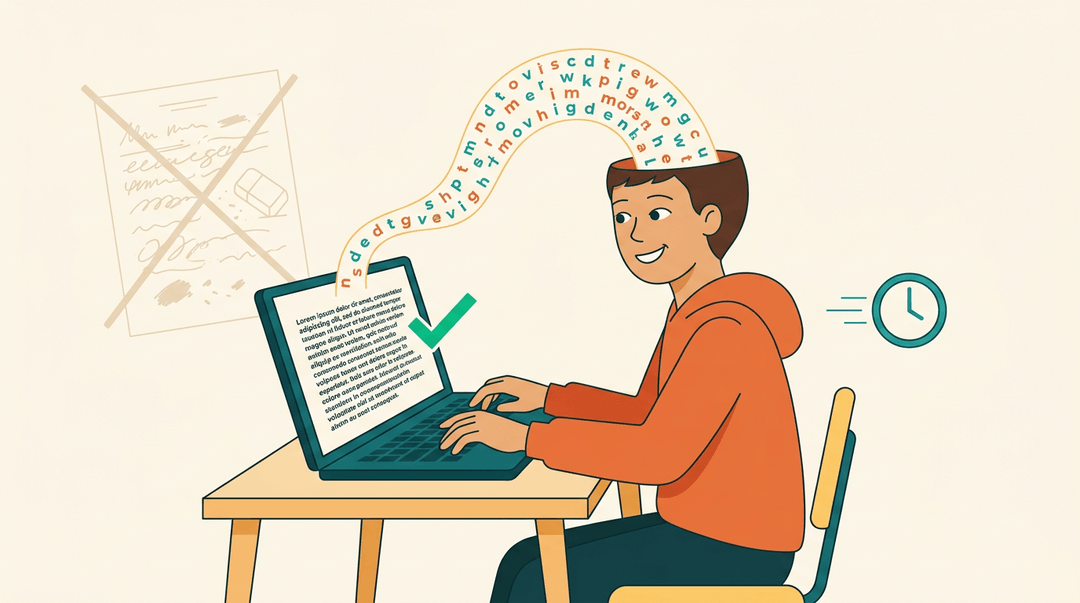
Speed matters most when students are getting their thinking onto the page.
A study on typing proficiency in online writing assessments found that transcription fluency significantly predicted writing performance beyond demographic factors, which points to faster essay and report writing.
Typing can also save time at work and school. A Guardian article on exam research found that more than 50% of students without literacy difficulties wrote more words on keyboards than by handwriting.
Accuracy builds confidence, so start with accuracy rather than speed. Think of a seventh grader who reads back a paragraph without constant typo fixes. That student starts to see the keyboard as a tool, not an obstacle.
Touch-typing Basics Everyone Should Know
Typing is a skill your students will use for years, so it pays to teach it right from the start. Here's the sequence that works, one piece at a time.
Finding the home row and finger placement
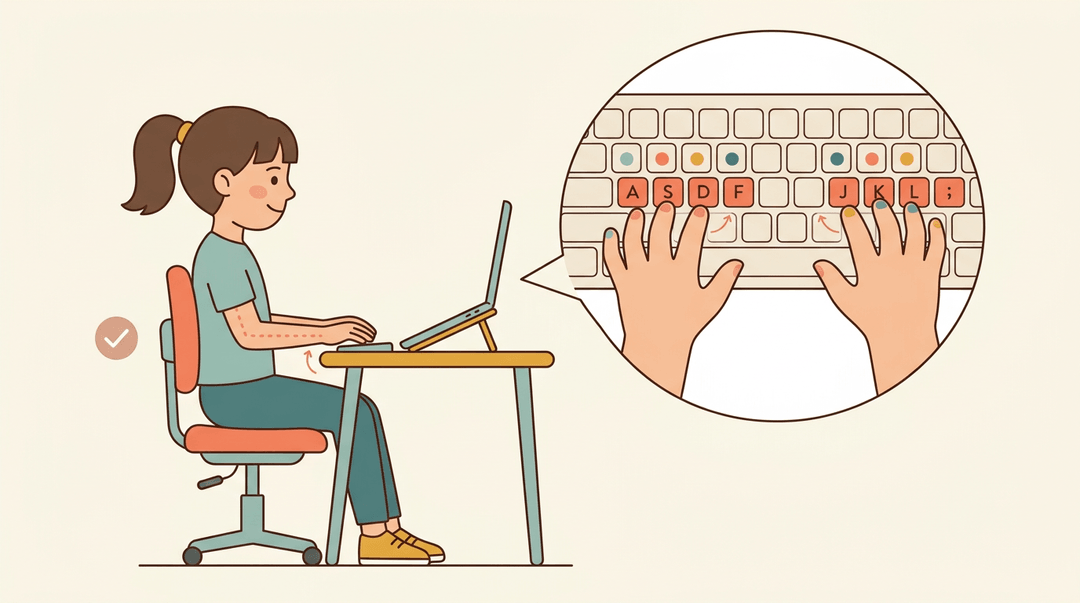
The home row is the middle row of letters. Your left hand rests on A, S, D, and F, and your right hand rests on J, K, L, and the semicolon. Each finger owns a key, and every other key is reached by moving that finger away and back.
Posture matters just as much as placement. Students should sit with feet flat, back supported, and forearms roughly level with the keyboard. Wrists should float rather than rest hard on the desk edge, since bent wrists lead to strain.
Think of a fourth grader who hunches over a laptop and pecks with two fingers. A quick fix is to lower her chair, raise the screen, and have her rest her fingers on the home row before typing a single letter.
Her hands stay in place between strokes, and that resting position becomes the anchor for everything else.
Introducing new keys step by step
Research on keyboarding instruction describes a sequence that begins with letters, then moves to punctuation, numbers, and symbols. In practice, that means:
- Start with the middle row, adding G and H to the home keys.
- Add the top row, then the bottom row.
- Introduce the number row and common symbols.
- Drill Shift key use, pairing it with the opposite hand.
Add two or three new keys per lesson, drill them in short warm-ups, and move on once accuracy holds. Keep it accuracy before speed. Speed comes later.
Moving from words to sentences
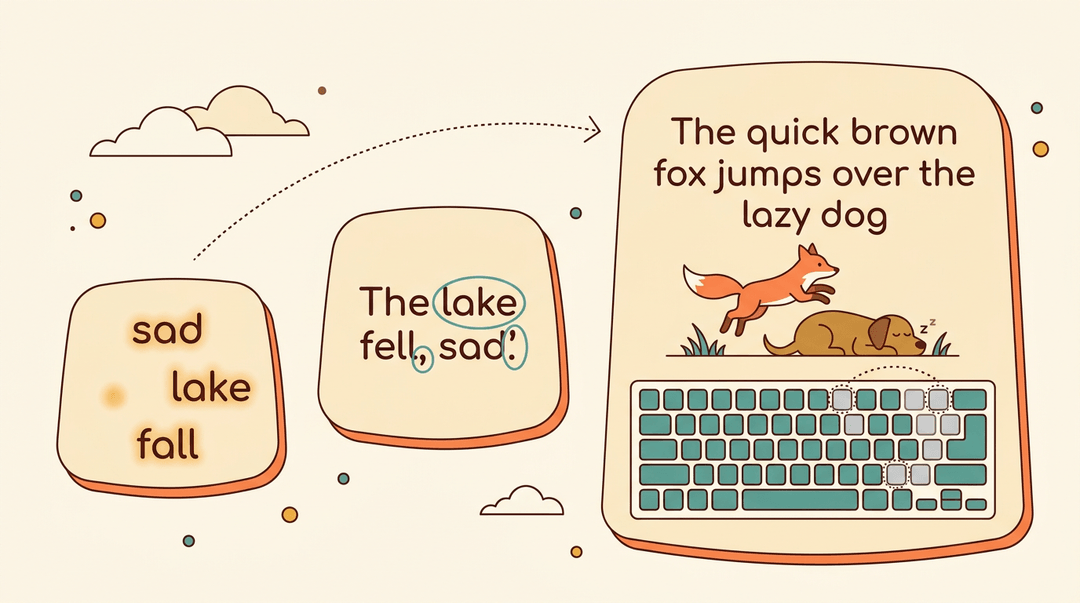
Start with simple words built from keys students already know, like sad, lake, and fall. Then move to short sentences that repeat those letters. Add punctuation next, including periods, commas, and apostrophes.
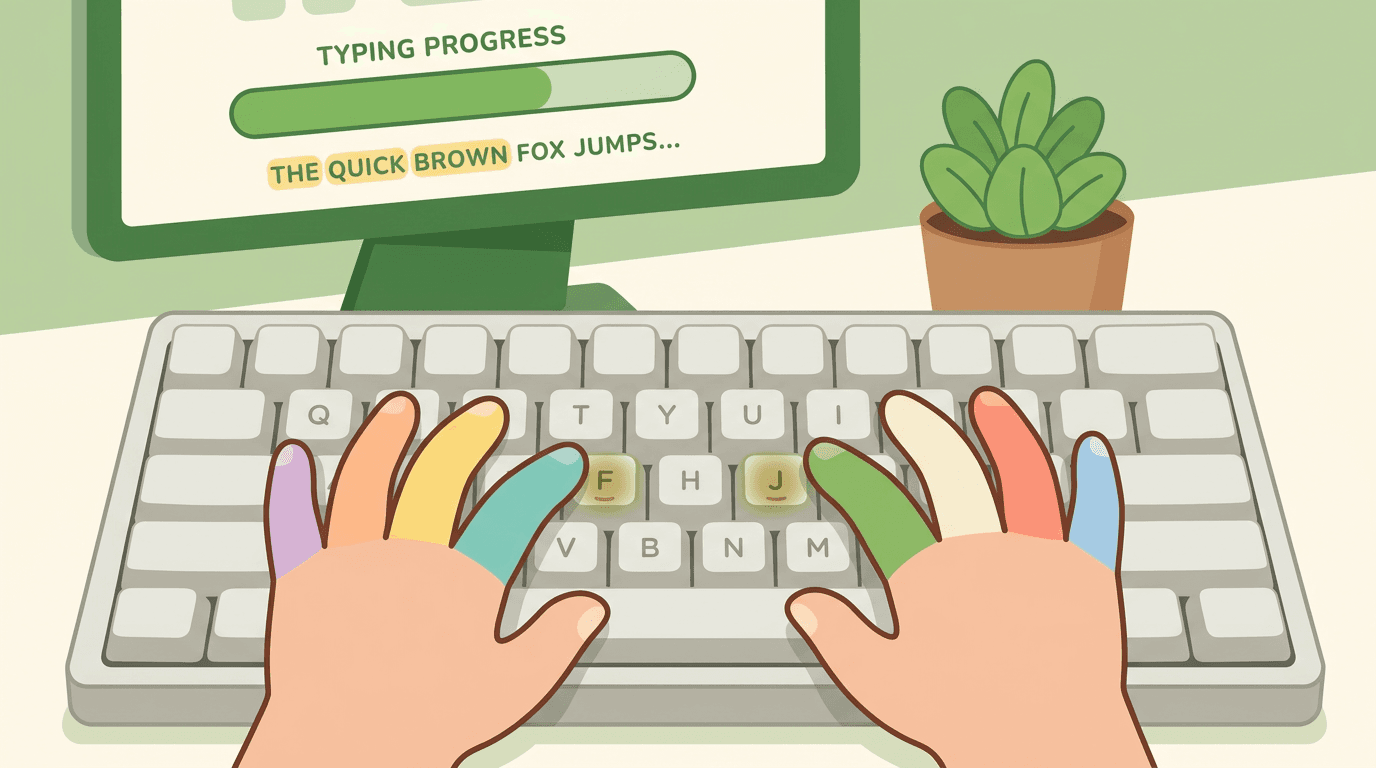
Pangram practice comes in here. A pangram is a sentence that uses every letter of the alphabet, such as The quick brown fox jumps over the lazy dog. Typing one shows students which keys they still need to master, so the gaps become visible.
Building muscle memory through practice
Muscle memory is what turns hunting for keys into typing. Fingers learn locations through repetition, not by thinking about them. That's why short, consistent daily sessions beat one long weekly block.
Letter sequencing bridges the gap between letters and real writing. Drill common pairs like th, ea, and ing, then string them into small words. Students feel progress quickly when the practice looks like words they recognize.
There's no single timeline for learning touch typing. It depends on how often students practice, and steady daily sessions will get them there faster than occasional marathon ones.
How to Plan a Typing Lesson
Use this guide to build a typing lesson with five predictable parts, pace it for your grade band, and leave a sub plan that runs itself.
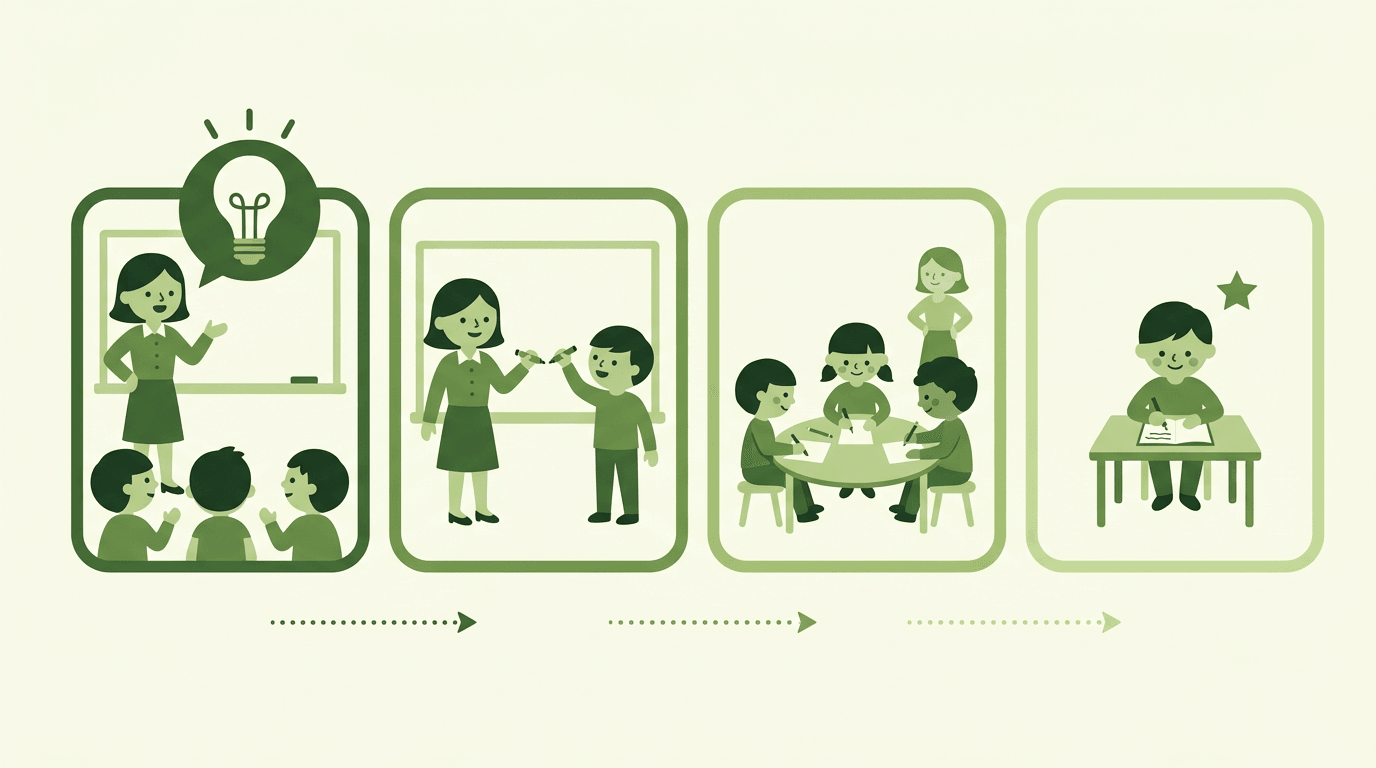
The five-part lesson
Keep the order the same every day. Students settle faster when they know what's coming.
- Warm up with posture and review
- Say: "Feet flat, wrists floating, fingers curled on home row."
- Follow with a short replay of yesterday's keys.
- Model the new keys
- Project the keyboard and type slowly while you narrate.
- Say: "Left index finger reaches up to R, then returns home."
- Run guided practice drills
- Type a short drill together, like fff frf fre ferf.
- Walk the room and watch fingers, not just screens.
- Release to independent practice
- Students work at their own level on a typing program or passage.
- Close with an exit ticket
- Students record their WPM (words per minute) and accuracy.
Exit ticket, as students write it: Today: 14 WPM, 92% accuracy. New keys I practiced: E, R. Tomorrow I'll slow down on: R.
⚠️ Watch out: Praise accuracy before speed. Fast typing built on wrong fingers is hard to undo later.
Example: A fifth-grade teacher adds E and R after a home row review. She models both keys, drills them as a class, then lets students practice alone. Each student ends with a one-line exit ticket for their progress log.
Pacing by grade band
Find your row, then trim the five parts to fit.
| Grade band | Pacing focus | What the lesson looks like |
|---|---|---|
| K-2 | Letter familiarity only | Find and name letters; no timing |
| 3-5 | Home row to full keyboard | Add a few keys per lesson, row by row |
| 6-8 | Speed and accuracy goals | Students set a target and track it |
| 9-12 | Workplace-ready proficiency | Longer passages that mimic real documents |
Substitute plan checklist
Before you're out, confirm the folder holds:
- Printable practice sheet that students can use with or without devices.
- Login and account instructions written step by step, with any shared passwords handled safely.
- Progress log sheet where students record WPM and accuracy for you to review.
- No-tech backup activity, such as typing drills on a paper keyboard, in case the network fails.
Build and reuse these typing lesson plans in EMStudio's lesson planner.
Tracking Speed and Accuracy Progress
Speed and accuracy tell different stories, so track both to show real progress.
Setting words-per-minute goals
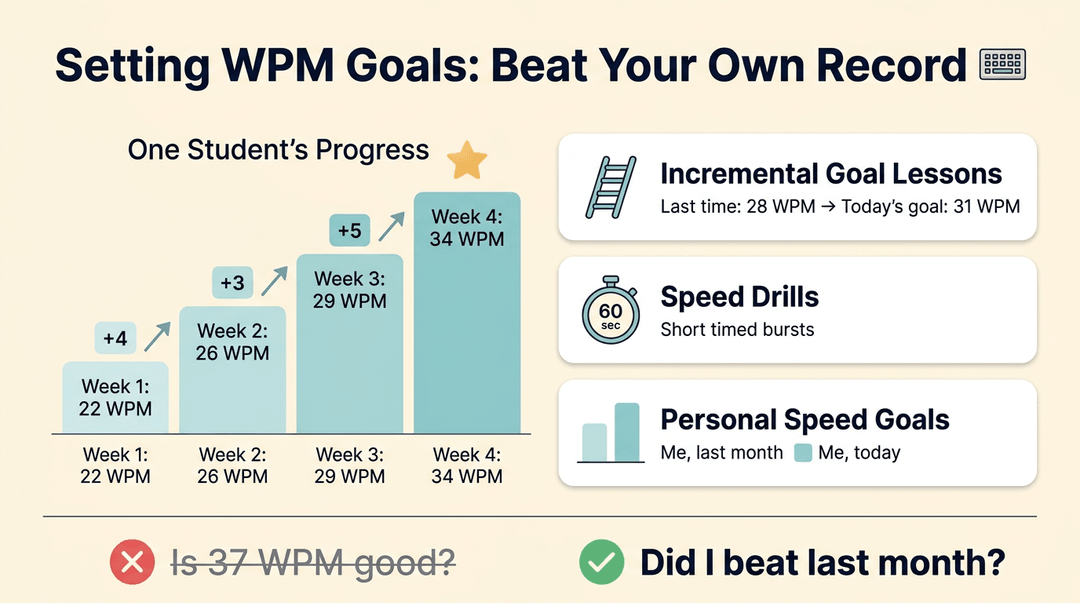
Words per minute (WPM) measures speed. A study in the Journal of Organizational Behavior Management notes that typing is commonly evaluated with both WPM and accuracy, with learners setting progressively higher personal goals. Use:
- Incremental goal lessons that ask for a slightly higher target each time.
- Speed drills for short, timed practice.
- Personal speed goals measured against each student's own history.
Is typing 37 WPM good? It depends on age, grade, and starting point, and our sources don't give a single benchmark. The better question is whether the score beats last month's.
Tracking typos and accuracy
Accuracy is the share of keystrokes typed correctly. Track it alongside speed:
- Problem key highlighting flags the keys a student misses most.
- Typo and error tracking logs what went wrong.
- Accuracy percentage reports show growth in one number.
Think of a middle school teacher whose report shows one student missing the letter p again and again. She assigns a short drill on that key, giving the student a clear next step. Look for patterns rather than single mistakes.
What is the best typing test website?
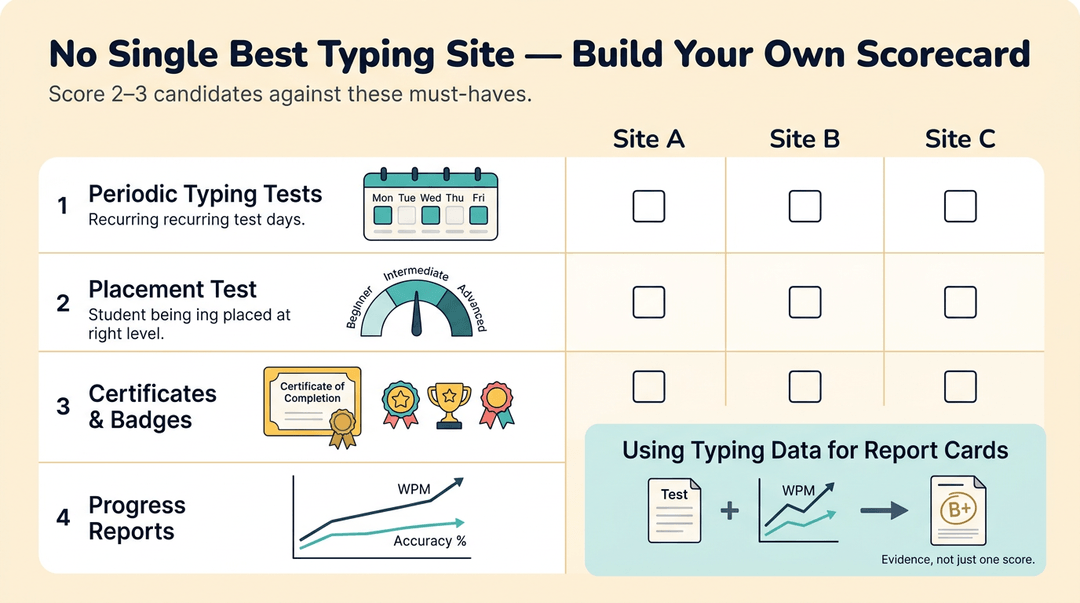
Our research doesn't name a winner, so we won't pick one. Instead, list your must-haves and score two or three candidates against them. Look for:
- Periodic typing tests for regular checkpoints.
- Placement tests for skill level to start each student in the right spot.
- Certificates of completion and achievements and badges to mark milestones.
- Progress reports and statistics to show growth over time.
Use typing data for report cards: pair periodic results with the WPM and accuracy trend so each grade rests on evidence, not a single score.
Keeping Students Motivated and Engaged
Typing takes repetition, and repetition can get dull fast. Built-in motivation keeps students coming back.
Turning typing practice into a game
Games and challenges turn drills into goals students want to hit. Think of a fourth grader who groans at a worksheet but races to beat her own timed score.
Level-up avatars make progress visible, and leaderboards and competitions add friendly pressure, as long as personal bests count as much as first place. Story-driven typing games take it further: every correct word moves the plot forward.
Making typing practice fun for kids
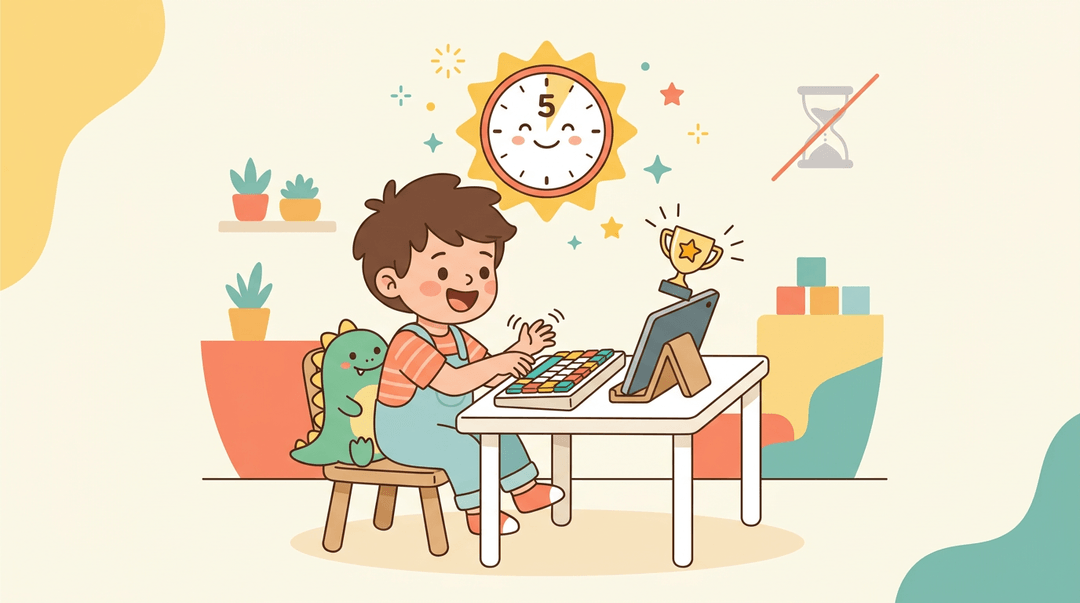
Young learners have short attention spans, so kid-friendly short activities beat long drills. Five-minute rounds keep energy high. Fun reduces boredom, and boredom is what turns practice into a chore.
The goal isn't more minutes of drilling. It's engagement rather than endurance.
Using rewards and recognition
Badges and achievements mark milestones students can see, like a week of daily practice. Certificates of mastery give them something to take home. Consider a middle school teacher who displays a hall of fame of monthly top typists.
Keep it inclusive, though: recognize growth and accuracy, not just the fastest fingers in the room.
Teaching Typing to Different Learners
Typing isn't one-size-fits-all, so the right approach depends on who's at the keyboard. Here's how to adapt instruction for kids, homeschool families, adults, and learners studying at home.
At what age should kids learn typing?
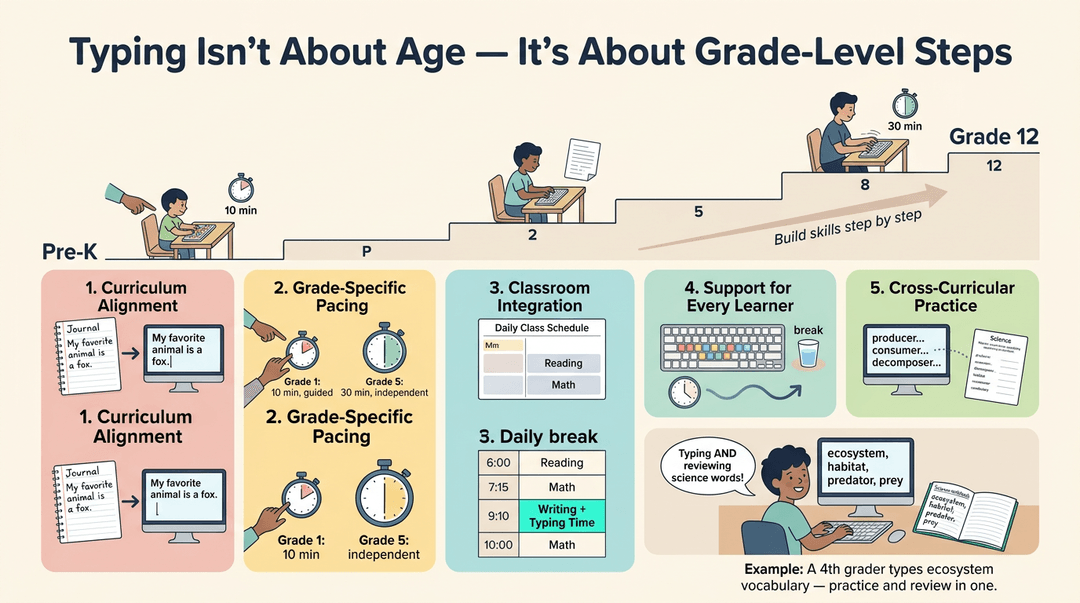
Many schools don't tie typing to a single starting age. Instead, keyboarding is organized by grade and aligned with classroom curriculum.
The New York State Education Department takes an incremental, year-by-year approach across grades P-12, so the ideal starting age matters less than building skills step by step.
- Curriculum alignment. Connect typing practice to what students already write in class.
- Grade-specific lesson plans. Keep early sessions short and guided, then lengthen practice as skills grow.
- Classroom or school use. Add a daily block or fold typing into writing time.
- Neurodivergent learner support. Offer flexible pacing, frequent breaks, and visual key guides so each learner can work in a way that suits them.
- Cross-curricular practice. Have students type science vocabulary or a short math explanation.
Consider a fourth-grade teacher who has students type ecosystem vocabulary. Students practice their keys while reviewing content, so typing time doubles as review.
Typing lessons for homeschool families
- Homeschool keyboarding curriculum. Pick a sequenced program that starts with home-row basics and builds up.
- Multi-child family plans. Run one schedule for siblings at different levels, and let older kids help younger ones.
- Parent dashboard controls. Check progress views to see where each child is stuck, then adjust without guessing.
A parent with a nine-year-old and a twelve-year-old can put both on the same program at different levels. On Sunday, they check the dashboard to see who needs extra practice this week.
Typing instruction for adults and professionals
- Workplace typing efficiency. Small gains add up across daily emails, reports, and messages.
- Career and tech readiness lessons. Strong typing supports job applications and everyday office tasks.
- Adult beginners welcome. It's never too late to start.
For adults, focus on accuracy first. Clean keystrokes build the habits that make speed possible later.

Is it possible to learn typing at home?
Yes. You can learn typing at home without a formal course, but structure helps learning stick. Options include:
- Live online group lessons. Learn alongside peers with a live instructor.
- Teacher-guided sessions. One-on-one or small-group time keeps you on track.
- Camera-on policy for posture checks. When cameras are on, instructors can check hand position and posture, so ask about this policy before you enroll.
Typing Software Features to Look For
Not every typing program is built the same way, and the right features depend on your classroom. Here's what to weigh before you commit.
Account and profile options explained
Many platforms let students start without signing up, which is handy for a quick warm-up on a shared computer.
An optional free account adds the ability to save progress, and some programs need no signup at all, so there's less time spent on logins at the start of class.
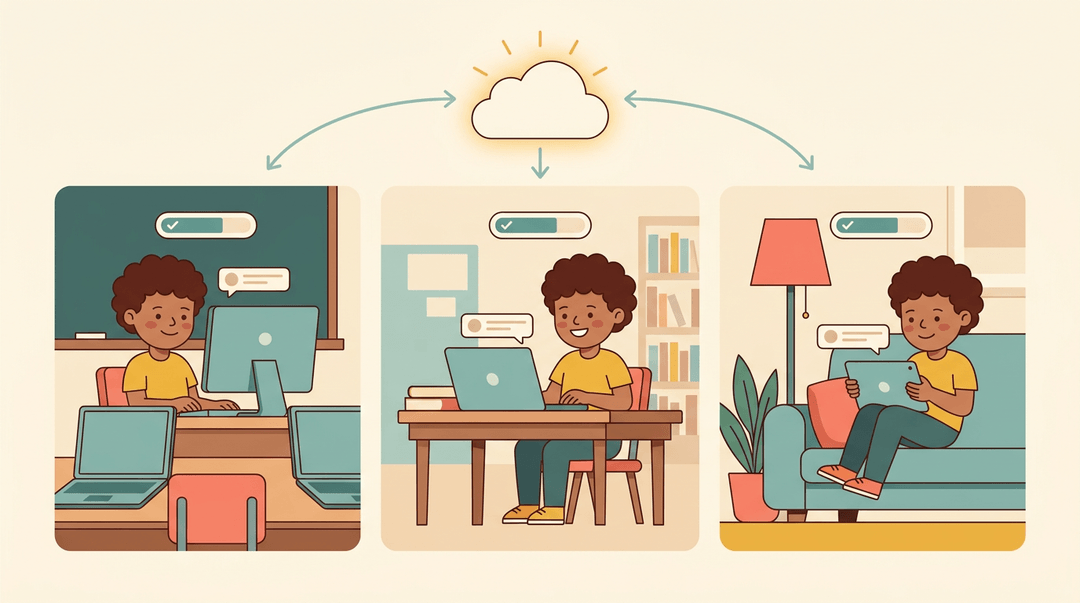
If your students move between a classroom desktop, a library laptop, and a tablet at home, look for cloud-based sync. Their progress follows them from device to device. A customizable dashboard lets you tailor the view to whatever you track.
Consider a fourth-grade teacher whose class shares six laptops. Without accounts, every child starts from zero each session. With a free account, each student picks up where they left off, and she spends less time re-explaining the same starting point.
Comparing free and paid typing programs
Some platforms are completely free, which makes them the easiest place to start. Premium versions often remove ads and add extras. Subscription or license pricing varies, so check whether it's billed per student, per class, or per school.
Also look for money-back guarantees, so you can test a paid program before it becomes a sunk cost.
The real question isn't whether a program is free. It's whether it's worth your class's time.
Keeping the experience ad-free and distraction-free
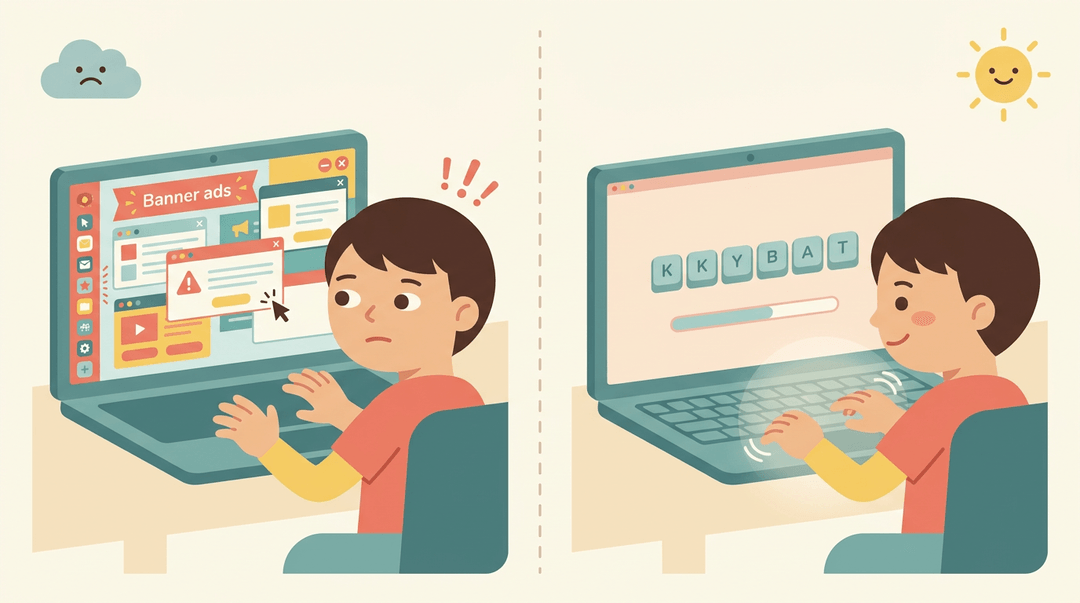
A clean, no-ads interface keeps students focused on the keys instead of the banners. Ads often appear in free versions, and a flashy sidebar can pull a young typist away from the lesson. Safety matters too.
Choose a program that protects students from inappropriate clicks, so their practice stays on task.
Focus is the lesson.
Offline versus cloud-based access
Cloud-based access lets students practice anywhere with an internet connection. An offline software option works without one, so a lunch-hour session doesn't depend on the Wi-Fi cooperating.
A single workstation install may suit a computer lab or one device better than a subscription that covers every machine.
Think about where your students actually type. The answer usually tells you which model fits.
Creating custom typing lessons
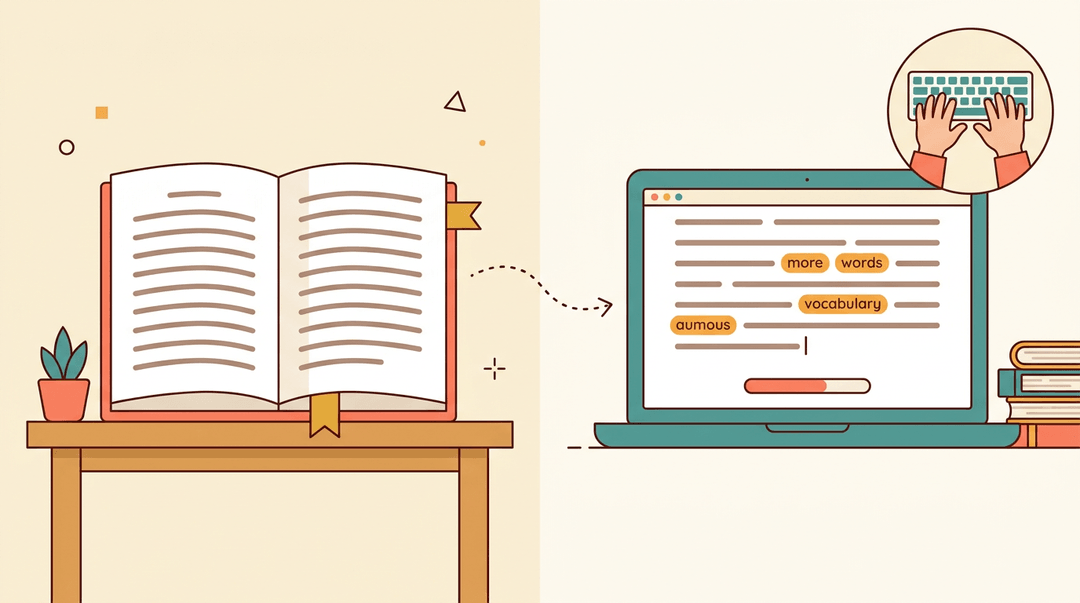
Some tools let you import your own text, including ebooks, so students type passages from the novel you're reading. You can also create custom lessons from scratch.
Instructor-created video tutorials can demonstrate proper hand position before students begin.
For example, a seventh-grade ELA teacher imports the chapter her class is reading this week. Typing practice doubles as vocabulary review, and the words students practice are the ones they're already learning.
Specialized Typing Skills and Layouts
Not every typist needs the same keyboard or the same skills. This section covers alternative layouts and advanced practice for students with specific goals.
Exploring alternative keyboard layouts
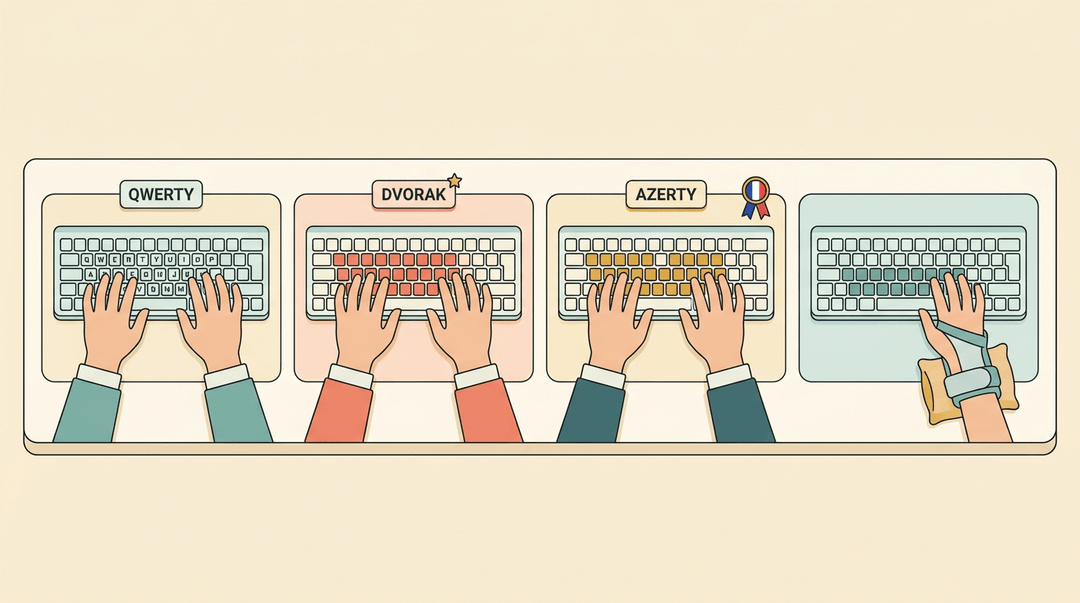
Dvorak is an alternative layout designed to put the most common letters under the strongest fingers. It's an optional extension for curious students, not a replacement for the core lessons.
Keyboards in other languages add their own arrangements. AZERTY, common in French-speaking regions, moves several letters, so a student from that background may already have different muscle memory.
Check what your students use at home before assuming everyone starts from the same place.
Hand-specific plans help too. Picture a student recovering from a wrist injury who can only use one hand for now. Drill that hand's home row first, then add the other side as it heals. Pacing matters more than speed.
Advanced typing skills for specific needs
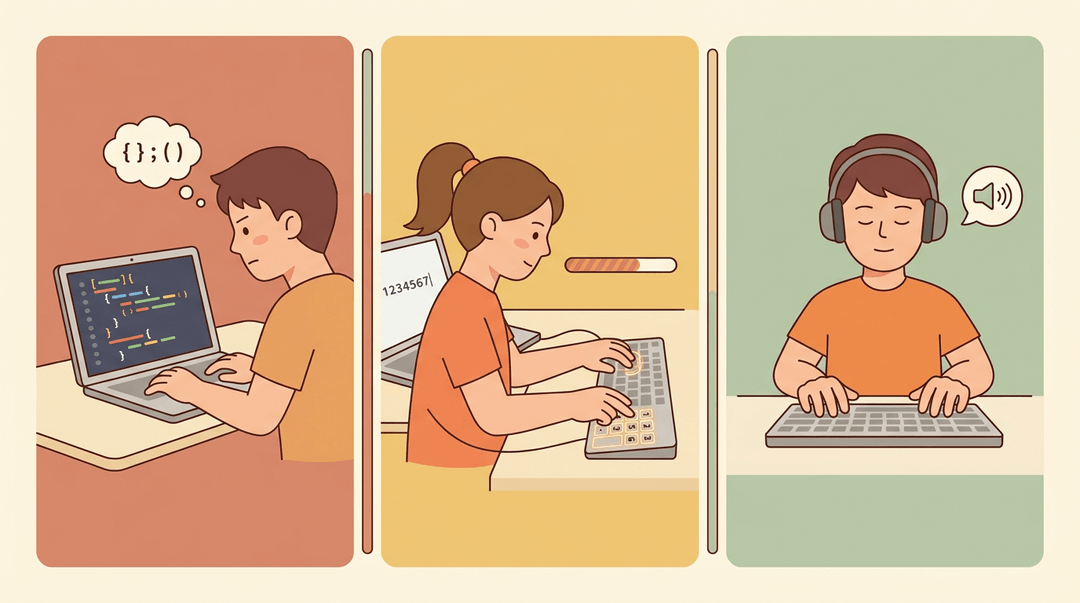
- Coding typing drills focus on the symbols, brackets, and indentation that slow down programmers. A student in an introductory coding class might practice short code snippets until punctuation feels as natural as letters.
- Numeric keypad practice, often called 10-key, matters for students headed toward bookkeeping, data entry, or retail. Start with home position on the keypad, then build speed on short number strings.
- Transcription practice trains students to type while listening. Consider a business class student who types from a recording. Short timed clips build listening and typing rhythm together.
Typing works best when it's taught with a plan, not left to chance. When you build solid fundamentals, track progress honestly, and keep students engaged, the skill sticks.
Every learner gets a path that fits them, and that makes a real difference in what they can do.
Ready to put this into practice? Check out our Lesson Planner, an all-in-one online planner where you can write, organize, and reuse typing lessons across multiple classes.
References
- Keyboarding — nysed.gov
- Typing Proficiency and Its Relationship to Outcomes in Online Writing Assessments — scholarworks.utrgv.edu (2026)
- A comparison of the effects of various performance feedback presentations on typing accuracy and speed: Journal of Organizational Behavior Management: Vol 41 , No 4 — tandfonline.com (2021)
- An Approach To Keyboarding Skills: A Panacea For Speed And Accuracy — doi.org (2010)
- Students who use keyboards in exams get better scores, research finds | Exams — theguardian.com (2025)
Frequently asked questions
What is the best typing test website?
There is no single best typing test website for everyone. Choose one with periodic tests, placement tests, progress reports, statistics, and useful milestones such as certificates or badges, then compare a few options based on your needs.
Is it possible to learn typing at home?
Yes, you can learn typing at home without a formal course. Consistent, short practice sessions, a structured program, and attention to posture and accuracy can help the skill become automatic.
Is typing 37 WPM good?
A speed of 37 WPM can be good, depending on your age, experience, accuracy, and starting point. The most useful measure is whether it is faster and more accurate than your earlier results.
At what age should kids learn typing?
Kids can begin becoming familiar with letters and keyboards in kindergarten through second grade without timed drills. More formal touch-typing instruction often develops in grades 3 to 5, then progresses toward speed, accuracy, and real-world proficiency in later grades.