Random Group Generator
Paste your class list and split it into random or balanced groups, with rules for who works together. Free in your browser, no sign-up.
100% freeNo sign-up neededKeeps pairs apart
Students
24 students. Names stay in this browser.
Groups
Split by
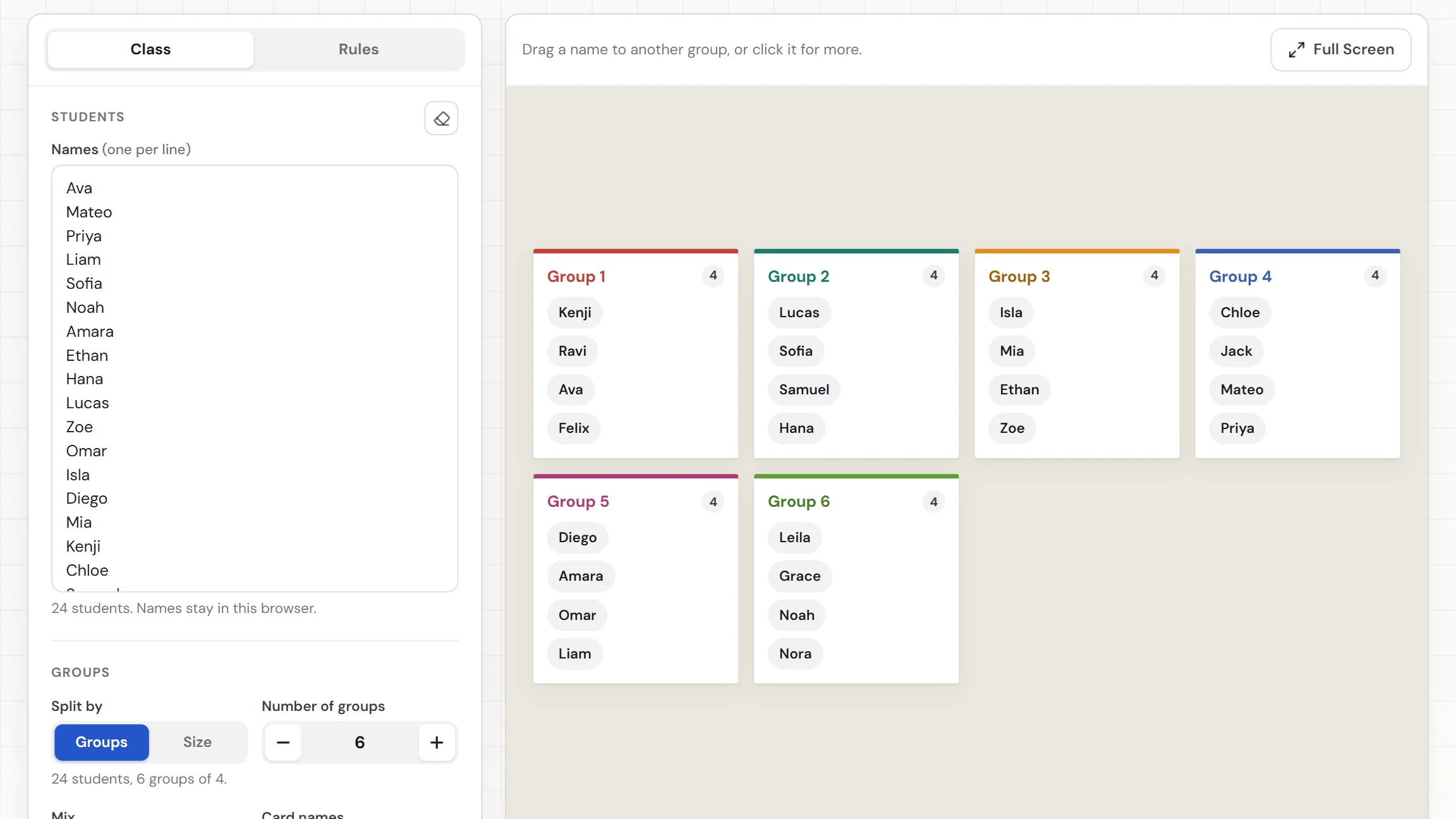
24 students, 6 groups of 4.
Mix
Anyone can end up with anyone.
Away Today
Tap a name to leave that student out today.
Keep Apart
These two never share a group.
Keep Together
These two always share a group.
Group Leader
One student in each group gets a star, picked at random.
4 students
4 students
4 students
4 students
4 students
4 students
What is a random group generator?
A random group generator splits a class list into groups so you do not have to. You type or paste the names, choose how many groups you want or how many students go in each, and press Make Groups. Every group appears on its own slip with a name, a head count, and its students. You can keep two students apart, keep two together, leave out anyone who is away, and give each group a leader. Nothing to install, nothing to sign up for.
When do you split a class into groups?
Any time a class works in groups and you would rather not pick them by hand. Three moments where a quick shuffle helps:
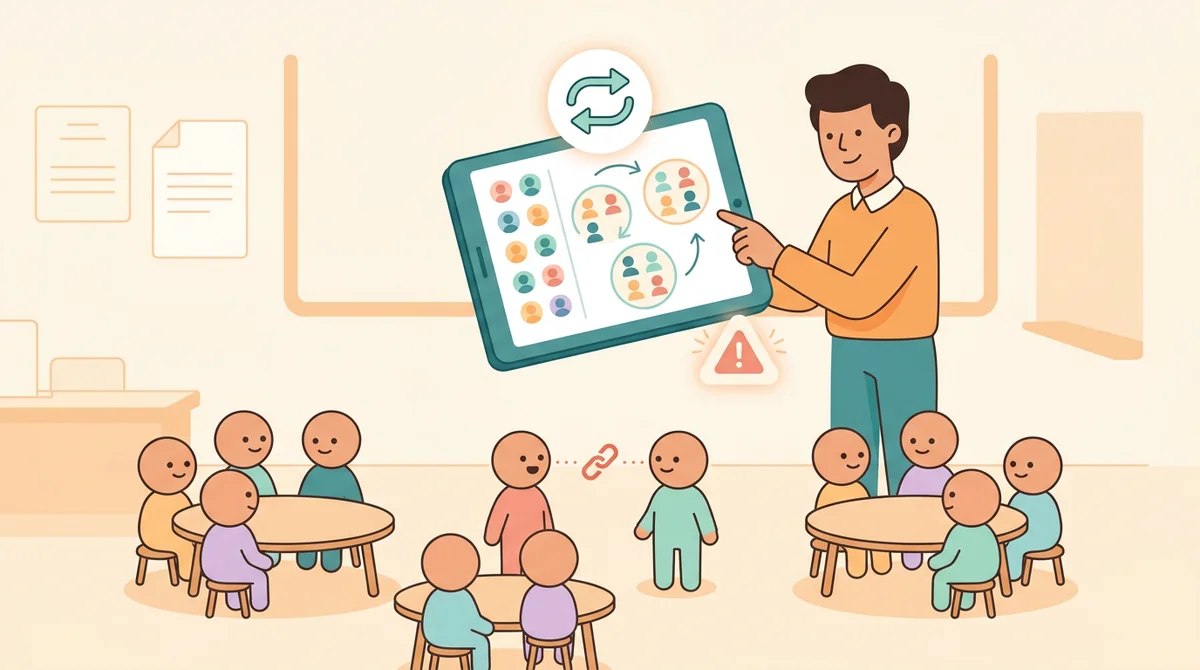
Group projects and lab work
Paste the class list, choose a group size, and deal the groups in seconds. If two students work badly together, add them to Keep Apart first. The tool tells you if a rule cannot be kept, so you know before anyone sits down.
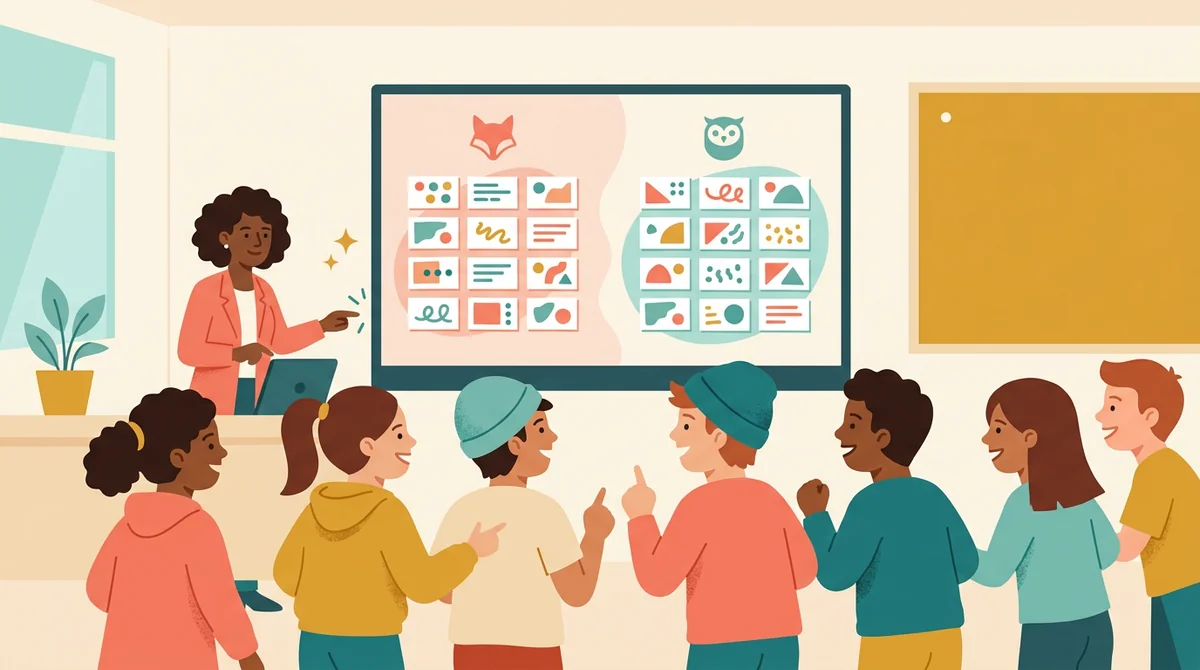
Review games and team contests
Use it as a random team generator for a review game. Give the teams names like Foxes and Owls, press Full Screen, and the slips fill the board so everyone can see where to go from the back of the room.
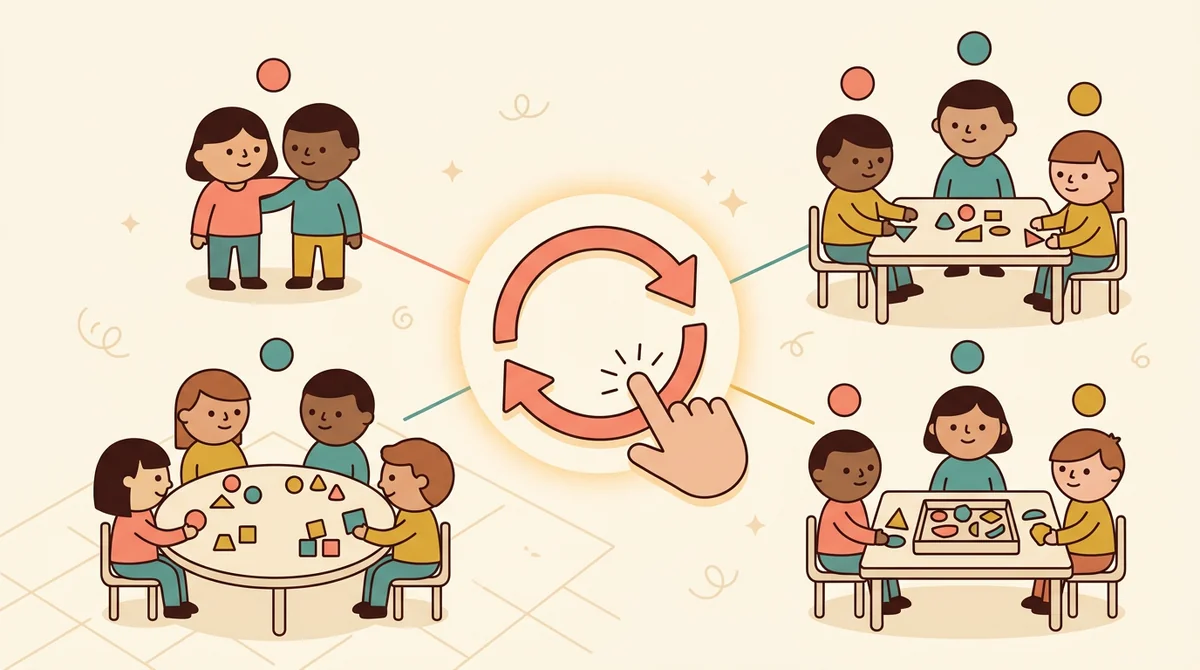
Pairs, stations and centers
Set Split by to Size and the number to 2, and the class splits into pairs. Choose a number of groups instead and each one can become a station or a center. Press Shuffle for a fresh split on another day.
Core features of
a random group generator
A good group generator takes a class list and gives you groups you can use right away. Here is what this one does, from the first name to the printed page.
Type or paste your class list
Put one name on each line, up to 200 students. The page opens with a sample class so you can see how it works. A line under the box counts your students, and your names stay in this browser.
- One name per line, up to 200
- A sample class is already there
- Clear the box, then press Undo
Your class list, counted
Split by groups or by size
Under Split by, choose Groups for a number of groups from 2 to 50, or Size for students per group from 2 to 20. When students are left over, pick Smaller Groups or Larger Groups. One sentence states the result.
- Number of groups or students per group
- Choose Smaller Groups or Larger Groups
- A sentence says, for example, 6 groups of 4
Groups of any number
Mix at random or balance by label
Random lets anyone end up with anyone. Choose Balanced and add a label after a name with a comma, like Ava, 2. Each group then gets an even share of every label. Labels never show on the groups.
- Random, or Balanced by label
- Add a label after a comma
- Labels stay off the group slips
Balanced by a label
Rules for who works together
Open the Rules tab to mark students away for the day, choose pairs for Keep Apart or Keep Together, and switch on Group Leader. Each pair is listed, and you can remove it any time.
- Away Today leaves students out
- Keep Apart and Keep Together pairs
- A star marks each group's leader
Pairs to keep apart
Fix any group by hand
Drag a name to another group, or click it for a small menu to move it or make it the leader. On a phone or tablet, tap a name to move it. Click a group's name to type your own.
- Drag a name to another slip
- A menu moves a name or makes a leader
- Type over any group's name
Drag a name across
How to make
random groups
Five steps from a class list to groups on the board, and typing the names is the longest part.
Type your class list
Put one name on each line, or paste a list from a document. The sample class is in the box to start, and the clear button empties it if you want your own. Undo brings it back.
Clear it, type your own
Choose how to split
Under Split by, pick Groups or Size, then use the stepper to set the number. If students are left over, choose Smaller Groups or Larger Groups. The sentence beneath shows the result.
Size and leftovers
Press Make Groups
Before you press it, the slips show empty places. Make Groups deals the names. Add Rules first if some students should be apart, together, or out for the day.
Empty slips, then deal
Shuffle or adjust
The button now reads Shuffle and deals a new set of groups. Not happy with one placement? Drag the name to another slip, or click it to move it or make it the leader.
Shuffle for a new set
Copy, print, or show it
Press Copy to paste the groups as text, Print to send them to the printer, or Full Screen to fill the screen with the slips. Shuffle and Exit Full Screen are there too.
Copy as text
That's the whole class split
Type the names once, and deal new groups whenever you need them. The generator is at the top of this page.
Make Groups
Get started in under 5 minutes.
Sign up and walk through the onboarding tutorial. By the end you've got your classes set up and you're ready to plan your first lesson. No credit card required.
Get Started for FreeBuilt for the classroom
More than a name shuffler
A plain shuffle ignores who is absent and who cannot work together. This one takes those into account, tells you when it cannot, and lets you fix the result by hand. It runs in any browser, including a locked-down school laptop.
It tells you when a rule fails
If a pair cannot be kept, for example with too few groups, a Not kept label appears beside the rule and a note names the pair on the desk.
It says when one fails
Away students in one tap
Open Away Today, tap the names of students who are out, and they are left out of the groups. All Here brings everyone back.
Tap the absent names
A leader in every group
Switch on Group Leader and the tool puts a star by one student in each group, chosen at random. Click a name to move the star.
A star for each leader
Names for your groups
Card names can be Numbers, Letters, Colors, or Animals, each with its own color on the slip. Type over any name to use your own.
Animal names for teams
Type your own group names
Click a group's title on its slip and type your own name for it, such as a table or a team name.
Type over any title
Fills the whole screen
Full Screen fills the display with the slips, as large as the screen allows, with Shuffle and Exit Full Screen at hand.
Slips fill the screen
Who is the group generator for?
Anyone who divides people into groups and wants it quick and fair. If you usually count off by hand or draw names from a cup, it is for you.
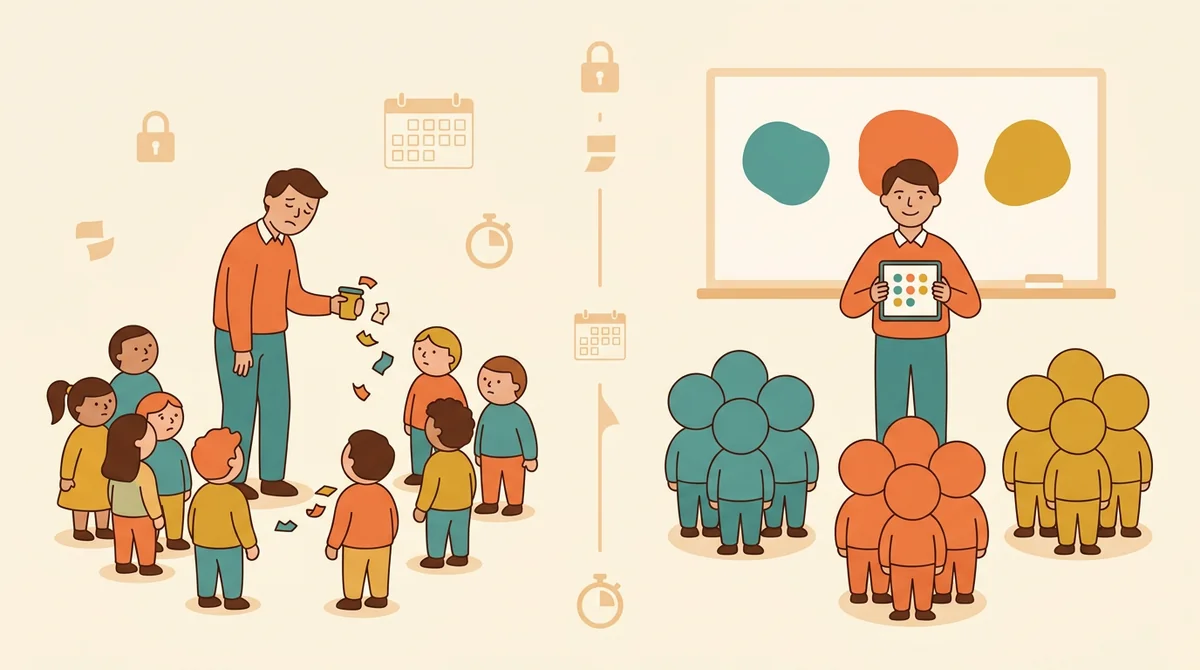
Classroom teachers
Group work, stations, lab partners, and team games. Paste the class list, keep the pairs apart that need it, and put the groups on the board.
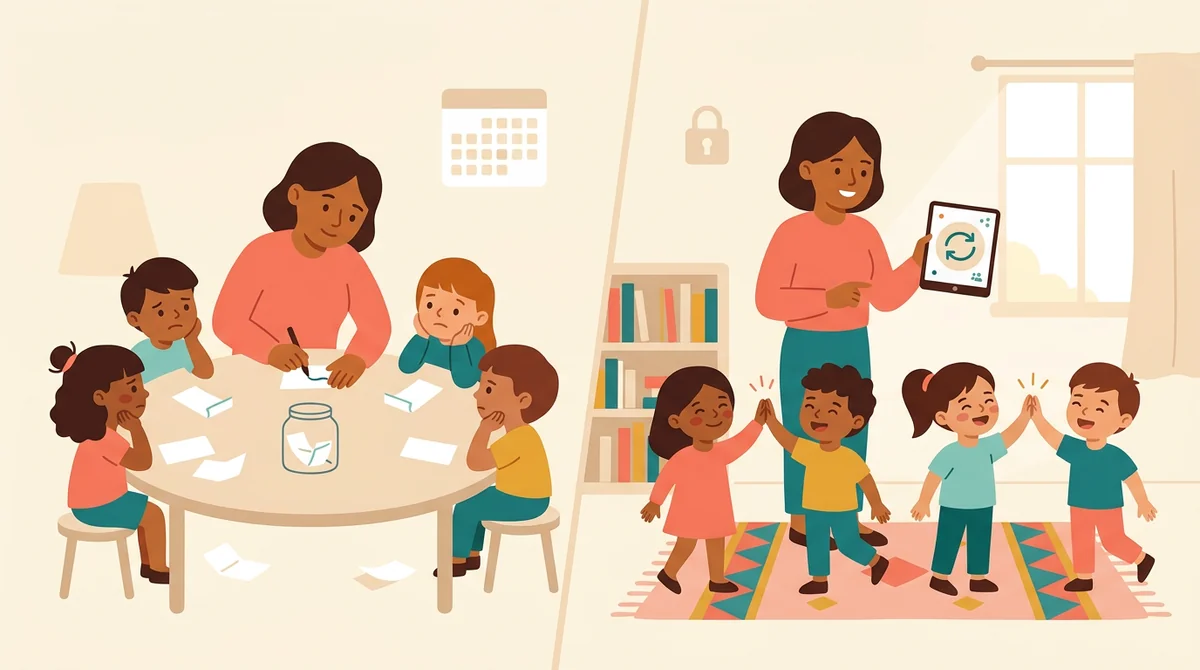
Tutors and homeschool parents
Split a small class or a co-op into teams for a game or a project. Use a group size of 2 for pairs, and shuffle again when you want a new mix.

Coaches and club leaders
Divide a club, a workshop, or a practice into balanced teams. Add a label after a name, like a skill level, and each team gets an even share.
How EMStudio's group generator is different
Many group makers only shuffle a list. This one also leaves out students who are away, keeps chosen pairs apart or together, and lets you change the result by hand.
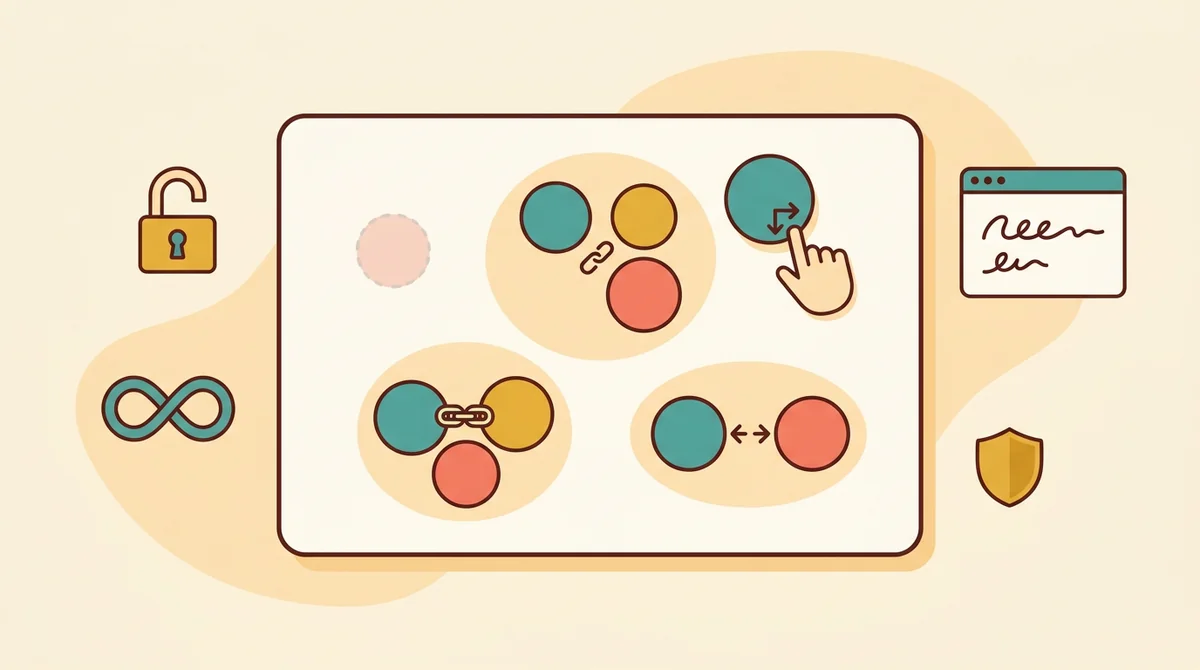
Free, with nothing held back
Every setting, rule, and the Full Screen view work without an account, a trial, or a daily limit. The names stay in your browser and nothing is sent anywhere.
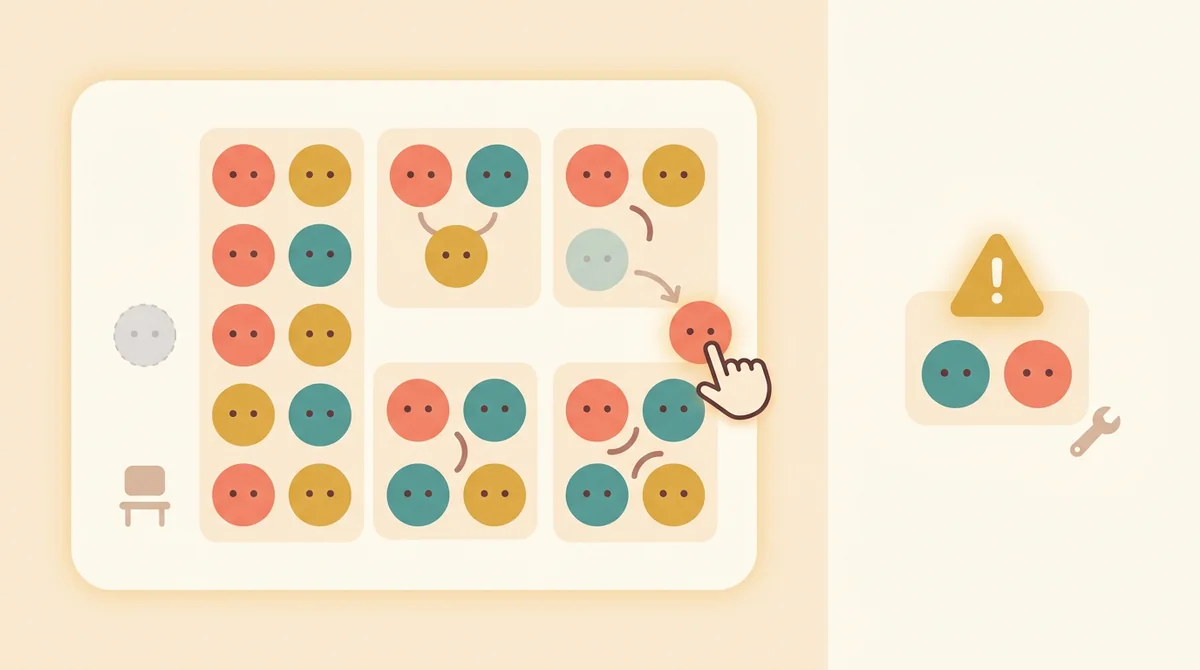
Rules that say when they fail
Keep Apart and Keep Together do not promise the impossible. If a rule cannot be kept, the tool names the pair, so you can change a setting or move a name yourself.

Part of a classroom management app
EMStudio's classroom management app keeps your class rosters, attendance, and seating in one account. This free page does not save groups to a class, and the app is where the class itself lives.
More free teacher tools
FAQ
Try EMStudio today.
Create your first class, build a lesson, and take attendance all in under five minutes.
No credit card required.
Get Started for FreeGood morning, Sarah
You have 3 lessons and 2 tasks today.
LessonsThis Week
Cell Division & Mitosis
Biology9:00 AM
Quadratic Equations
Algebra II10:30 AM
The Industrial Revolution
World History1:15 PM
Class average
88%B+
+4% this term
Students
ECLROPNB+19
across 5 classes
Today's tasks
Grade lab reports
Email Mr. Chen